---
title: Slices
description: Slices
---
[Skip to content](https://knowledge.acquiredigital.com/slices#main-content)
English
Show submenu for translations
[More support](https://knowledge.acquiredigital.com/kb-tickets/new?hsLang=en) [Support Portal](https://knowledge.acquiredigital.com/support?hsLang=en)

Open main navigation
Close main navigation
- English
Show submenu for translations
- [More support](https://knowledge.acquiredigital.com/kb-tickets/new)
- [Support Portal](https://knowledge.acquiredigital.com/support)
- Contact us
Contact us
How can we help you?
- There are no suggestions because the search field is empty.
1. [Acquire Digital Knowledgebase](https://knowledge.acquiredigital.com/?hsLang=en)
2. [StudioDX & DX Player](https://knowledge.acquiredigital.com/studiodx-dx-player?hsLang=en)
3. [Setup App](https://knowledge.acquiredigital.com/studiodx-dx-player?hsLang=en#setup-app)
# Slices
## To use slices
Ensure Mappings is on in the [**player settings**](https://knowledge.acquiredigital.com/dx-player-settings?hsLang=en)settings, then enable **"Edit Slices"** in the source work canvas.
The Player will draw content to you sources as defined in the playlist.
Internally this is drawn to an **"source canvas"** which it then shown on your monitors.
Slices allow you to go a step further and copy a "slice source" (an area on that canvas) to a "slice destination" (an area on a monitor).
Add a slice by clicking on either work canvas and then pressing the **"Add"** Tool Button  , or right-clicking on the work canvas and selecting from the context menu.
A slice source (area of copied from the sources canvas) is shown in the sources work space, and the slice destination (where that copied area if shown on the monitor) is shown in the monitors work space.
The source, and it destination have the same colour in this app for easy identification.
**Slice Source**
**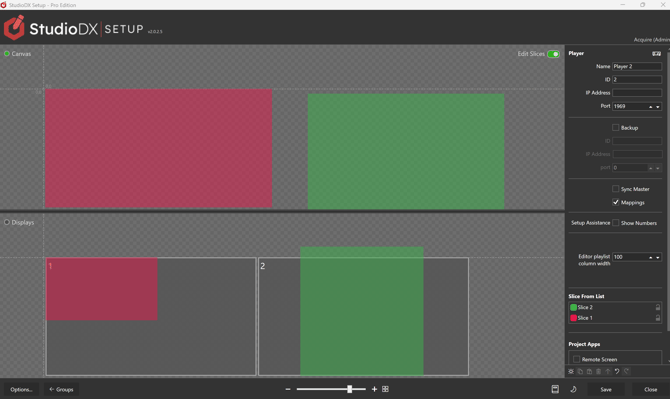**
Move and size the slice source in the work canvas, or in the settings panel.
Give the slice source a unique name.
**Tip** - To avoid accidental changes, you can lock slice sources in the Slice Sources list.
**Slice Destination**
**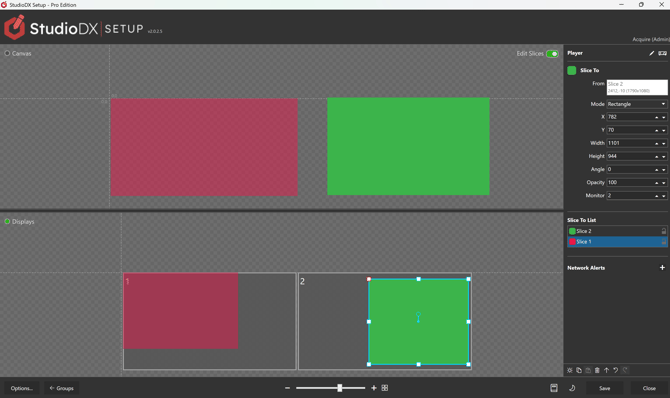**
Slice Destinations are right-angled **Rectangles** by default.
Move, size and rotate the slice destination in the work canvas, or in the settings panel.
You can also set the slice destination's opacity.
All slice destination positions are relative to the monitor that are to be drawn to.
**Tip** - You can copy\\paste a slice destination.
This means one slice source can be pasted to multiple destinations.
**Tip** - To avoid accidental changes, you can lock slice destinations in the slice destinations list.
**Tip -** To help with alignment, hold down the control key while moving slice destinations to snap them to the nearest monitor when they are close. This only works with non-rotated slice destinations
You can change the **Mode** of the Slice Destination to **Freeform**.
This allows you to make the slice an irregular quadrilateral by moving its four vertices.
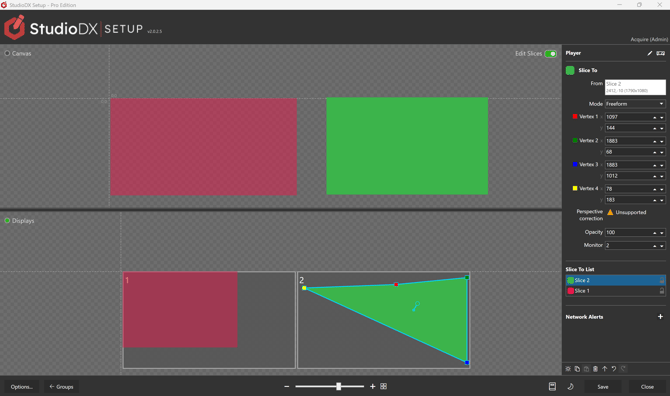
- In this mode holding down the **control key** while moving the slice, or one of its vertices, will snap vertices to other freeform slice vertices. **NB** freefrom slices only snap to each other, not to rectangle slices or monitors.
- Snapping vertices together "**links**" them. Moving a "linked" slice, or one of its vertices, will also move the vertices of other freeform slices it is linked to.
- Holding down the **shift key** while moving a freeform slice will move all other slices linked to it instead of just moving the linked vertices.
- To "**un-link**" freeform slices hold down the **control key** to enter snapping mode while moving the slice or one of its vertices.
- Freeform slices are not allowed to go **"bow-tie"** shaped (where two sides cross resulting in two triangles).
**NB** If the selected slice is part of a group of linked slices, and changing it makes another slice in that group go bow-tied, the selected one will become un-linked from that group.
- [Software Installers](https://knowledge.acquiredigital.com/software-installers?hsLang=en)
- [StudioDX & DX Player](https://knowledge.acquiredigital.com/studiodx-dx-player?hsLang=en#main-content)
- [Studio DX FAQ's](https://knowledge.acquiredigital.com/studiodx-dx-player?hsLang=en#studio-dx-faqs)
- [Acquire StudioDX User Documentation](https://knowledge.acquiredigital.com/studiodx-dx-player?hsLang=en#acquire-studiodx-user-documentation)
- [User Guide](https://knowledge.acquiredigital.com/studiodx-dx-player?hsLang=en#user-guide)
- [Widgets](https://knowledge.acquiredigital.com/studiodx-dx-player?hsLang=en#widgets)
- [Transitions](https://knowledge.acquiredigital.com/studiodx-dx-player?hsLang=en#transitions)
- [Warning Alerts](https://knowledge.acquiredigital.com/studiodx-dx-player?hsLang=en#warning-alerts)
- [Setup App](https://knowledge.acquiredigital.com/studiodx-dx-player?hsLang=en#setup-app)
- [Project Apps](https://knowledge.acquiredigital.com/studiodx-dx-player?hsLang=en#project-apps)
- [StudioDX Stream Deck Plugin](https://knowledge.acquiredigital.com/studiodx-dx-player?hsLang=en#studiodx-stream-deck-plugin)
- [XML Formats](https://knowledge.acquiredigital.com/studiodx-dx-player?hsLang=en#xml-formats)
- [Acquire Wayfinder](https://knowledge.acquiredigital.com/acquire-wayfinder?hsLang=en#main-content)
- [Map Editor - Atlas](https://knowledge.acquiredigital.com/acquire-wayfinder?hsLang=en#map-editor-atlas)
- [Devices](https://knowledge.acquiredigital.com/acquire-wayfinder?hsLang=en#devices)
- [CMS User Management](https://knowledge.acquiredigital.com/acquire-wayfinder?hsLang=en#cms-user-management)
- [Project Settings](https://knowledge.acquiredigital.com/acquire-wayfinder?hsLang=en#project-settings)
- [The Map Editor](https://knowledge.acquiredigital.com/acquire-wayfinder?hsLang=en#the-map-editor)
- [JS Web Map UI V2.0](https://knowledge.acquiredigital.com/acquire-wayfinder?hsLang=en#js-web-map-ui-v2-0)
- [JS Web Map API V2.0](https://knowledge.acquiredigital.com/acquire-wayfinder?hsLang=en#js-web-map-api-v2-0)
- [JS Web Directory API V1.0](https://knowledge.acquiredigital.com/acquire-wayfinder?hsLang=en#js-web-directory-api-v1-0)
- [Wayfinder Map API](https://knowledge.acquiredigital.com/acquire-wayfinder?hsLang=en#wayfinder-map-api)
- [Broadsign Integration](https://knowledge.acquiredigital.com/acquire-wayfinder?hsLang=en#broadsign-integration)
- [Adverts Plugin](https://knowledge.acquiredigital.com/acquire-wayfinder?hsLang=en#adverts-plugin)
- [Wayfinder FAQs](https://knowledge.acquiredigital.com/acquire-wayfinder?hsLang=en#wayfinder-faqs)
- [Beacon](https://knowledge.acquiredigital.com/beacon?hsLang=en#main-content)
- [Devices](https://knowledge.acquiredigital.com/beacon?hsLang=en#devices)
- [Layouts](https://knowledge.acquiredigital.com/beacon?hsLang=en#layouts)
- [Information Displays](https://knowledge.acquiredigital.com/beacon?hsLang=en#information-displays)
- [Playlists](https://knowledge.acquiredigital.com/beacon?hsLang=en#playlists)
- [Project Settings](https://knowledge.acquiredigital.com/beacon?hsLang=en#project-settings)
- [Activity Logs](https://knowledge.acquiredigital.com/beacon?hsLang=en#activity-logs)
- [Acquire DOOHAD](https://knowledge.acquiredigital.com/acquire-doohad?hsLang=en#main-content)
- [DOOHAd Standalone Installer & Advert Configuration Tool](https://knowledge.acquiredigital.com/acquire-doohad?hsLang=en#doohad-standalone-installer-advert-configuration-tool)
- [DooHad FAQs](https://knowledge.acquiredigital.com/acquire-doohad?hsLang=en#doohad-faqs)
- [Acquire Vision User Guide](https://knowledge.acquiredigital.com/acquire-vision-user-guide?hsLang=en)
- [Acquire StudioDX & Wayfinder Trial Install Guides](https://knowledge.acquiredigital.com/acquire-studiodx-wayfinder-trial-install-guides?hsLang=en#main-content)
- [Acquire Wayfinder Trial](https://knowledge.acquiredigital.com/acquire-studiodx-wayfinder-trial-install-guides?hsLang=en#acquire-wayfinder-trial)
- [Acquire StudioDX Trial Installation Guide](https://knowledge.acquiredigital.com/acquire-studiodx-wayfinder-trial-install-guides?hsLang=en#acquire-studiodx-trial-installation-guide)
- [Acquire Assist](https://knowledge.acquiredigital.com/acquire-assist?hsLang=en)
- [Acquire Premier](https://knowledge.acquiredigital.com/acquire-premier?hsLang=en#main-content)
- [Quick Start Guide.](https://knowledge.acquiredigital.com/acquire-premier?hsLang=en#quick-start-guide)
- [Acquire Editor User Guide](https://knowledge.acquiredigital.com/acquire-premier?hsLang=en#acquire-editor-user-guide)
- [Toolbox](https://knowledge.acquiredigital.com/acquire-premier?hsLang=en#toolbox)
- [The PLUS! Network](https://knowledge.acquiredigital.com/acquire-premier?hsLang=en#the-plus-network)
- [Acquire Site Manager](https://knowledge.acquiredigital.com/acquire-premier?hsLang=en#acquire-site-manager)
- [Apps & Helpers Manuals](https://knowledge.acquiredigital.com/acquire-premier?hsLang=en#apps-helpers-manuals)
- [Minute Master-Classes](https://knowledge.acquiredigital.com/acquire-premier?hsLang=en#minute-master-classes)
- [Acquire Editor FAQs](https://knowledge.acquiredigital.com/acquire-premier?hsLang=en#acquire-editor-faqs)
- [Acquire Player FAQs](https://knowledge.acquiredigital.com/acquire-player-faqs?hsLang=en)
- [Site Manager](https://knowledge.acquiredigital.com/site-manager?hsLang=en#main-content)
- [Site Manager User Guide](https://knowledge.acquiredigital.com/site-manager?hsLang=en#site-manager-user-guide)
- [Site Manager FAQs](https://knowledge.acquiredigital.com/site-manager?hsLang=en#site-manager-faqs)
- [Watchdog](https://knowledge.acquiredigital.com/watchdog?hsLang=en#main-content)
- [Watchdog User Guide](https://knowledge.acquiredigital.com/watchdog?hsLang=en#watchdog-user-guide)
- [Watchdog FAQs](https://knowledge.acquiredigital.com/watchdog?hsLang=en#watchdog-faqs)
- [FAQs](https://knowledge.acquiredigital.com/faqs?hsLang=en)
[](http://acquiredigital.com)
[mailto:email@email.com](mailto:email@email.com)
Copyright © 2026, Acquire Digital