
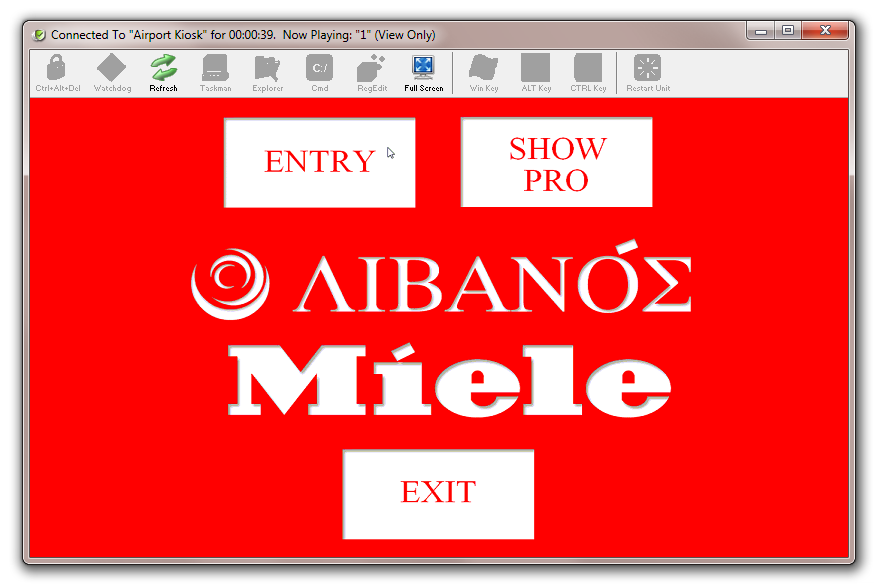
Remember that this is only a viewing option so you cannot interfere with the live unit (in this case a kiosk). Neither will the user of the kiosk be aware that anyone is viewing the screen.
Note: You will notice that most of the controls at the top of the screen, have been greyed out when you are just viewing
Interacting with a Live Unit
Note: At the remote site, the user of the unit will no longer be able to see your content – in the case of a kiosk, all touch-screen functionality will be disabled. Instead, viewers or users will see a default PLUS! Network logo; informing them that the unit is being serviced. If you wish to use your own graphic then it must be a bitmap file (.bmp) and can either be installed on the unit when it is commissioned or added later using the Site Manager.
If you choose the ‘Interact with Screen’ option then you will be presented with all of the options that were previously greyed out.

VERY IMPORTANT: Make sure that you do not have the Auto Close Mandatory Apps option ticked in System Watchdog. If you do then the user of you remote unit will see whatever is on the Windows desktop when you close your remote connection.
This default selection is deliberate because System Watchdog can be purchased as a standalone product and so field engineers need local access to Windows functions.
Switching off Auto Close Mandatory Applications
On the screen shown above, click on the Watchdog icon  .
.
This will bring up the Watchdog screen shown below.
Select ‘Mandatory Programs’ and deselect the ‘Auto Close Mandatory Apps’ option.
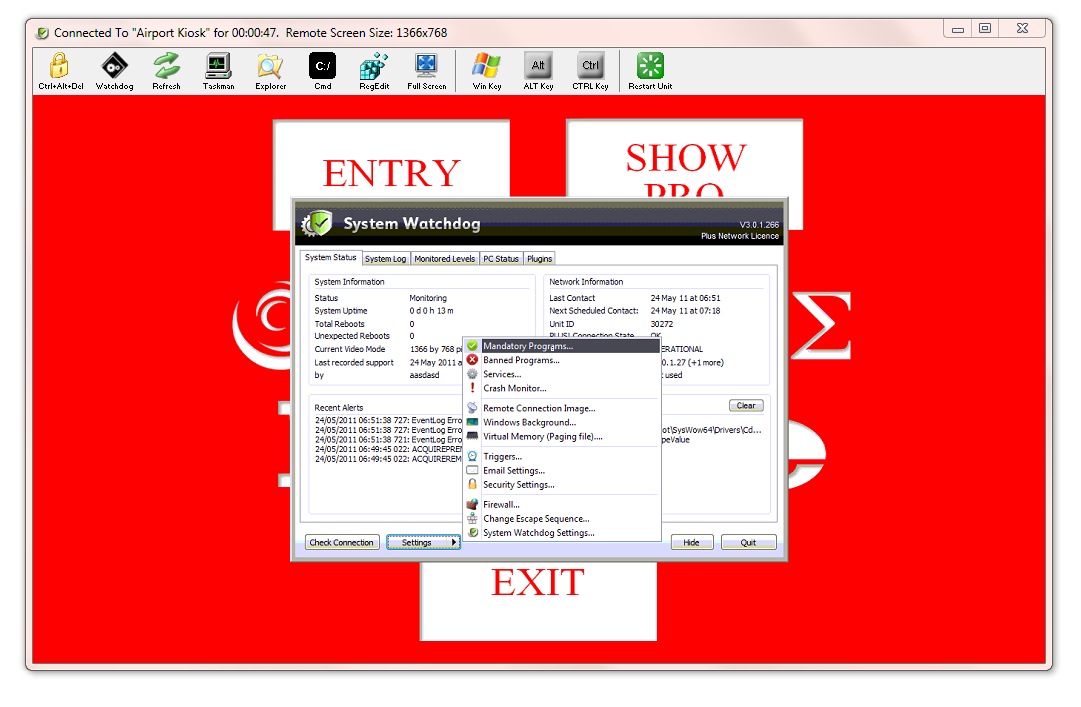
Then click on ‘OK’ and then click on ‘Hide’. You will be asked to type in your name and the reason you have accessed the unit. This information will be stored in the log files.