Skip to content
English
  • There are no suggestions because the search field is empty.

StudioDX Editor Installation

Install Acquire Editor on a PC that is on the same network as the players


Editor available HERE: Downloads
 

💡You must obtain a licence for the Acquire Editor and activate Acquire Advanced Editor before you can use it. Once licensed, the Acquire Advanced Editor will automatically download.

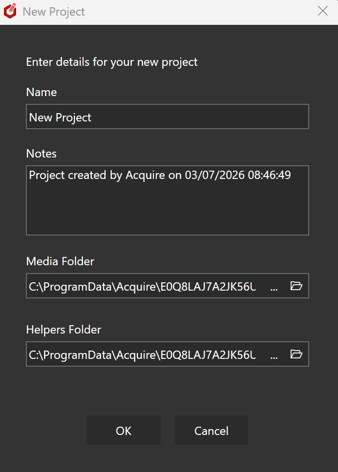
  • Install or create a project in the Acquire Editor. See: Create/Add a project

  • If not installing from the Acquire Advanced Editor installer, you may need to copy the following files to the Acquire Editor folder: (e.g. C:\ProgramData\Acquire\)

  • AcquireAdvancedEditor.exe

  • Microsoft.WindowsAPICodePack.dll
  • Microsoft.WindowsAPICodePack.Shell.dll
  • tras.dll

  • Acquire Media Player.exe

  • ffmpeg

  • {Acquire Folder}\codecs\ffmpeg\win64\
    AcquireAdvanced.user

💡Acquire Advanced.user is the user profiles file for logging in. It is initially empty. A version with a valid user must be obtained from Acquire.

  • Run the Acquire Editor & open your project.
  • From the Acquire Editor main menu, select Acquire Advanced Editor in Editor Features.
  • This will launch the Acquire Advanced Editor and allow you to edit the playlists in your project.

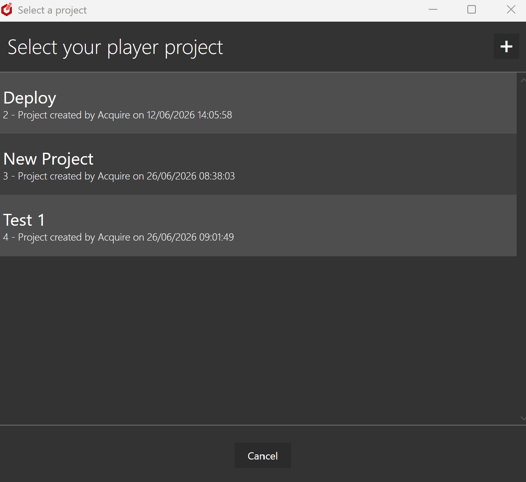
💡The Acquire Advanced Editor can also be run directly, instead of opening Acquire Editor. Run the AcquireAdvancedEditor.exe and select your project from the list.


💡When the Acquire Advanced Editor is run directly you can also pass a project ID as a command line switch. E.g. "AcquireAdvancedEditor.exe 21" This will automatically use the project with id 21, instead of you having to choose it from a list.