
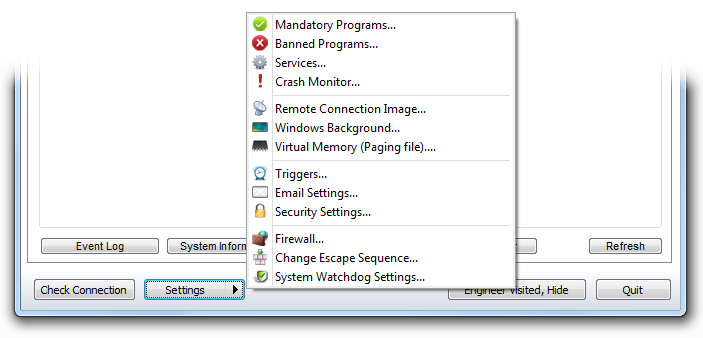
Mandatory Programs
A list of programs that you want to keep running.
These will be started at logon and re-launched should they unexpectedly close. You can also monitor them and perform actions if they crash, become unresponsive or use too many resources.
See: Crash Monitor section
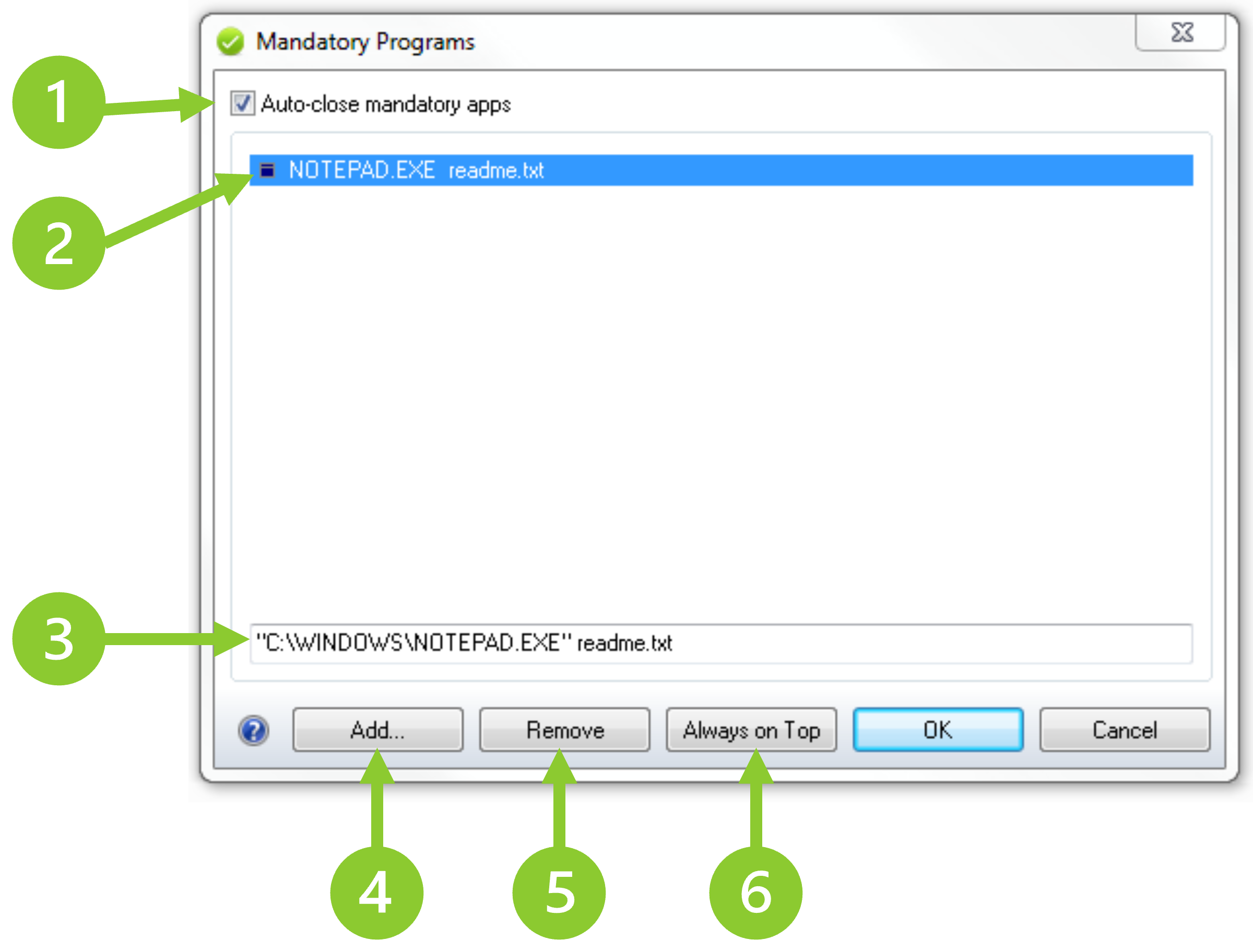
- If selected mandatory programs are closed when the control panel is invoked.
- A list of the mandatory programs. The icon denotes if this program should be Always on Top.
- Shows the program selected in the above list. You can modify this to add command line parameters.
- The Add button lets you browse to a program that you would like to add to the list.
- The Remove button removes the selected program from the list.
- The Always on Top button makes the selected program stay on top of other programs. Only one program can be set.
Banned Programs
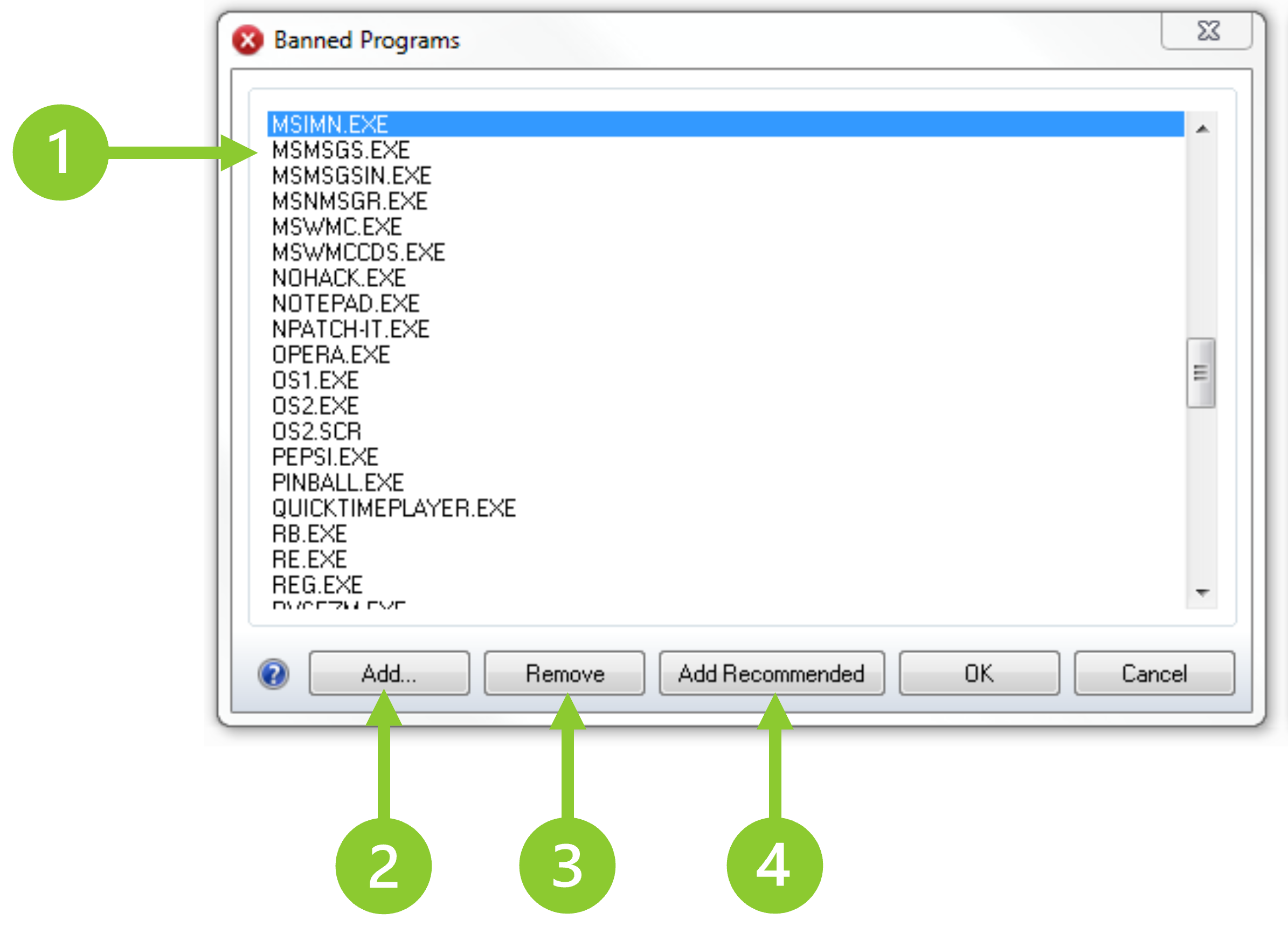
- A list of the banned programs.
- The Add button lets you browse to a program that you would like to add to the list.
- The Remove button removes the selected program from the list.
- The Add Recommended will add a list of default programs to your list.
Services
Allows you to manage currently installed services by making them mandatory or banning them. Mandatory services will be restarted if they are found not to be running. Banned services are stopped and disabled if they are found to be running.
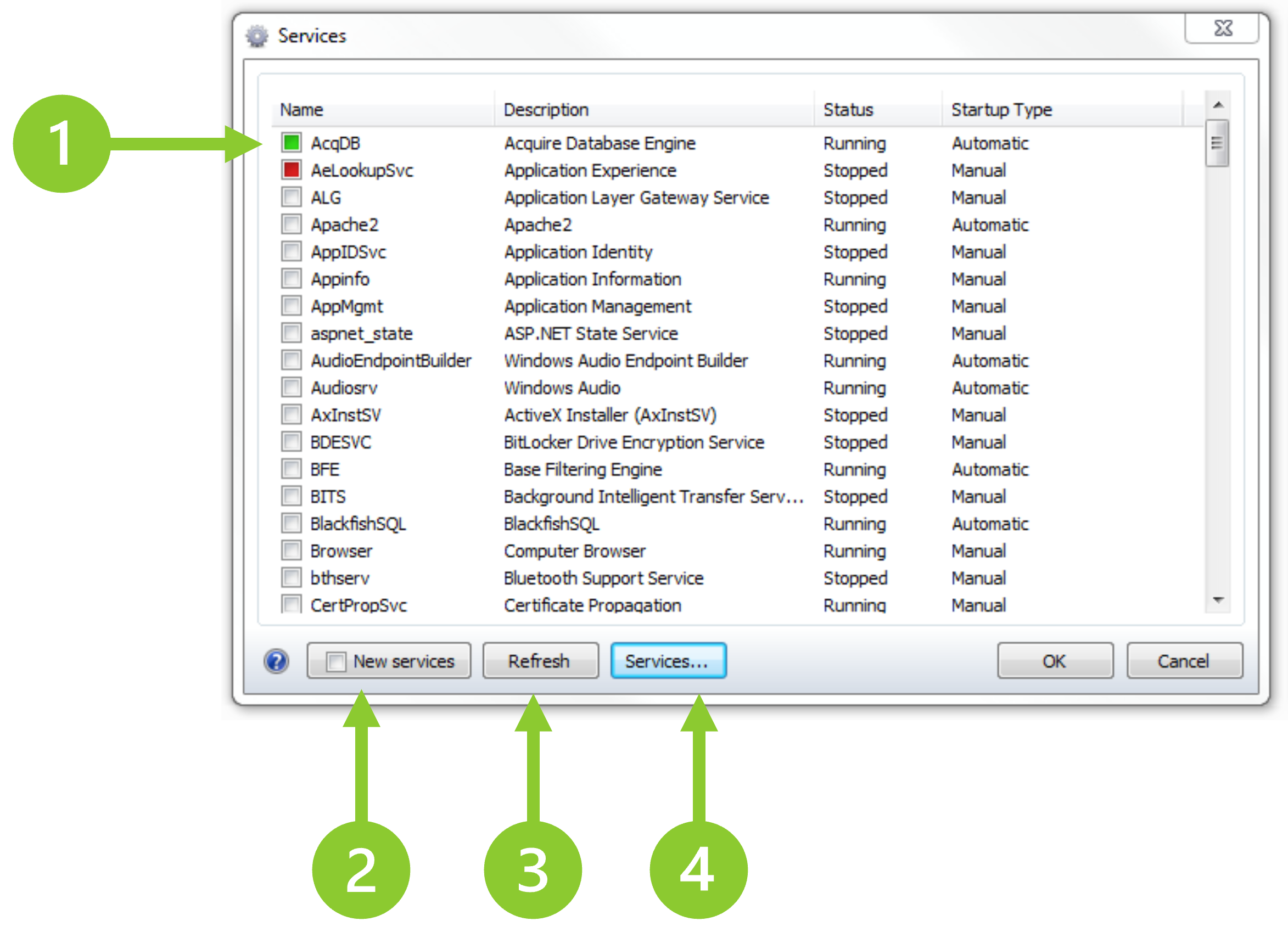
- A list of the currently installed services. Click a service’s checkbox to Start/Stop it or mark it as mandatory (green) or banned (red).
- Mark subsequently installed services as mandatory or banned.
- Update the list.
- Open the standard “Services” Windows interface.
Crash Monitor
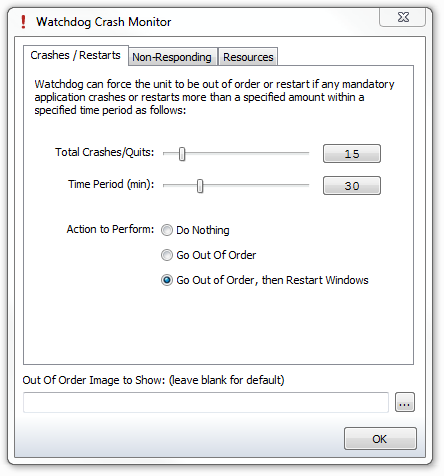
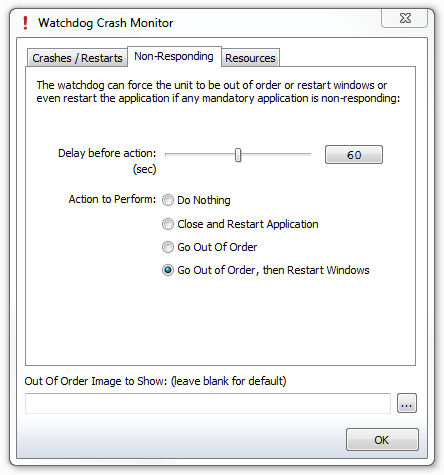
System Watchdog can monitor your mandatory programs and if one crashes, becomes unresponsive or uses too many resources can go “out of order”, restart the program or restart the PC.
Use the tabs on this screen to set this up:
Crashes/Restarts
If any mandatory program crashes/restarts more than the entered number of times, within the period, then the selected action will be performed.
Non-Responding
If any mandatory program becomes unresponsive for longer than the entered period then perform the selected action.
Resources
If any mandatory program uses more than the entered number of resources then perform the selected action.
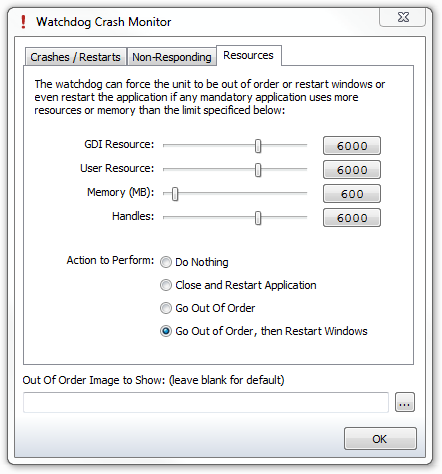
When the PC goes “Out Of Order” the PC monitors are blanked by the image entered in the box at the bottom of this screen and an alert will be sent via the Plus! Network.
Once the issue has been resolved by an engineer the Out Of Order image will be no longer be shown.
Remote Connection Image
Select the image that will blank the monitors while an engineer has connected to the unit using the Remote Desktop functionality. This should inform users of unit maintenance.
-
Windows Background
-
Select the image that will be used as the desktop background.
-
-
Firewall Settings
-
Use this screen to enable UPnP and/or automatically configure the windows firewall.
-
-
Change Escape Sequence
-
Use this screen to change the Escape Sequence that is used to invoke the System Watchdog control panel.
-
-
System Watchdog Settings
-
The Control Panel will automatically close if there has been no activity for the number of seconds entered here.
-
Virtual Memory
This tool is used to manage the paging file size of drives.
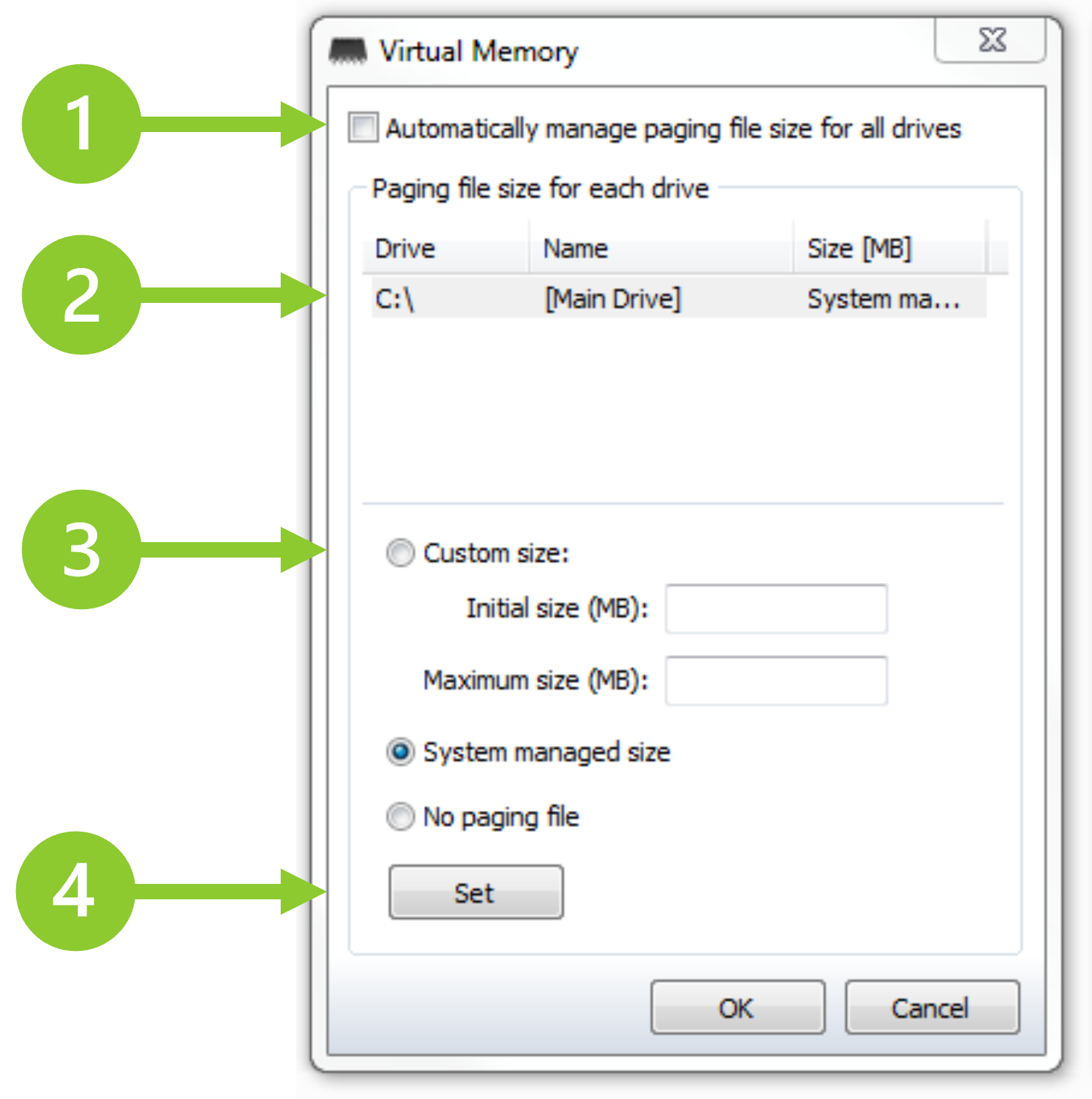
- Select this for the system to manage the paging file size on all drives.
- A list of the current drives that have paging files.
- If (1) is not selected this contains the paging file settings of the drive selected in the list (2). You can select the paging size of the drive, let the system manage it or have no paging file at all.
- Press this to commit the settings to the list. All changes will be applied to the actual disks when you press OK.
Triggers
System Watchdog can be set to trigger an Alert should certain criteria be met. Alerts are sent to the Plus! Network. Use this window to select the items that you want System Watchdog to monitor, and their trigger levels.
See: Appendix 1 – About Alerts.
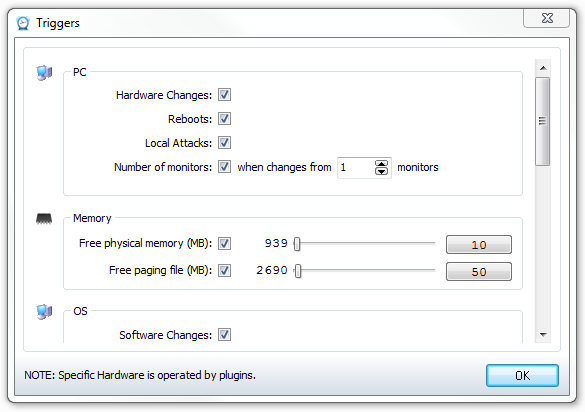
The items that System Watchdog can monitor and alert for are:
-
PC
-
Hardware changes
-
Reboots
-
Local Attacks (keyboard)
-
Monitor counts (when changes from a desired count)
-
-
Memory
-
Physical or paging size is less than the entered level.
-
-
OS
-
Software & services changes.
-
Windows Event Log errors.
-
-
Drives
-
Free space is less than the entered level.
-
-
S.M.A.R.T. Data
-
Available drive data (e.g. temperature) passes the entered level.
-
-
Printers
-
When a printer signals an error.
-
When there are stalled jobs in a print queue.
-
Tip: Items selected here are shown in the “Monitored Levels” information tab and Alerts are shown in the “Recent Alerts” area.
Email Settings
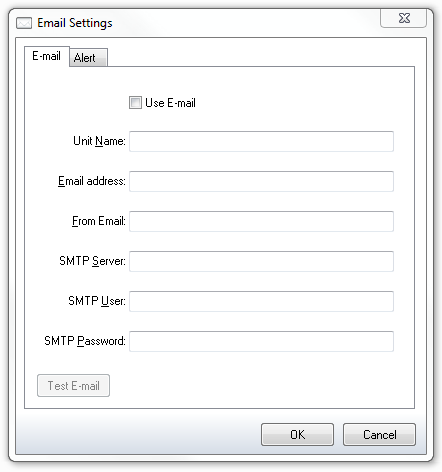
System Watchdog can send Alerts to an email address. Use the tabs on this screen to configure this.
Select to use e-mail and enter the unit name (to show in the e-mail), e-mail address (to send the alerts to) and your e-mail server details. You can press “Test E-mail” to make sure that the details are correct.
Alert
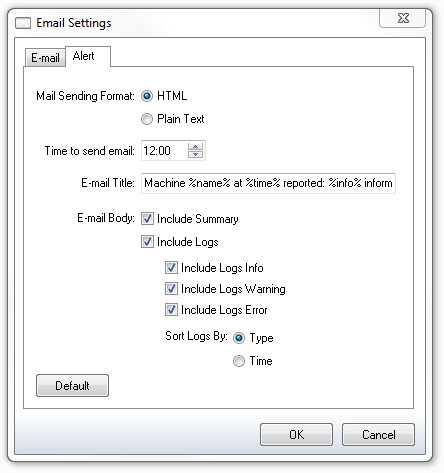
Use this tab to format your e-mail.
You can use the following tags in the title:
-
%name% - unit name entered on previous tab.
-
%time% - time reported.
-
%info%, %warning%,
-
%error% - number of information, warnings and errors in the e-mail.
Security Settings
Use this window to lock-down your machine by setting various Windows policies, adjusting your system settings, blocking mouse and key combinations and setting the unit to automatically logon.
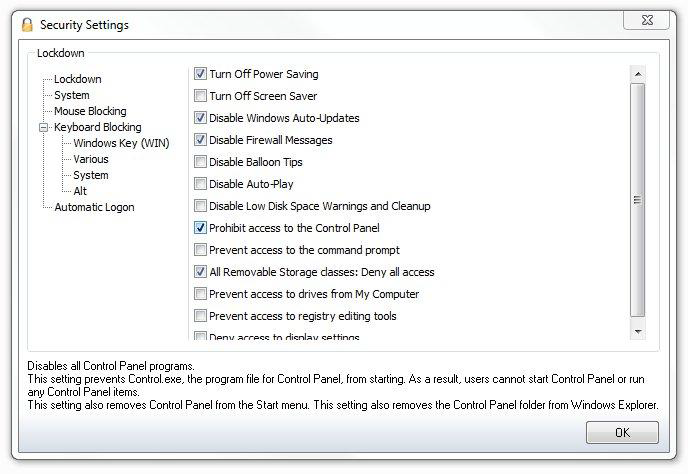
elect an item in the left-hand menu and then check the desired options in the panel on the right. Move the mouse over a setting for more detailed information to appear in the area at the bottom of the window.
-
Lockdown
-
This allows you to lock out user access to various parts of Windows and disable messages etc.
-
-
System
-
Adjust the system and even replace Windows shell altogether.
-
-
Mouse Blocking
-
Block mouse key input.
-
-
Keyboard Blocking
-
Block key or key combination presses
-
-
Automatic Logon
-
Select for the unit to automatically logon.
-
Enter the logon details of a known user and press the “Test” button to check that the details are correct.
-
Press the “User Accounts” button to open the standard Windows user account interface.
-