
Open the Acquire Assist application and select the Settings icon  this will open then open the Administrator settings. Note the password is set as a default which can be changed (default is password) the password can be changed from the settings screen by selecting the padlock icon
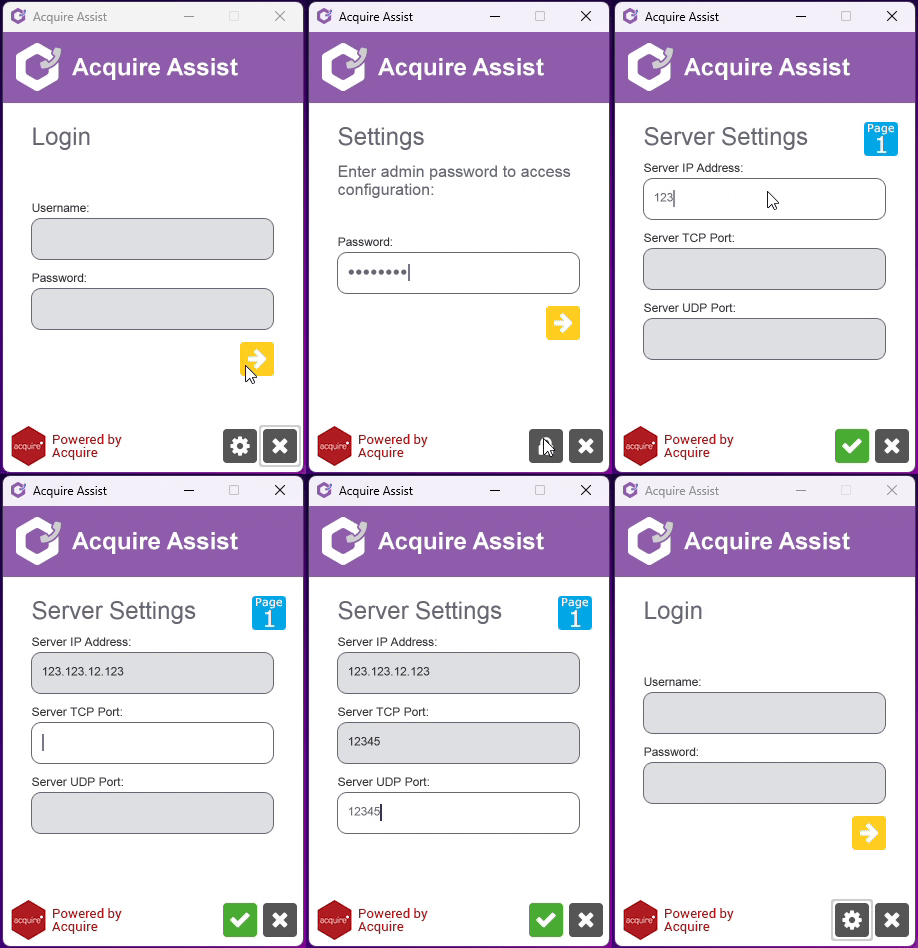
Server Settings can now be configured by using the information supplied to you with the Ip address and ports.
The config.ini file structure looks as follows.
|
Password |
for setting the admin password for the server settings |
|
IP |
IP address of the communication server |
|
Port |
supplied server port |
|
ServerUDP |
supplied server port |
|
Total |
The number of UDP ports to search for when finding an available port |
|
DesktopWindow 0,0 |
position of the application on the desktop |
|
WebcamWindow 1164,0 |
webcam window size |
|
Startup 0 |
|
|
Index 0 |
|