
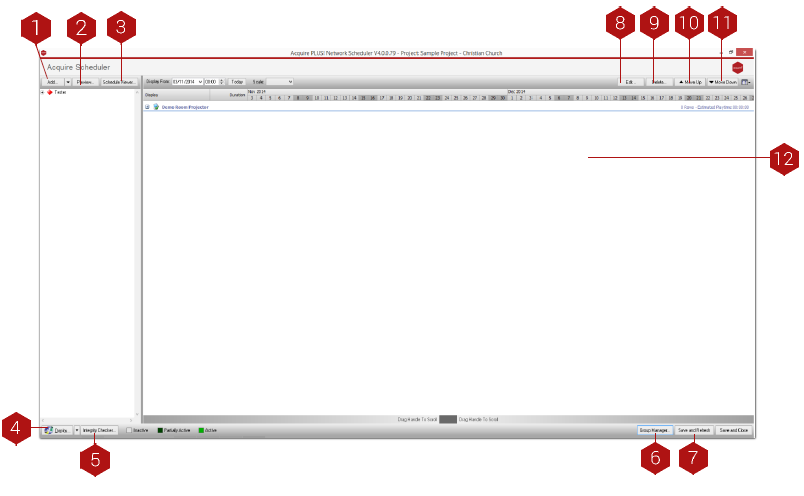
Key
- Add: A schedule is effectively similar to a playlist. A playlist dictates when the pages will to play within a project. A schedule dictates when the project will play and on which players. Therefore, you must add a ‘Line’ here in order to make your projects play on your players. You can also add playlists, pages and media using this function.
- Preview: After choosing an individual player, you can preview the specific playlist for that player by using this feature. This is similar to other page or playlist previews, and includes a ‘skip page’ button and the ability to change the date and time to test your playlist is playing as you expect before deploying it.
- Schedule Viewer: This is available as a paid for extra. It allows you to graphically view each piece of media that is playing at a chosen site over a selected time period.
- Deploy: Once you have made the changes you require, press Deploy to send the changes you have made and the updates to the network for onward transmission to the players. Instead of updating all of the players simultaneously, you may wish to send files to a few players for testing, just select (or multi-select) a number of grouped players and choose ‘Deploy to Group’. If however, you have changed any playlists for players or activated a new player, it will be showing as a blue unit - use ‘Deploy to out of date’ to just deploy to these units.
- Integrity Checker: Before deploying your project, you may want to check that the project has no problems such as missing media, and you may also wish to remove any out-of-date media. This button runs the Integrity Checker.
- Group Manager: Opens the Groups Manager window to let you configure your players and groups.
-
Save and Refresh: Once you have logged onto Acquire, the icons and status bar will show the current status of each player. However, this information is only live when collected. To update the information, press this button.
- TIP: You can use normal multi-select features (Shift and CTRL keys) to select more than one playlist entry - even in different players’ playlists. You can then move these line items, delete them or edit them. Any new line items using Add Media / Add Item will also appear at the chosen positions.
- Edit: Edits the line item(s). Note that multi-selected lines will all receive the changes made.
- Delete: deletes the selected line(s).
- Move Up: Moves the selected line(s) up in the playlist.
- Move Down: Moves the selected line(s) down in the playlist.
-
Schedule window: After selecting a player or group of players in the Groups Window, each player’s specific schedule will show here.
- TIP: By double-clicking on the player in the Schedule Window, you are able to edit that specific playlist using the Playlist Editor.