
Choose Point2Point to deploy using this method
.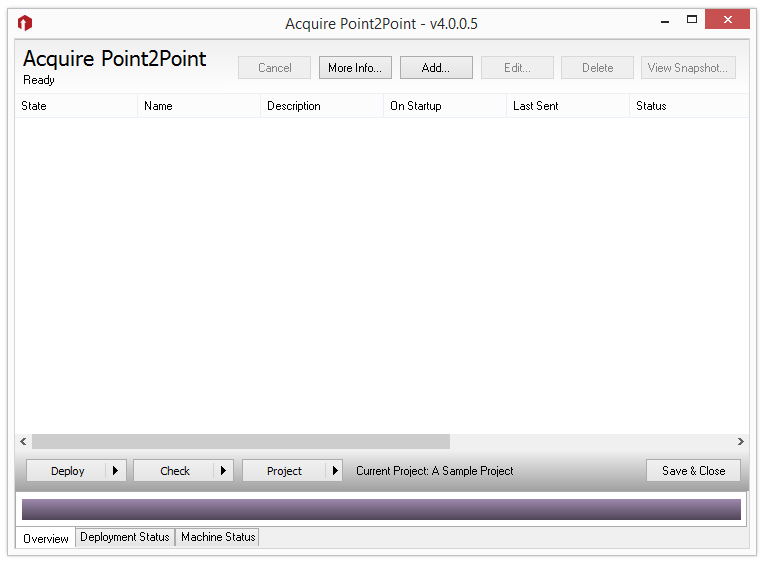
You need to add the players you have to the Point2Point site list.
Press ‘New’ to add a player to the list.
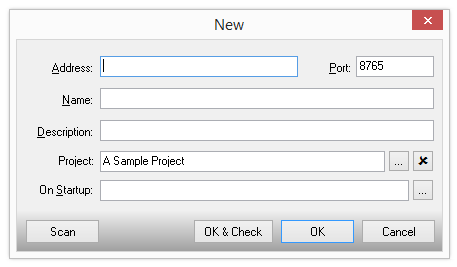
Type in the IP address or URL of the player, and the chosen port and give the player a name you wish to use. If the player is on the same network (LAN) as the editor, press ‘Scan’ and the player will automatically be detected (note that we recommend that the player has a fixed LAN IP address to avoid having to change or rescan for players).
If you do not want this player to use the project settings ‘On Startup’ setting, and instead have its own script to play, you can choose this here now.
Once you have added the players to the list, simply press ‘Deploy to All’ to send the content to all of your players. Shortly after receiving the files, the players will start playing the content you have sent.
HINT.
You can run Point2Point at any time, and press the ‘Check Now’ button (or press the arrow to check regularly).
This will connect to the Point2Point receiver on each of the remote players and check that it is operating. This allows you to check that the remote player is turned on and that the player software is running (although you cannot see or control the actual screen, or be alerted to potential problems as you can with the PLUS! Network).
You can run Point2Point at any time, and press the ‘Check Now’ button (or press the arrow to check regularly).
This will connect to the Point2Point receiver on each of the remote players and check that it is operating. This allows you to check that the remote player is turned on and that the player software is running (although you cannot see or control the actual screen, or be alerted to potential problems as you can with the PLUS! Network).