
This sequence can be simple or complex, and can even contain line items which are other playlists. With a new playlist, your first action should be to set up the basic playlist features.
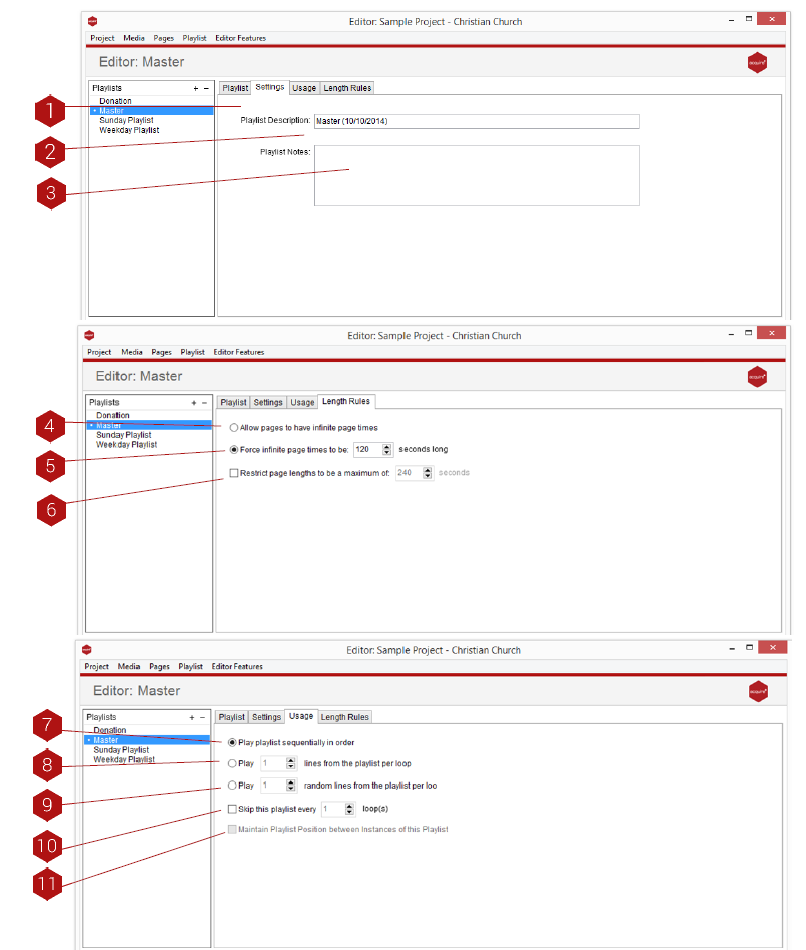
Key
- Playlist Settings/Playlist Entries Tabs: Here you can switch between the Playlist Settings and Playlist Entries windows.
-
Playlist Description: Use this field to provide a description for your playlist.
- TIP: If you have any pages in your playlist which need to have infinite page lengths (such as Flash content or pages using an app such as the Video ACQ), you should not use this option.
- Playlist Notes: Use this space to keep information pertinent to this playlist.
- Allow infinite page times: Set this to allow your pages to have infinite run time capacity.
- Infinite Page Time Handling: When creating your pages you have the ability to specify how long the page is shown for. If you accidentally leave a page length set to infinity and include it in the playlist, the playlist will not progress past this page. Using this setting allows you to override any page times set to infinity to only be shown for the number of settings you choose here.
- Page Length Restrictions: Similar to the Infinite Page Time option, this setting allows you to override the page display times if they are too long. This may be the case if you have created a page which lasts for 300 minutes but in the playlist only want to show pages up to a maximum of 5 minutes.
- Play Playlist sequentially in order: When checked (this is set as default) the playlist will play out sequentially, i.e. the order it appears in the playlist entries.
- Play [Number] of lines from playlist per loop: When selected and a number is set; this will play only the selected number of lines from this playlist every time that it is used. This is particularly useful when the playlist is being called by another playlist.
- Play [Number] of random lines from playlist per loop: When selected and a number is set; this will play the selected number of random lines from this playlist every time that it is used. This is particularly useful when the playlist is being called by another playlist.
- Skip this playlist every [Number] of loops: When selected and number set, this will skip this playlist and move onto the next line until it is due to play again.
- Maintain Playlist Position: Prevents the Playlist from losing its position when part of a number of Playlists that are playing randomly e.g. if it is the 3rd playlist in a sequence it will always retain that position.