
You can quickly view a visual representation of how your pages will play at any time or date, and can preview any of the playlists before deploying them to the remote players.
Key
-
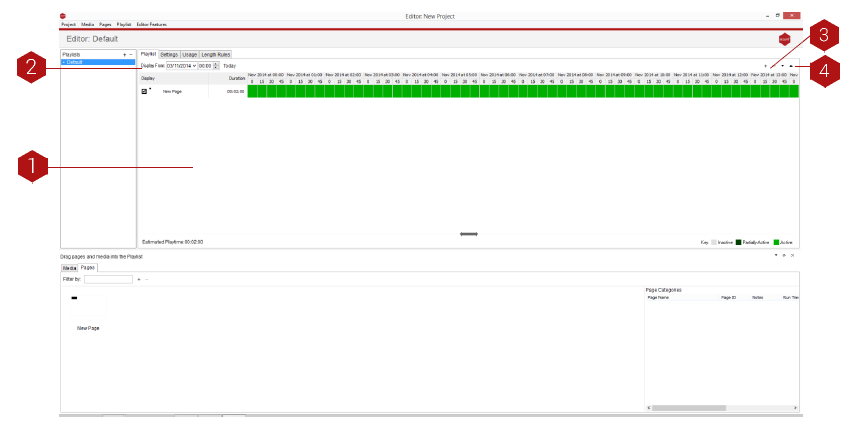
Playlist Editor: Once a playlist has been created it will be shown in this window. Next to the playlist name that you create will be shown all of the line items in that playlist on a calendar (only in the Time View). If you are viewing the calendar by month (15), the calendar display will show a green box for days where the content will be available throughout. A white box indicates the days when the page is not allowed to play, and a half green/half red box is shown for pages allowed to play for a portion of that day. Use the Scale (15) option to view by day to see when the page is playing or edit the line item for more details.
- TIP: You can quickly disable a line item rather than deleting it by clicking the tick-box on that line. Any media will still be sent, so it can be also be used to pre-send content which has not yet been approved, until such time as you want to turn the page on and let it be seen.
- Display From: Here you can jump to a specific date and time to view the calendar.
-
Insert: Use this option to add a new line to your playlist. Use the plus button to choose to either add a Page or a Playlist.
- TIP: Before choosing ‘Add Line’, if you select a line item in the Playlist Entries window, the new line item will appear above the chosen line item.
- Move Up/Down: Moves the playlist item higher or lower in your playlist.
You can also edit the day, week and time pages or playlists play time within a project by double clicking the page/playlist duration box. This will open the playlist editor.
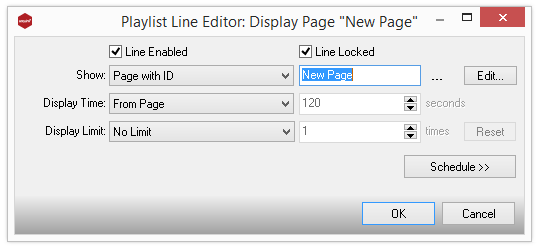
Select the Schedule button and here you can manipulate the settings to suit your project’s needs.
Key
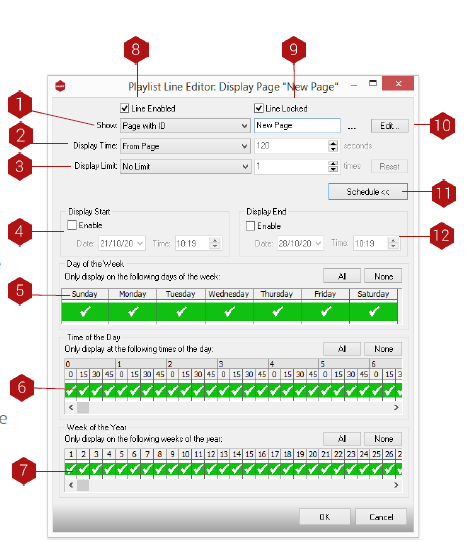
- Page ID: Select what Page or playlist you want to schedule.
- Display Time: If you want to override the time the page is shown for, use this option to do so. Use the box on the right to enter the number of seconds to show for. Note that as this is a playlist you are not able to select infinite page times.
- Display Limit: If you want to only show the page a certain number of times, you can choose this here. Note that when the content is re-deployed, the count of how many times it is displayed is reset).
- Display Start: If you want the playlist entry to start showing only from a certain date or time, enable this option and choose the appropriate date and time (use the calendar option if required).
- Day of the Week: Like a time clock which turns on and off, this option allows you to choose the days when this entry can be shown.
- Time of the Day: Similar to the Day of Week setting, this allows you to specify what time of day the entry is able to be shown. Note that the playlist plays the lines in the sequence chosen and this time setting allows you to specify if the page is due to be played.
- Week of Year: Similar to the Day of Week/Week of Year setting, this allows you to specify certain weeks to show the content. A week is defined as starting on a Sunday and finishing on a Saturday - this may mean that there may be more or less than 52 weeks in your specific year, so ‘hover’ your mouse pointer over a specific week to identify which week you are choosing.
- Line Enabled: This tick box is used to temporarily turn the playlist entry on/off rather than deleting the line.
- Line Locked: If you tick the Line Locked box you will not be able to edit this line in the playlist until you un-tick the line. This ensures that the line cannot be edited by mistake.
- Edit: If you have chosen another playlist as a line item, you can directly edit that playlist by pressing this button.
- Schedule: Return to the previous schedule window.
- Display End: This option can be selected to set an End date and time for the playlist entry.