
Before any content can be scheduled to play on a screen, you need to add the devices to your portfolio by following the steps below.
Adding a Screen
To add a new unit into Doohad, navigate to Locations in the side menu.
Locations
All Screens need to be at a 'Location'. These are usually physical locations you install the players into and help when scheduling content to find similarly located screens (you can also use Groups to link the screens together too).
If you need to create a new location, then you will need to create a New Location. Click "Create Location" in the top right hand corner
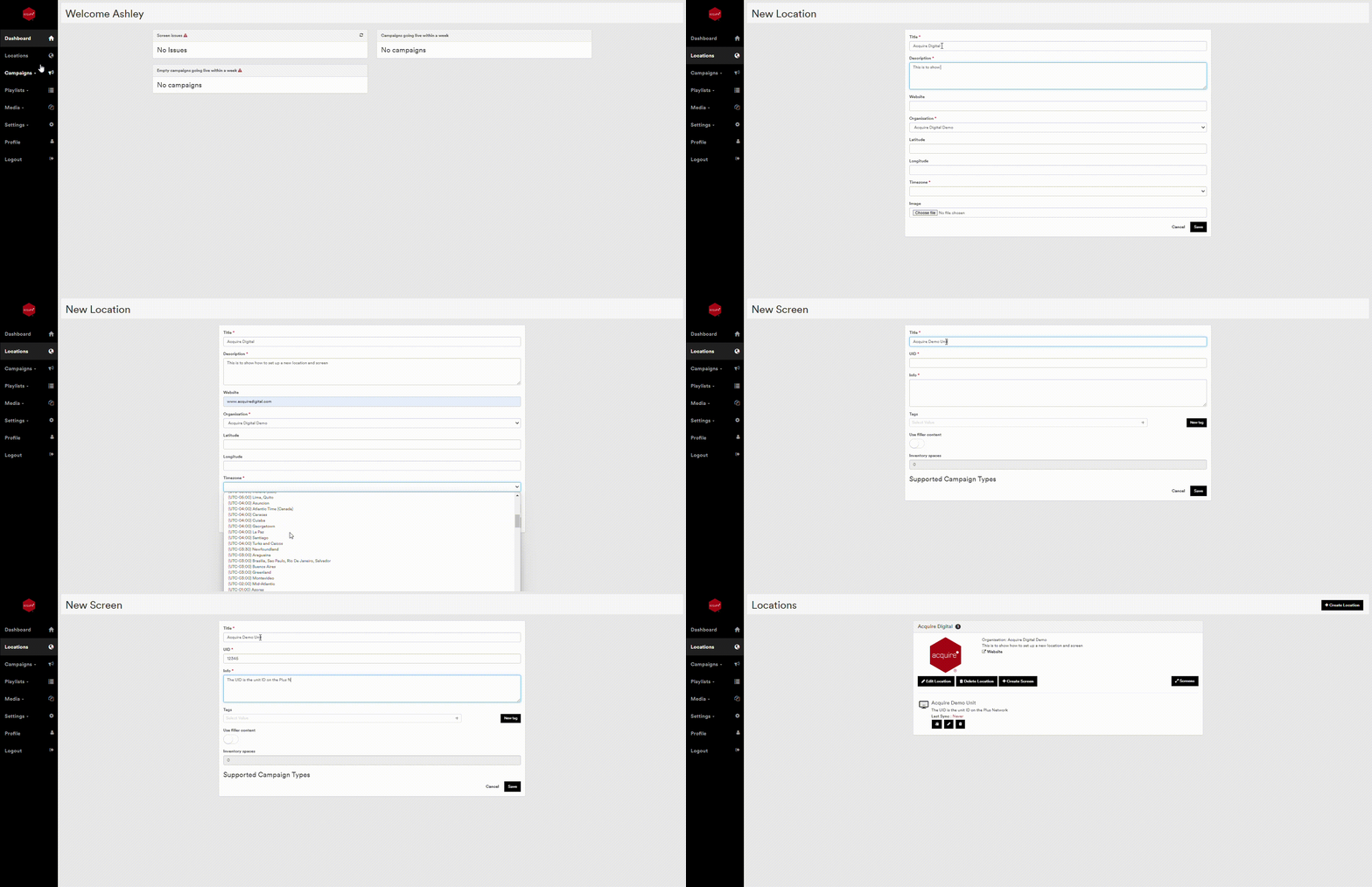
The details are not used by the system, but are there to assist your users in understanding the location when selling inventory.
Once you have a location to assign the screen to, or if you just want to add an new screen to an existing location click on Create Screen:

Screen Details
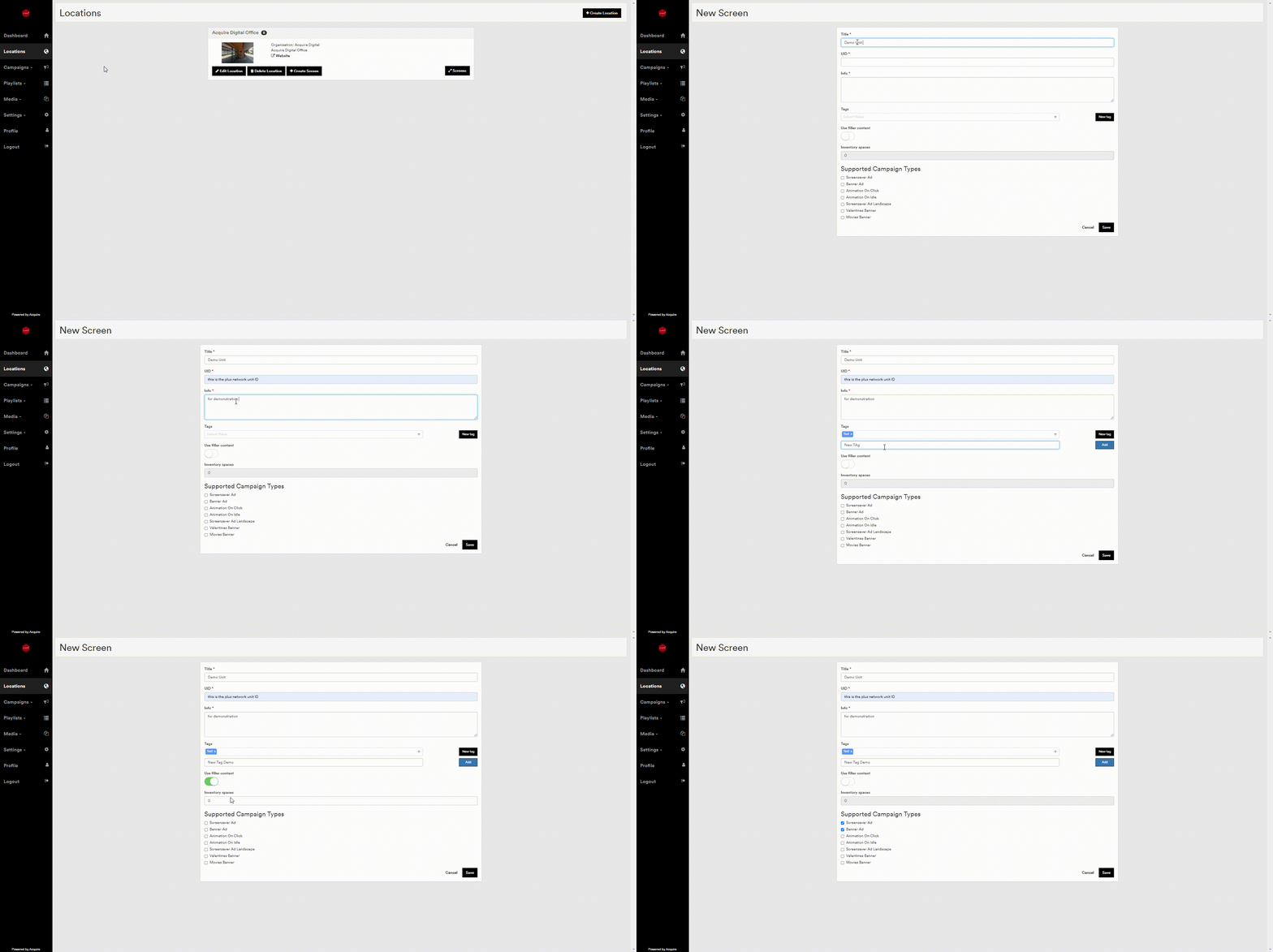
Then add the details for this screen. The Title should be a unique name, typically referenced in your sales tool. The UID (e.g. 125454) should be provided by your installation team. This will usually be the unique PLUS! player ID.
Tags
It is recommended to add any tags required here to allow you to easily group types of player at this stage. Tags are used as filters for assigning campaigns and viewing availability and you can assign more than one Tag to each player, so you can view Screens in various ways. For example, Test screens, Food Court, Large screens, High traffic screens, etc.
To add any existing tags, simply select them using the + symbol. If you wish to create new tags, select 'New Tag'. Add a name for the tag and press 'Add'.
Below, you can then choose the campaign types this screen will support. Typically most screens will support a single type of playlist, however in some cases for e.g. interactive kiosks or time of day or triggered playlists, these campaign types allow other playlists to be used.
Campaign Types
Select the campaign type(s) you are supporting on this player.
See: Campaign Types
Supported Campaign Types
- Screensaver Ad
- Banner Ad
- Animation On Click
- Animation On Idle
- Screensaver Ad Landscape
- Valentines Banner
- Movies Banner
For each campaign type, you should also define here if the player supports unlimited or constrained playlists.
- Unlimited playlists allow any number of campaigns to be assigned to the player for that campaign type. This allows more flexibility and control on what campaigns are shown (essentially using the solution more like a traditional Digital Signage solution) - however as the number of campaigns playing on each day can fluctuate (as campaigns start and end), the number of impressions of the adverts in the campaigns will similarly fluctuate. Do not use this option if you are guaranteeing a number of impressions.
- Constraining a playlist fixes the number of items in the playlist so the playout loop is always the same each day*. As campaigns start and end, the loop of items will grow and shrink, but the DOOHad service automatically calculates the loop to include other 'filler' content from 'filler' campaigns to pad out the playlist to be the same length. To use this option, turn on the 'Use Filler' option and set the number of Inventory spaces you wish to constrain the playlists to. Note that although you can make subsequent changes to this value, any changes will affect the number of impressions of any live running campaigns and this should be considered.
For a campaign, you may also wish to constrain the number of slots available. These are typically used to allow clients to sub-divide the campaign running time and enable different content to play during the campaign at different dates (typically a 'Teaser' campaign). In most cases, only one slot is required, but if you want to allow sub-division of the campaigns you can limit that here.
Note: that the playlist should be the same length, but due to small delays in players switching from one campaign to the next, exact number of playouts in 24 hours, etc there will be a small discrepancy. For instance, if a player took 1/10th second to stop playing one item and start to play the next, with a 10 second slot length, that would mean in 24 hours, there would be approximately 14 1/2 minutes of 'wasted' time each day which you should take into account when calculating the number of impressions for a client. Other playout disruptions (such as a 'screensaver' being interrupted by the system being interacted with, overnight shut downs, etc) will also affect your total number of impressions.