
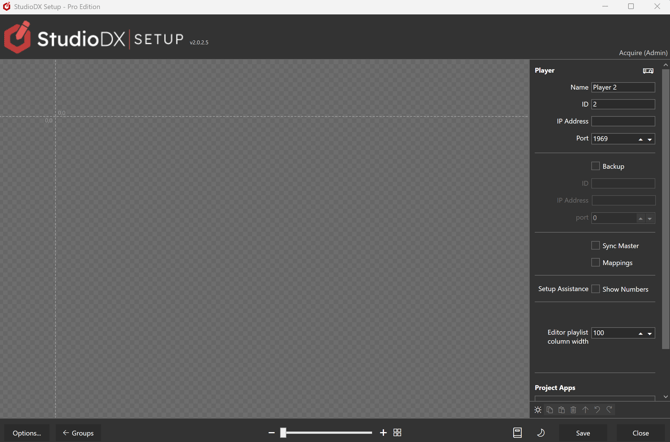
- The area on the left is the work canvas where your outputs will be shown and managed.
- See: Outputs
-
- Use Ctrl+Mouse Wheel to zoom (or use the zoom control described below).
- Hold the space bar down and drag with the mouse to pan the work space.
- Below the work space is the zoom control for the selected work canvas.
- Use the View All button here to auto zoom and pan to make everything visible.
- The panel on the right displays the settings for the item selected in the work canvas.
If nothing is selected it shows the player settings.
- Below the Settings Panel are Tool Buttons for manipulating the selected item.

From left to right, these are:
-
- New (output, monitor etc.)
- Copy
- Paste
- Bring to Front
- Undo
- Redo
Tip - most of these actions can also be performed from the right-click context menu in the work canvas.