
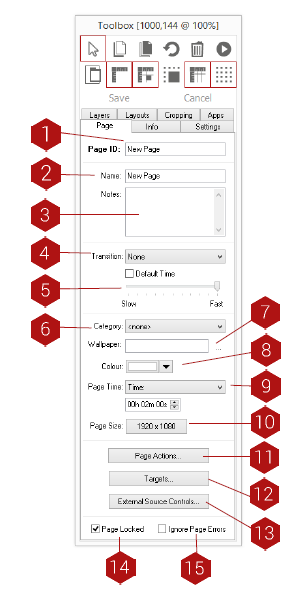
Key
- Page ID: This is where you give your page an ‘ID’. This can be a short name or a number such as a barcode, but it must be unique.
- Name: Unlike the shorter Page ID (2), this is a ‘friendly’ name for the page which can be longer.
- Notes: Here you can add notes to the page. These can be notes to yourself or can be added by a person who signs off the page.
- Transition: Use this option to add transitions to your pages (transitions include fade, slide up. zoom up etc). The transition that you set on the page will happen when the page displays.
- Transition Time: Here you can set the time length for the Transition effect.
- Category: Set a category to your page.
- Wallpaper: If you using a graphic as a background, it can be easier to set it as a wallpaper.
- Colour: If you do not wish to use a Wallpaper (7), you can set the background as a colour. Note that you can only choose a colour OR a wallpaper, not both.
- Time: Here you can set a ‘page time’ (how long the page will run for). This is in seconds. If you need a page to never timeout, set the time to -1. If you need a page to last until a media item has finished, i.e. a video, set the time to 0. If you have multiple items on a page the page will complete when the last one finishes OR the page length in seconds is exceeded.
- Page Size: Set and edit your page size.
- Page Actions: Here you can add a page action that is implemented when the page exits. You can also add variables here.
- Targets: Set a target for your page.
- External Source Controls: Configure and manipulate external feeds etc.
- Page Locked: Locks the page whilst you are editing it so that nobody else can edit it at the same time.
- Ignore Page Errors: Ignores any errors on page.