
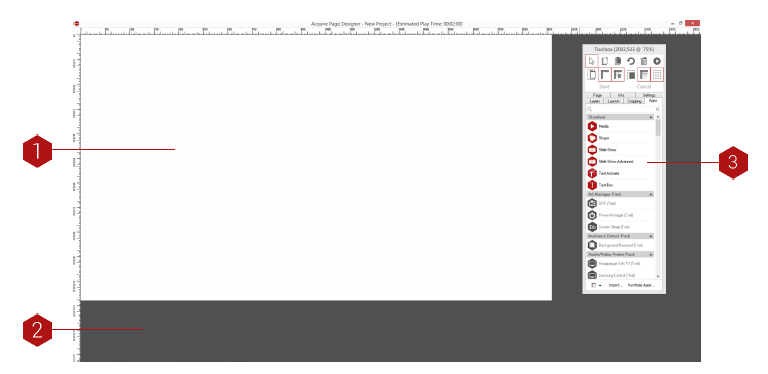
Key
- Design Area: The solid blank area is the screen size defined in the Project settings. Anything positioned within this area will be shown on the player full screen. Here, the screen size on the editing machine is larger so the Design Area does not fill the screen (e.g. 1280x1024 editor designing a 1024x768 page).
- Off Screen Area: The area around the Design Area (shown as a block of colour you chose in the Settings button on the main menu) will not be shown when the page is displayed and similarly any media here will also not be displayed. It is being shown because your editor PC is set to a higher resolution than the one you have chosen that the players will display in (in the Project Settings window).
TIP: If you have been supplied media which has an unwanted border (such as a video file which still contains Over scan content), position it so the unwanted area is off the top/left of the screen and in the off-screen area appropriately as it will not be shown in the player. - Toolbox: This contains a number of tools to allow you to design the page (see below for more information). The toolbox provides you with the tools and settings to design and layout the content on your pages. It can be moved anywhere on the desktop.