
They are selected, in the Editor, from the drop-down lists at the top of the player columns.

To create and edit the overlays press the button to the left of the overlays drop-down lists  .
.
The following Overlays Editor window will open.
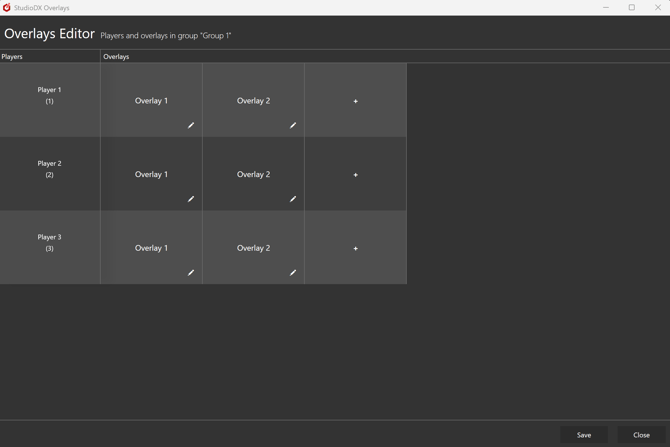
This screen lists the players in the current group on left, followed by overlays available to each player.
Click ➕ to add a new overlay for a player.
Click ✏️ to edit an overlay. This will display the following edit screen.
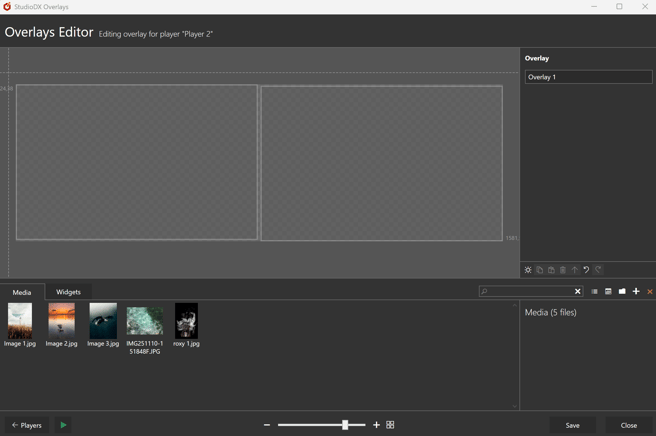
The players's source are shown in the edit canvas for reference. You can drag videos, images and widgets onto the canvas to create overlay "media" items.
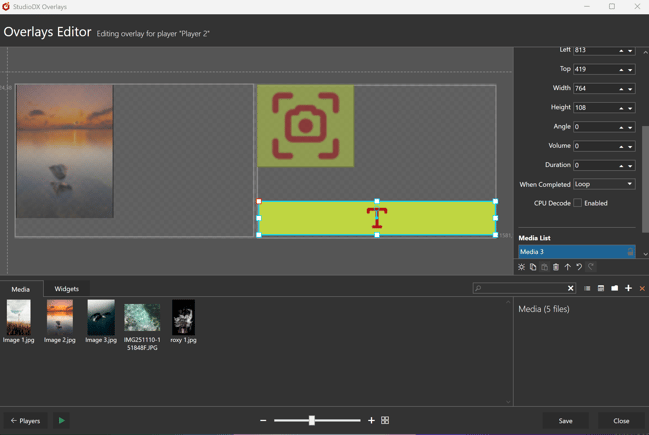
In this example the playlist will be shown in the source as normal, and the video and two widgets will be shown overlaying that playlist (assuming this overlay has been selected).
This editor works in the same way as the one in the Setup application.
- Select a media item in the canvas to size, move and rotate it with the mouse.
- Hold down the ctrl while moving or using the side-grips to "snap" to nearest media or inside source.
NB Snapping only works if the media item has a right-angle rotation i.e. to 0, 90, 180 or 270 degrees. Snapping does not work while using the corner-grips.
- Use the right hand settings panel to manually adjust media, delete the file from it, rename the overlay, etc.
- Use the buttons below the settings panel to add an empty media (you can drag a file into it later), copy and paste media, delete or bring media to the top. These options are also available by right-clicking on the media item.
- There are also Undo and Redo buttons.
- The Files Repository at the bottom works in the same way as in the Editor's playlist screen.
- Press
 to preview the overlays. The "Test Card" playlist will be shown with this overlay on top of it.
 - Press the "Players" button to return to the players screen.