Step 1 - Setup your Alert Network Targets
Open the Setup App and press the Options button.
In Options slect the Editor Tab, press the Alert Network Targets button to open the following screen.
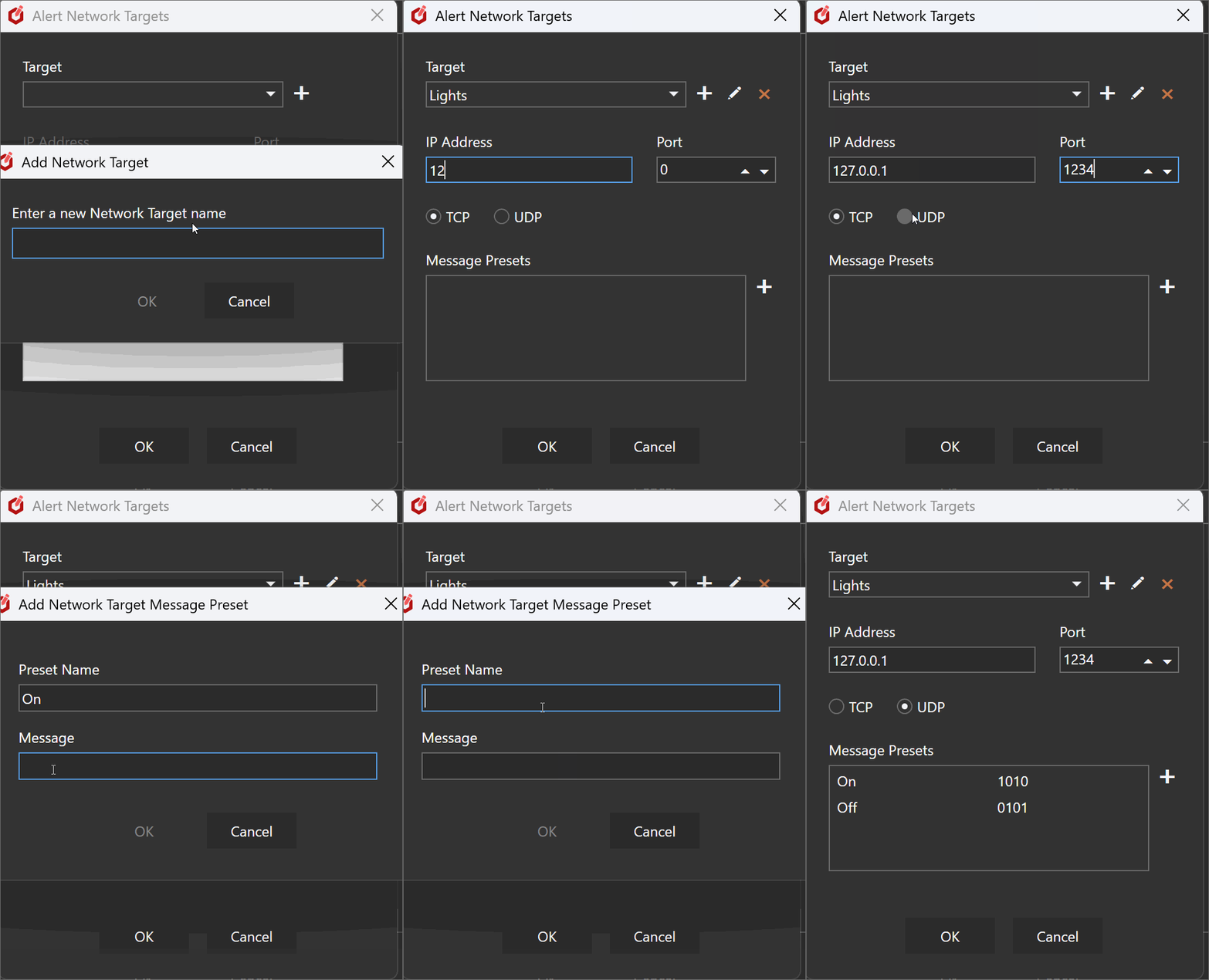
Target
Use the Add, Edit and Delete controls manage a list of Network Targets.
The drop-down list will contain the Network Target names.
Selecting a Network Target from the list will allow you to edit its settings in the controls below:
IP Adresses and Port
Where to send the message.
TCP or UDP
The message protocol.
Message Presets
A list of presets messages which consist of a Name and a Message to send to the Network Target.
When a Warnig Alert occurs you can select one or more of these to send (see step 2).
Step 2 - Add Network Alerts to the Player
In the player editor, you can add Alerts in the settings panel.
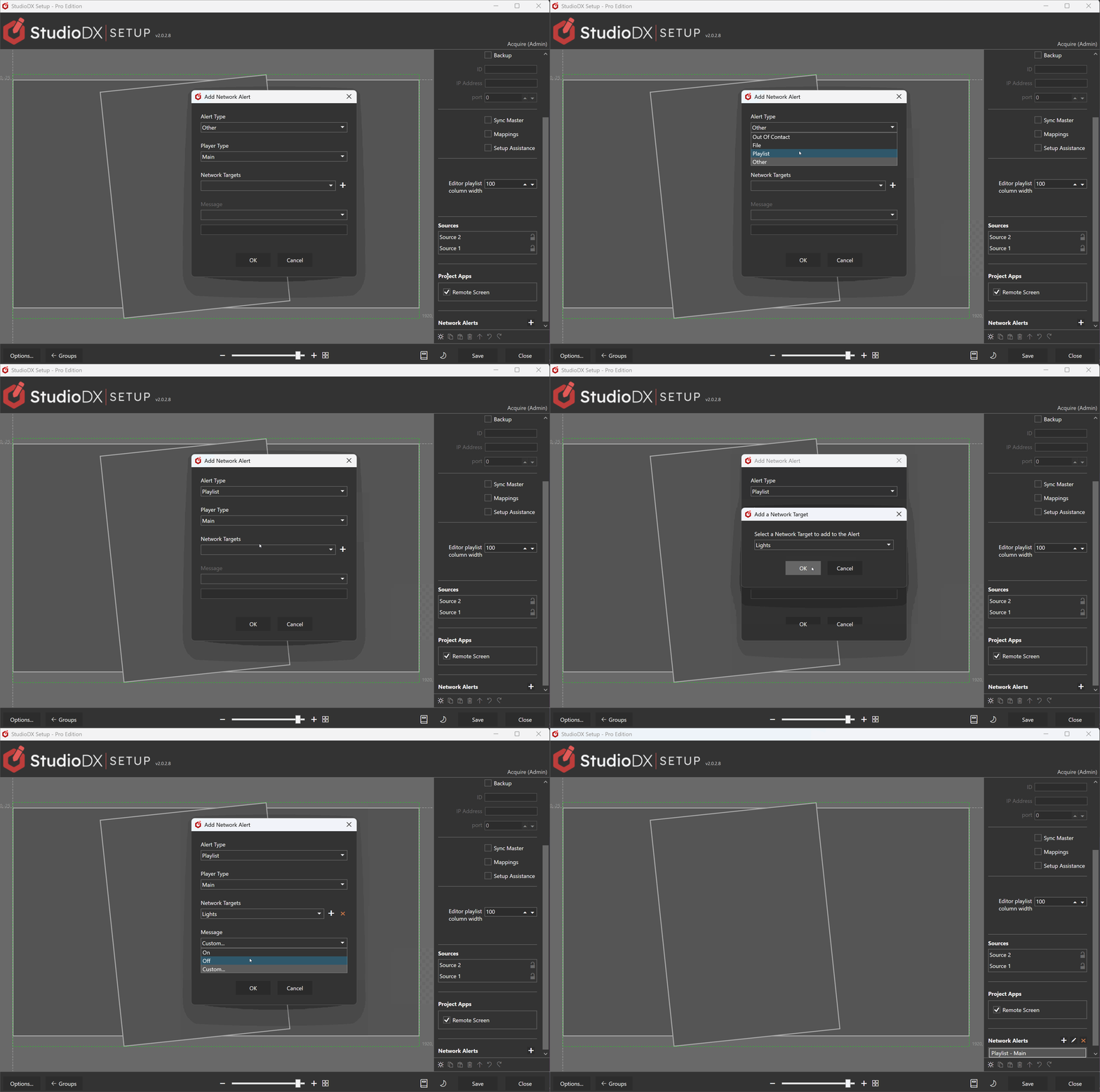
Press Add or Edit to open the Network Alert editor screen.
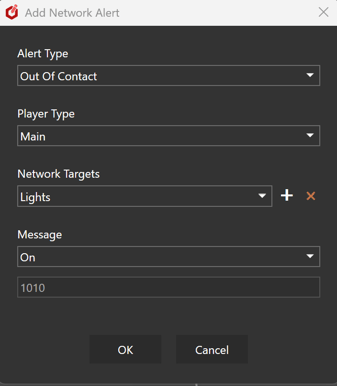
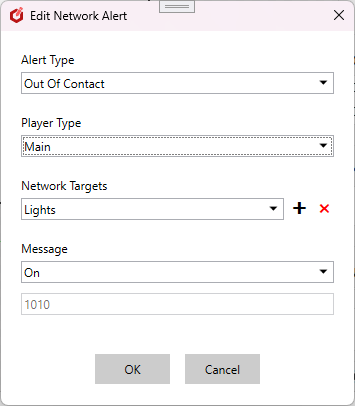
Alert Type
The type of player Warning Alert that triggers this Network message.
- Out Of Contact
- File
- Playlist
- Other
Player Type
The message will only be sent when the alert comes from the player set here.
- Main
- Message only sent if alert came from the player's main PC.
- Backup
- Message only sent if alert came from the player's backup PC.
- Main Or Backup
- Message sent if alert came from the player's main or backup PC.
- Main And Backup
- Only applicable to Out Of Contact alerts. Message sent if the player's main and backup PCs are out of contact.
Network Targets
A list of Network Tagets (which you set up in step 1) to send messages to when this alert occurs.
Selecting a Network Target from the list will allow you to edit the message sent to it.
Message
You can select one of the presets that you added for this message in step 1, in which case the preset's value is shown below.
Or you can select "custom" and type in a message value here.
Step 3 - Enable notifications