
About
- The Setup App can connect to the players in a group.
- Once connected, the players will show a live representation of the Slice mappings as you edit them.
Starting Live Preview
- To start, press a Live Preview button.
- This is the projector icon found on the Groups and Players screen in the group name cell.

- A Live Preview window will open.
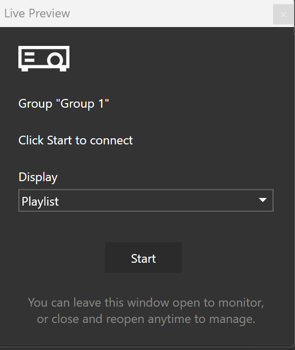
- If connection errors occur a button will appear to view them.
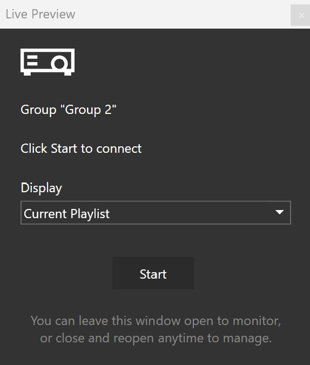
- If Use Test Cards is selected, test cards are sent to the each player during the connection process. Progress is shown in the window.
- The preview buttons also show the connection status icon:
- Busy (spinner), Error (Yellow), Connected (Green).
- The Live Preview button can also be found on the Player Editor Screen and works in the same way by connecting to all players the same group as the one editing.
Previewing
- Once connected, the player will show a live representation of the Slice mappings as you edit them. I.e. adjustments to Slice Sources and Slice Destinations will be shown on the connected player.
- If you selected Use Test Cards in the connection window, they will be used for content on the player during Live Preview. Otherise the current playlist media will be used
NB Output editing is disabled during Live Preview.
Ending Live Preview
- To end the Live Preview click the Live Preview button again and press Stop.
- The player will restart and resume normal playback.
NB For normal playback to use the adjustments you just previewed you will need to save those changes and deploy the project to the player in the normal way.