
Step 1: Studio DX Editor Licence.
Select the Studio DX Editor, this will then show you a window saying Studio DX Editor is not licenced.
- Licence key file has expired
- If you have purchased a licence you can apply it now
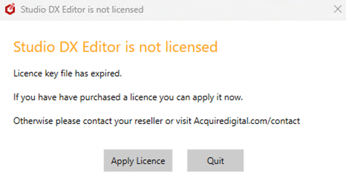
Select Apply Licence.
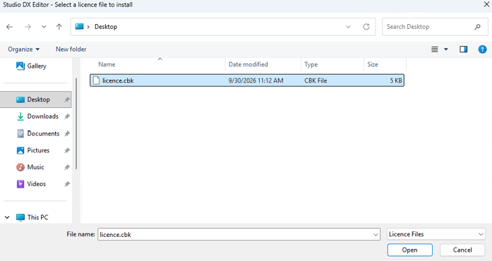
This will then open a window, navigate to the location of the saved licence key file.
i.e. desktop and select the licence.cbk and open.
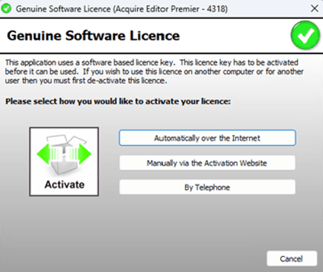
The Genuine Software Licence Manager will open.
Choose from three activation methods:
Recommended: Automatically over the Internet – The fastest and easiest way to activate
Once activated, a confirmation message will appear: “Your software has now been activated”.
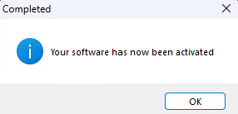
Select OK and the Editor will now open.
Step 2: Studio DX Player Licence
Break out of the player by pressing the Esc key and typing watchdog.
This will bring you back to the windows desktop.
Press the windows key and select – Install Studio DX Player Licence.
The licence window will open.
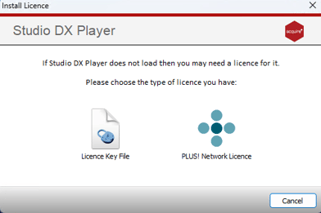
Select Licence.cbk, this will open an explore window.
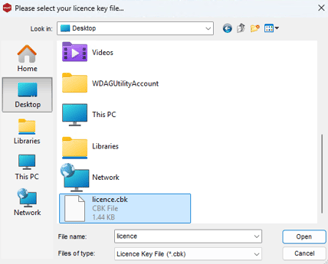
Select the location of the saved licnce file, i.e Desktop. Select the licence.cbk and open.
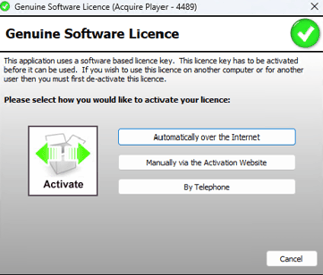
The Genuine Software Licence Manager will open.
Choose from three activation methods:
Recommended: Automatically over the Internet – The fastest and easiest way to activate
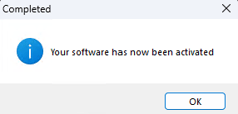
Select - OK
You can now select ok on watchdog to restart it.