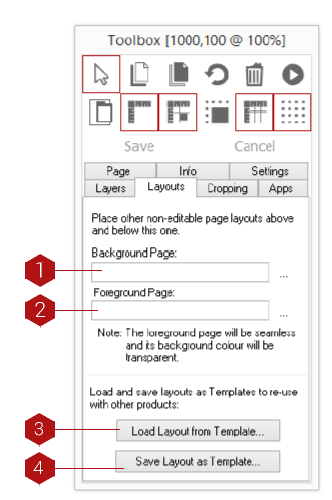
Key
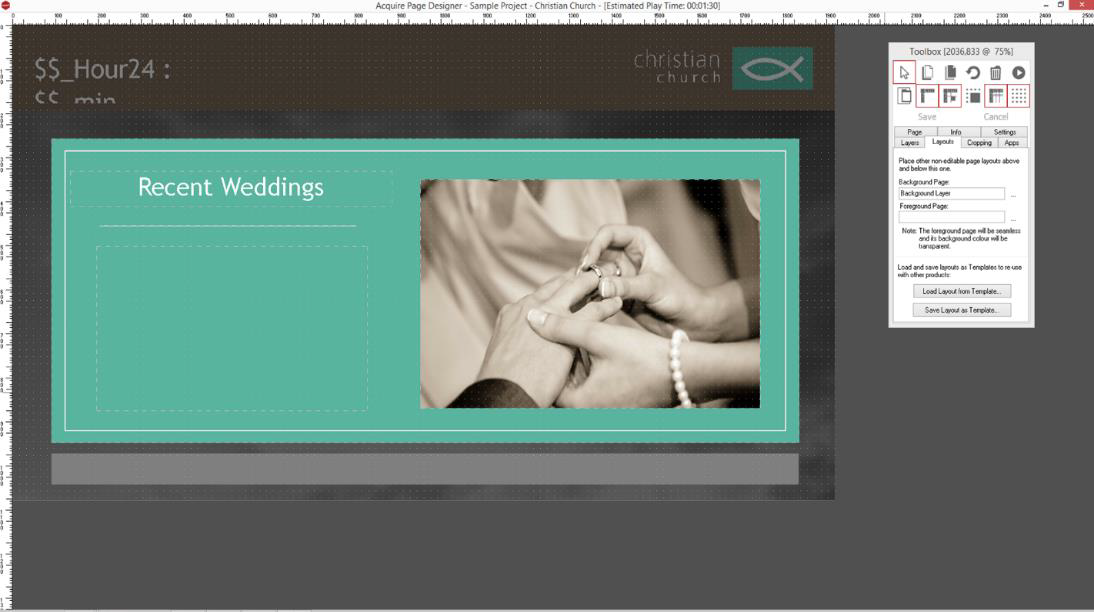
- Background Page: Add a background page to your project
- Foreground Page: Add a foreground page to your project
- Load Layout from Template: Load a layout from a template
- Save Layout as Template: Save your layout as a template
Foreground & Background Pages
Background and foreground pages are a great way of keeping page designs consistent throughout your project. A background page will always sit in the background of the page you set it to- a great way to keep design elements such as background wallpaper, logo, clock etc. in the same position.
Background Page
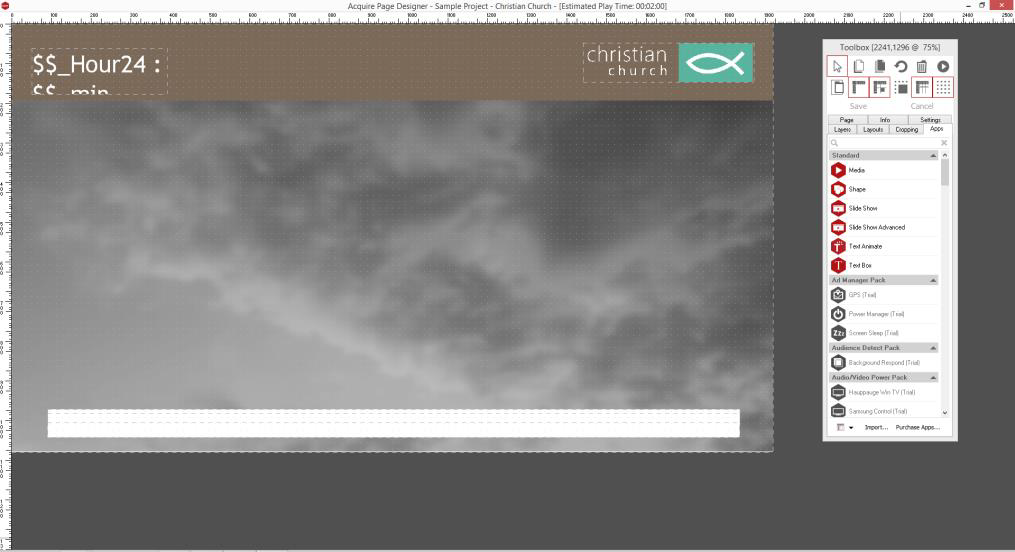
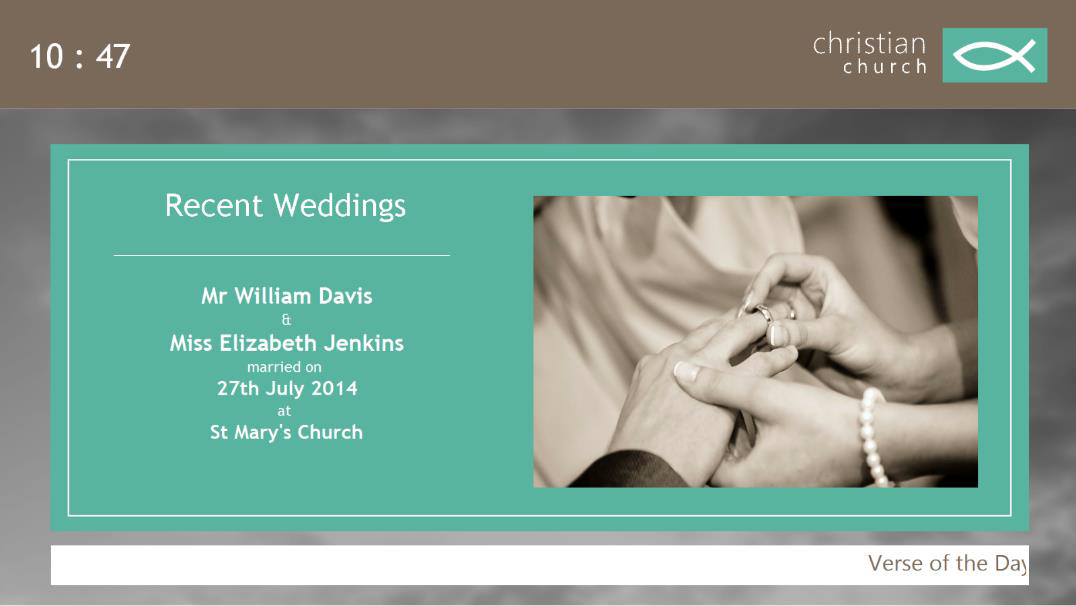
Page with a Background Page applied
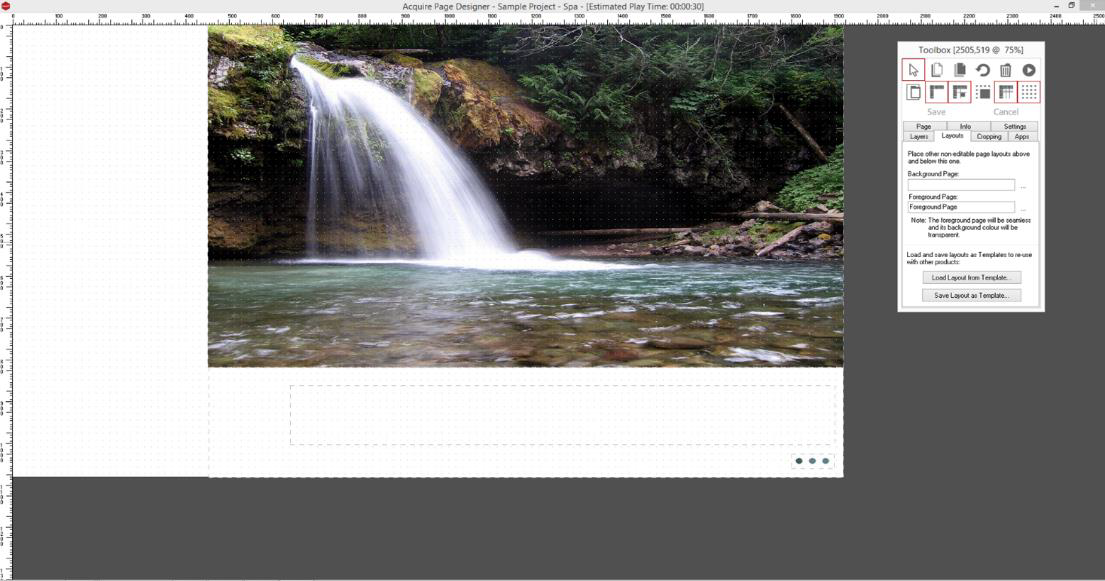
In the pages tab, click the three dots next to the Background page data entry box and add your background page. Whatever content you apply on this page will always sit in front of the background page content.
A foreground page will always sit in the foreground of the page you set it to- a great way to keep design elements such as masks, sidebars, titles, etc. in the same position.
Foreground Page
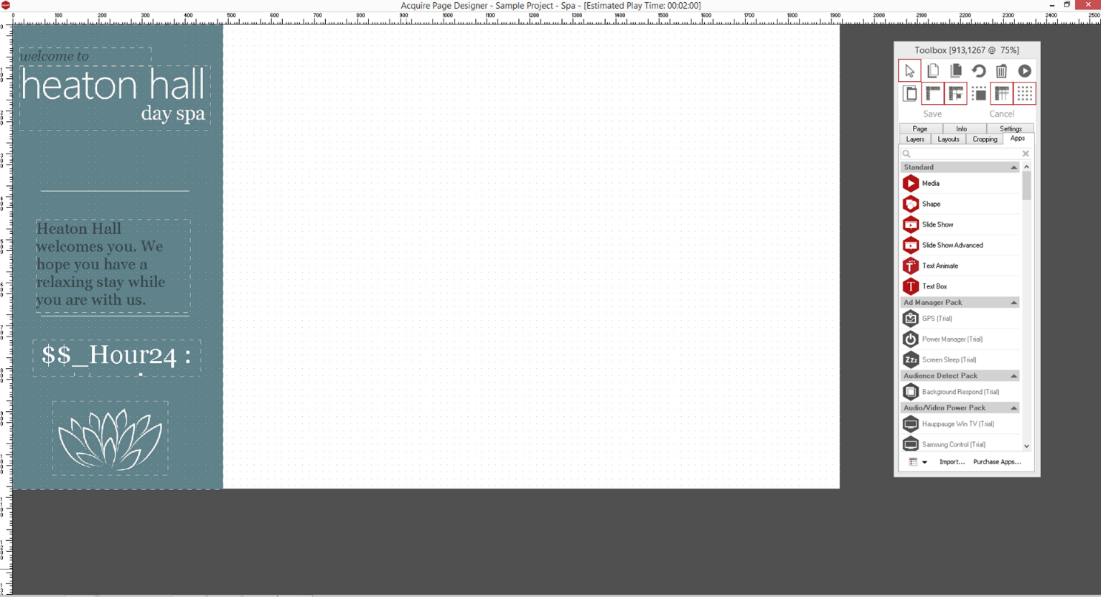
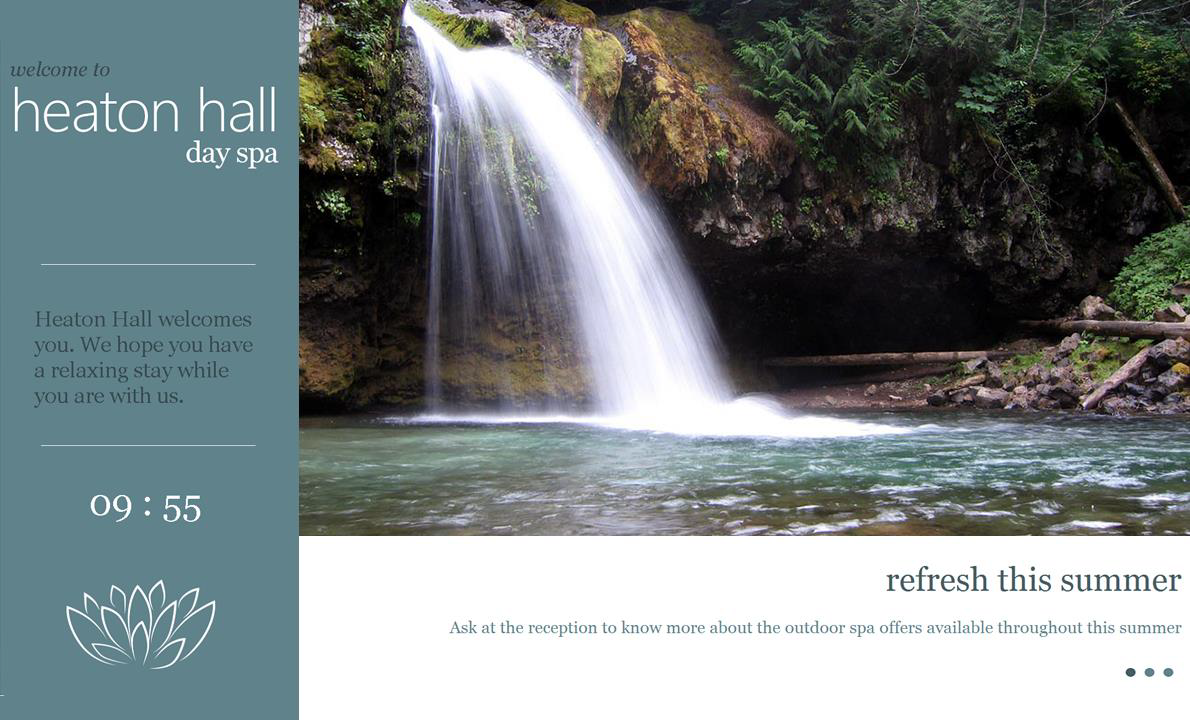
Page with a Foreground Page applied
In the pages tab, click the three dots next to the Foreground page data entry box and add your foreground page. Whatever content you apply on this page will always sit behind the foreground page content.