
IMPORTANT
Acquire Editor uses the project’s media directory to manage the content delivered within each deployment to ensure only the content in use is actually maintained at the remote sites and is deleted when no longer required. It operates as follows:
- If a media item is included in the media directory, but is not used anywhere within a project, it is NOT sent UNLESS it is included in a directory named ‘ALWAYS SEND’
- Any media stored in the ‘NEVER SEND’ directory within your media directory will NOT be sent to the remote players, and so will not overwrite any existing files in that location (This is useful if for instance you have a different logo for each site called ‘C:\my media\never send\logo.jpg’)
- If a media item is included in the media directory, and is used within any page of a project it is SENT to the players (note: see deployments later)
- If a media item was used in a project and is no longer being used but the file remains in the media directory, it will remain on the player machine.
- If a media item was used in a project and is no longer used AND the file has been deleted from the media directory, it will be DELETED on the player units with the next deployment.
Because of this, please DO NOT use an existing directory (e.g. ‘C:\ ‘or ‘My Documents’) to contain the media used in the project, as this will mean long delays whilst Acquire checks the directory tree and may mean unwanted content being deployed. Also, if you restore a project by Deploying to your editing machine, any other files within this directory will be deleted.
To do this, use the ‘Integrity Check’ button in the Project Settings control or in the scheduler.
Acquire typically manages the content you create for you according to the following process. However, it is up to you to ensure that the content in that folder is not larger than the storage on the remote players, otherwise some content in the deployment may not be able to be deployed. When you set up your project, you are able to choose the maximum folder size. This does not restrict you to this size, but Acquire will warn you if you exceed this setting. Remember to leave some space for Windows and other functions on the remote players (i.e. if the player PC has a 20GB drive, set your project settings to 15GB). Also, if you are no longer using any content, delete the page(s) you are no longer using and remove the content from the project’s Media folder.
Integrity Checker
The Integrity Checker is a feature in Acquire that helps you manage your content. By using The Integrity Checker you can view pages with missing media, view media that is no longer used in you pages or view Playlists with missing entries, then either resolve the problem or delete a Page, Playlist or Media item.
Pages with Missing Media tab
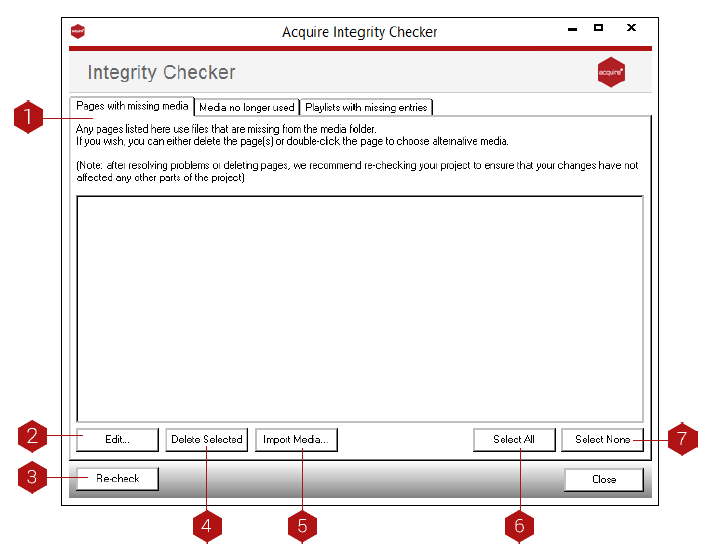
Key
- Pages with missing media - This is where the file name of the missing media and Page ID of the pages that contain media that is missing is displayed.
- Edit: You can edit a page in the Page Editor directly from this window by highlighting the page you wish to edit in the Pages with missing media window then pressing the Edit button.
- Recheck: Rechecks to look for pages with missing media
- Delete Selected: You can delete a page by highlighting the page you wish to delete in the Pages with missing media window then pressing the delete button
- Import Media: From this window you can import/re-import the media that is missing (NOTE: The media will need to be placed in the same folder that it was in before to keep the directory structure intact.
- Select All: If you wish to delete all the pages that have missing media you can use the Select All but to select all the pages then press the Delete button.
- Select None: When more than one file is selected you can use the Select None button to de-select.
The Integrity Checker will also display all the media that is in you media directory that is not being used. Although Acquire only transfers files which have been used in pages in the past or currently, if you no longer use the media in a page, it will keep the files on the remote players unless you delete them from the media folder. It is therefore recommended to remove these files if they are not being used as they increase the size of your project.
Media no Longer used tab
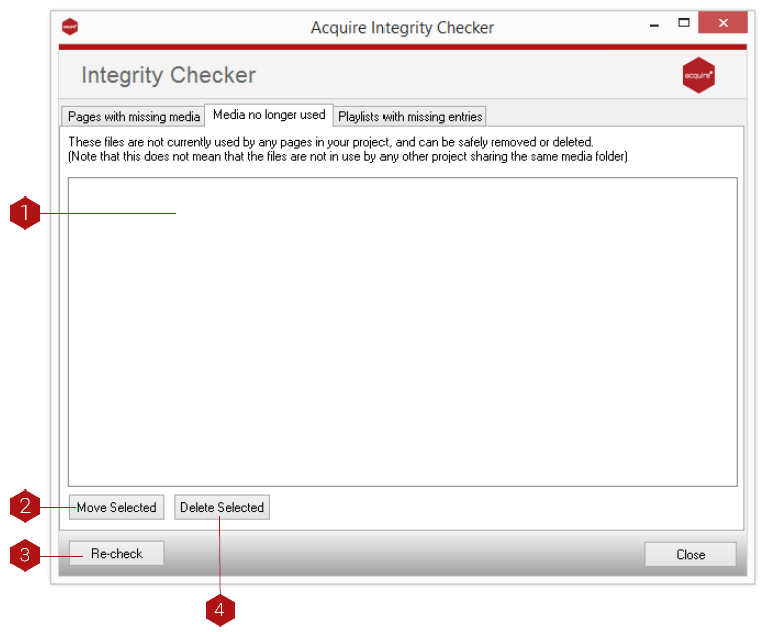
Key
- Media no longer used: This displays all the media that is in your media folder that IS NOT being used in your project.
- Move Selected: Use this button to move files out of your media folder to elsewhere. If you wish to move all the files that are not used use the Select All button first.
- Delete Selected: Use this button to delete files from your projects media folder. If you wish to delete all the files that are not used use the Select All button first.
Playlist with missing entries tab
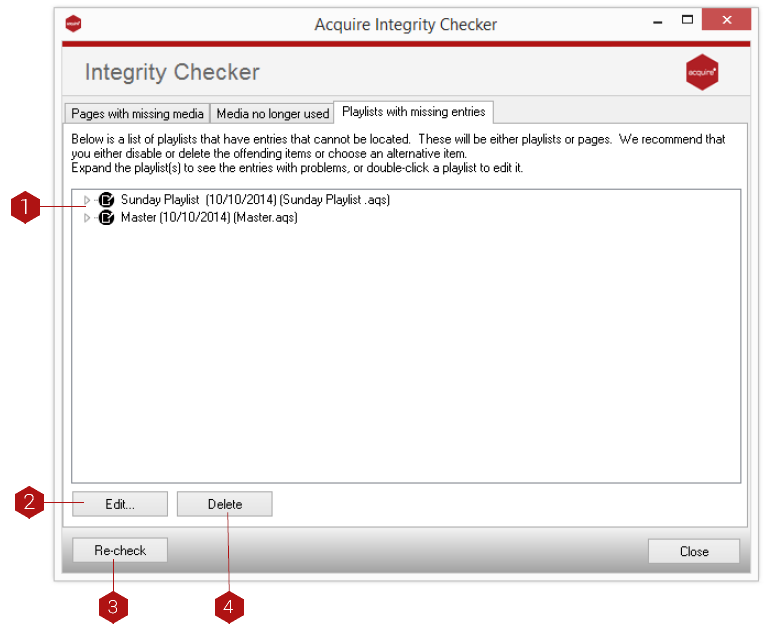
Key
- Playlists with missing entries: This is where playlists that have missing entries are shown.
- Edit: You can edit the playlist by going direct to the playlist editor from this window by using Edit button.
- Recheck: Rechecks to look for playlists have missing entries.
- Delete: This deletes a selected playlist.