---
title: Geometry Tools
description: Geometry Tools
---
[Skip to content](https://knowledge.acquiredigital.com/geometry-tools#main-content)
English
Show submenu for translations
[More support](https://knowledge.acquiredigital.com/kb-tickets/new?hsLang=en) [Support Portal](https://knowledge.acquiredigital.com/support?hsLang=en)

Open main navigation
Close main navigation
- English
Show submenu for translations
- [More support](https://knowledge.acquiredigital.com/kb-tickets/new)
- [Support Portal](https://knowledge.acquiredigital.com/support)
- Contact us
Contact us
How can we help you?
- There are no suggestions because the search field is empty.
1. [Acquire Digital Knowledgebase](https://knowledge.acquiredigital.com/?hsLang=en)
2. [Acquire Wayfinder](https://knowledge.acquiredigital.com/acquire-wayfinder?hsLang=en)
3. [Map Editor - Atlas](https://knowledge.acquiredigital.com/acquire-wayfinder?hsLang=en#map-editor-atlas)
# Geometry Tools
## This Provides information on each of the Tools and Appearance Settings.
#### ****
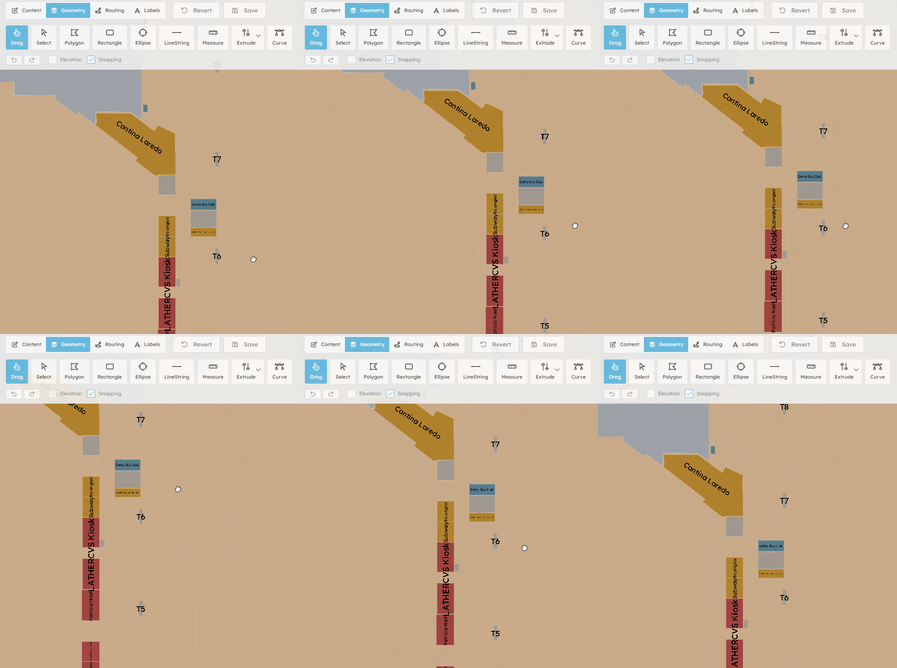
The default panning tool for Geometry mode. Click and drag anywhere on the map to move the viewport. Does not select or modify features.
- **How to Use** - Click and hold on the map, then drag to pan.
- **Release to stop** - Keyboard Shortcut `D`
#### 
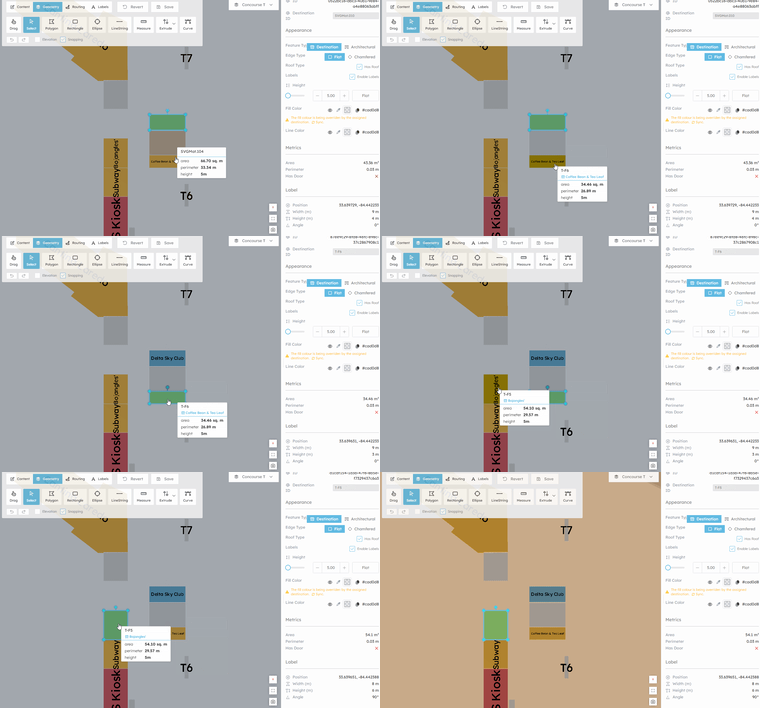
Selects features on the map for editing. Click a shape to select it and reveal edit handles. Once selected, choose an edit action from the secondary toolbar (Transform, Modify, Split, Duplicate, Door, Label).
**How to Use**
1. Click a feature on the map to select it
2. The feature highlights with edit handles
3. Choose an edit action from the toolbar below
4. Press `Escape` or click Select again to deselect
**Selection Behaviour**
- **Shift+Click** in the Explorer panel to multi-select features
- Selecting a new feature deselects the previous one
- Press `Delete` to remove selected features
**Keyboard Shortcut** `V`
#### ****
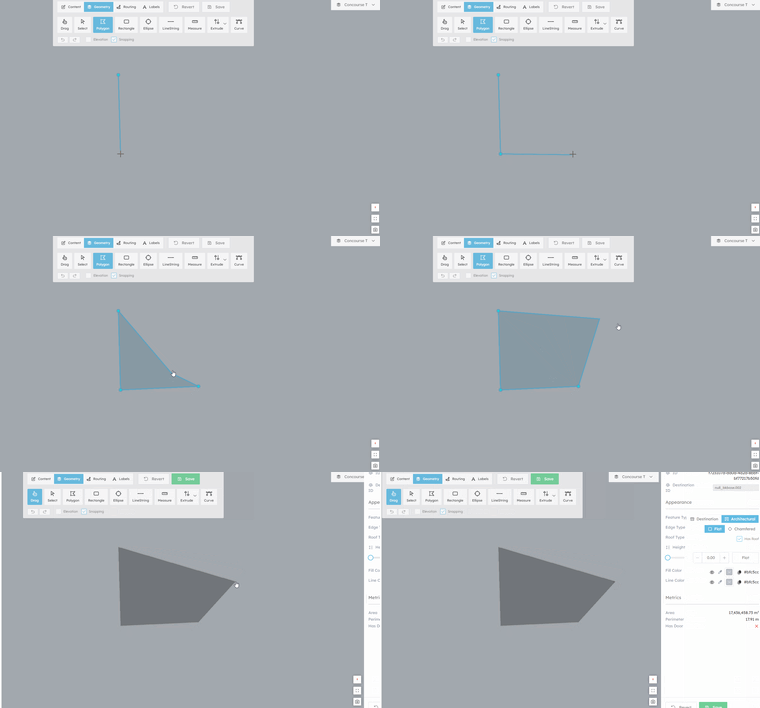
Draws a polygon by placing vertices sequentially.
**Interaction Flow**
1. Click to place the first vertex
2. Click to add each subsequent corner
3. Close the polygon in one of three ways:
- Click the first or last edit handle directly
- Click near the first point (within ~1 metre threshold)
- Press `Enter`
4. Right-click to cancel mid-draw
Keyboard Shortcut `P`
#### ****
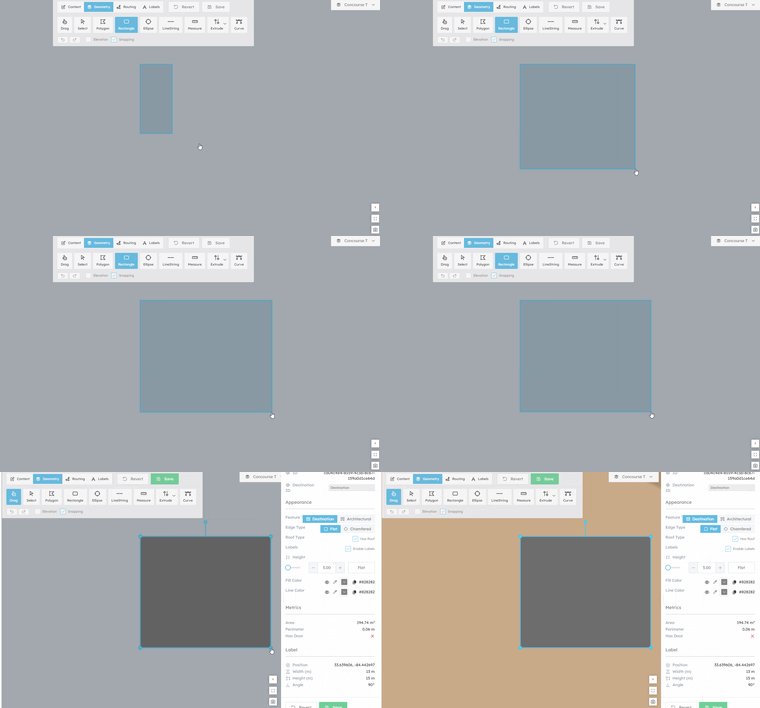
Drags out a rectangular polygon on the map.
**How to Use**
1. Click and hold where you want one corner of the rectangle
2. Drag to the opposite corner
3. Release to finish the rectangle
The rectangle is created as a polygon feature with four vertices.
Keyboard Shortcut `R`
#### ****
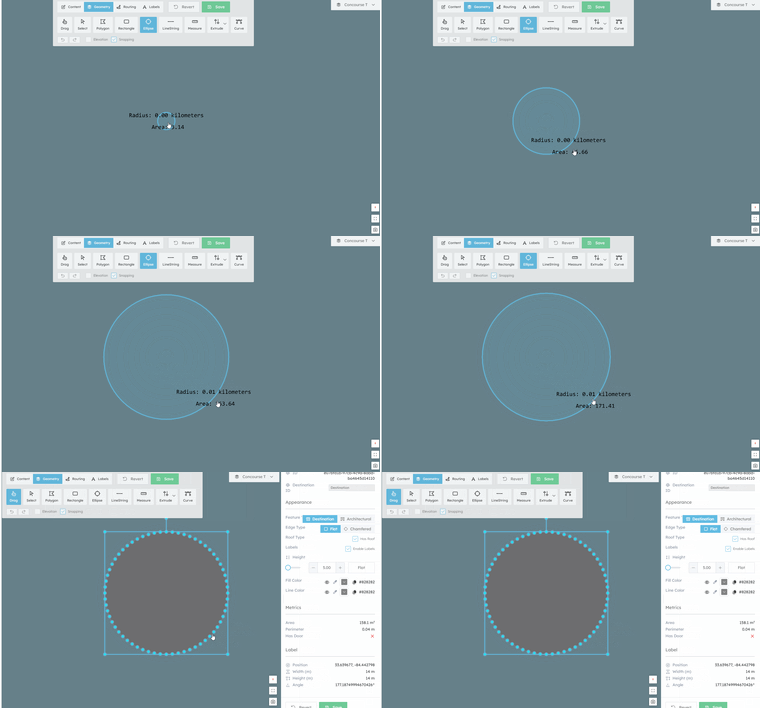
Draws a polygonal ellipse from a centre point outward.
**How to Use**
1. Click to set the center point
2. Drag outward to define the radius
3. Release to finish
The shape is approximated as a polygon with a configurable number of vertices.
Keyboard Shortcut `E`
#### 
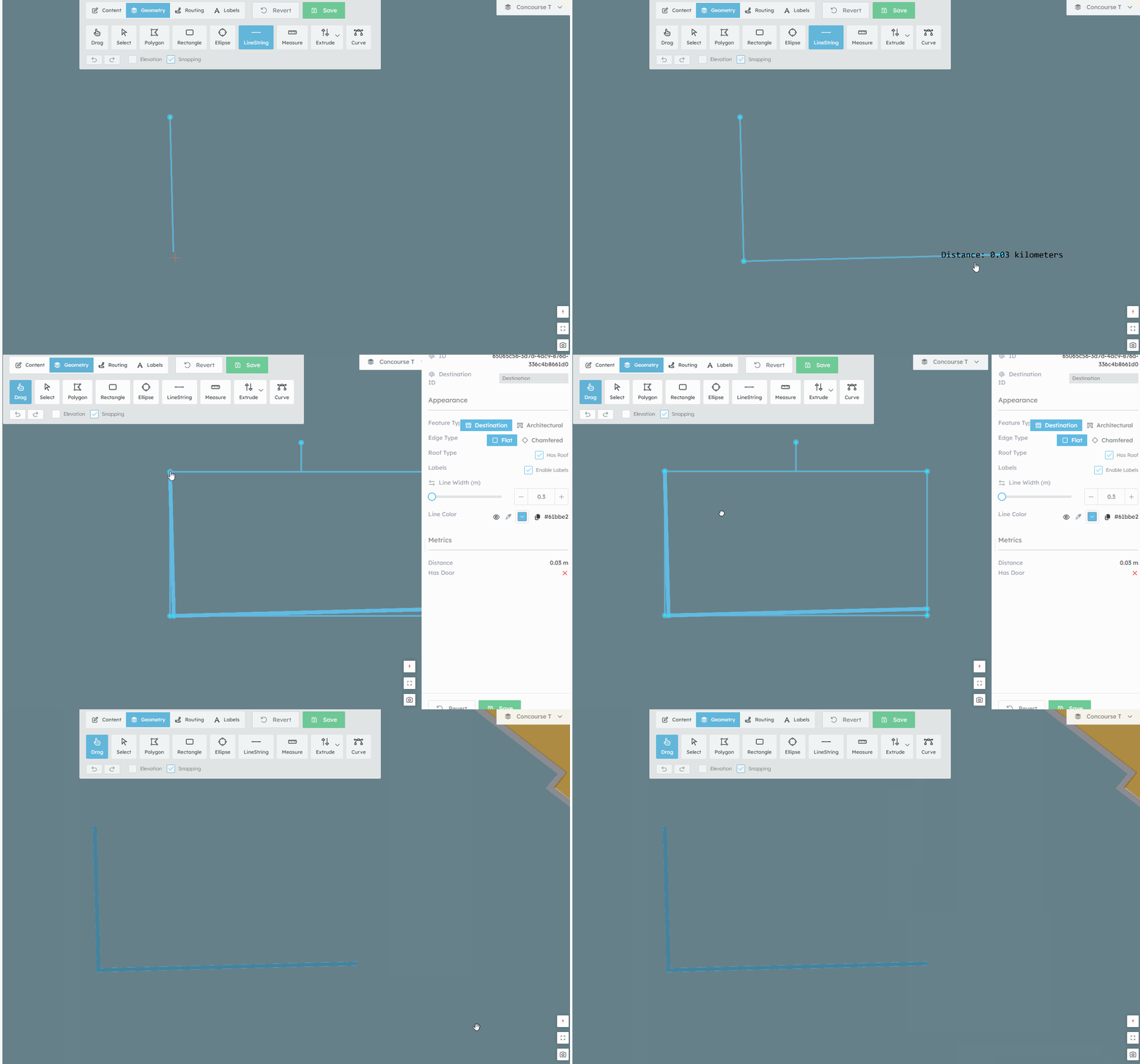
Draws a line by placing sequential points. Useful for creating corridors, boundaries, and linear features.
**How to Use**
1. Click to place the first point
2. Click additional points to add segments
3. Press `Enter` to finish the line
4. Right-click to cancel mid-draw
Keyboard Shortcut `L`
#### 
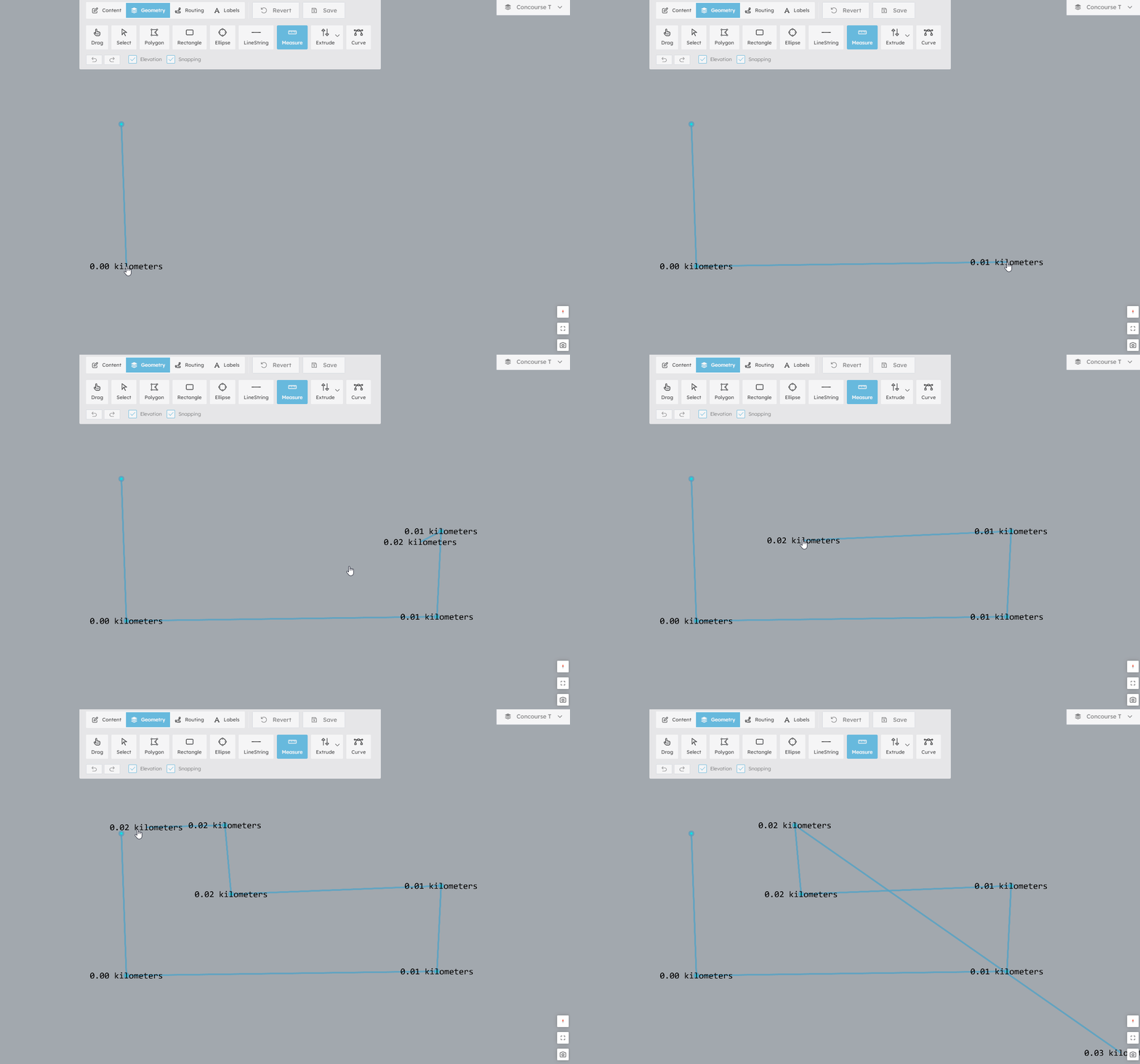
Measures the cumulative distance between clicked points. Useful for checking doorway widths, corridor lengths, or clearance between units.
- **Measurements are temporary and do not create persistent features.**
**How to Use**
1. Click to place measurement markers along a path
2. The cumulative distance displays in metres
3. Right-click to clear and start a new measurement
The measurement line and markers are visual-only — they disappear when you switch tools.
Keyboard Shortcut `M`
#### 
Extrude Vertical
Adjusts the 3D height of selected polygon features by clicking and dragging vertically. The taller the extrusion, the higher the shape appears in 3D views. This is how wall heights, podium elevations, and other vertical dimensions are set.
1. Hover over the selected polygon — an intermediate handle appears on the nearest edge
2. Click the intermediate handle and drag up or down
3. The feature's height updates in real time via `extruding` edit events
4. Release to finalize the height via an `extruded` edit event
Keyboard Shortcut `E` (shared with the Extrude dropdown group)
Extrude Horizontal
1. Hover over the selected polygon — intermediate handles appear on edges
2. Click an intermediate handle on an edge
3. When dragging starts, the mode checks if adjacent vertices are non-orthogonal and inserts extra vertices if needed.
4. Drag outward to stretch the edge away from the polygon
5. The two edge vertices move parallel to themselves
6. Release to finalize edit event
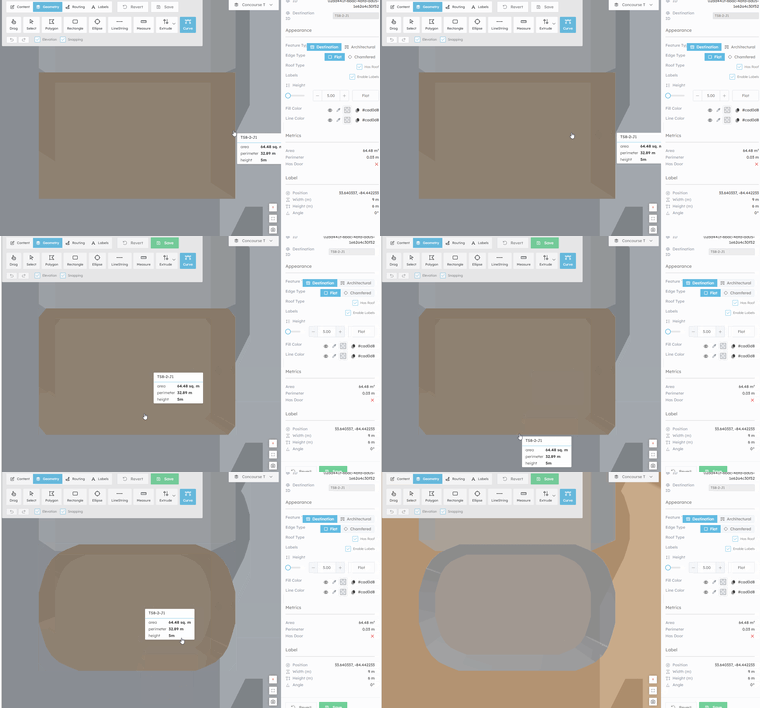
#### 
This allows you to curve the corners of the selected shape.
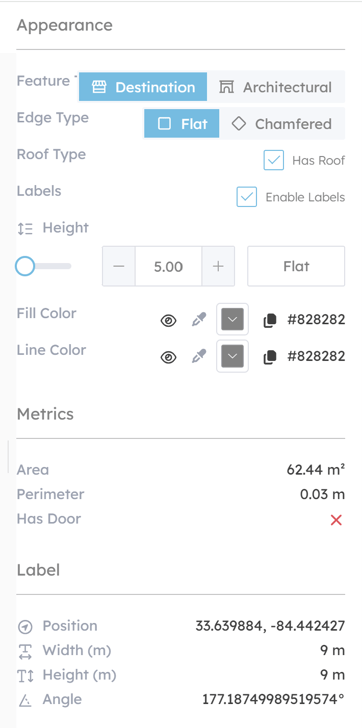
#### Appearance Settings
All of the above tools allow you to adjust the appearance of the object, see example below.
- [Software Installers](https://knowledge.acquiredigital.com/software-installers?hsLang=en)
- [StudioDX & DX Player](https://knowledge.acquiredigital.com/studiodx-dx-player?hsLang=en#main-content)
- [Studio DX FAQ's](https://knowledge.acquiredigital.com/studiodx-dx-player?hsLang=en#studio-dx-faqs)
- [Acquire StudioDX User Documentation](https://knowledge.acquiredigital.com/studiodx-dx-player?hsLang=en#acquire-studiodx-user-documentation)
- [User Guide](https://knowledge.acquiredigital.com/studiodx-dx-player?hsLang=en#user-guide)
- [Widgets](https://knowledge.acquiredigital.com/studiodx-dx-player?hsLang=en#widgets)
- [Transitions](https://knowledge.acquiredigital.com/studiodx-dx-player?hsLang=en#transitions)
- [Warning Alerts](https://knowledge.acquiredigital.com/studiodx-dx-player?hsLang=en#warning-alerts)
- [Setup App](https://knowledge.acquiredigital.com/studiodx-dx-player?hsLang=en#setup-app)
- [Project Apps](https://knowledge.acquiredigital.com/studiodx-dx-player?hsLang=en#project-apps)
- [StudioDX Stream Deck Plugin](https://knowledge.acquiredigital.com/studiodx-dx-player?hsLang=en#studiodx-stream-deck-plugin)
- [XML Formats](https://knowledge.acquiredigital.com/studiodx-dx-player?hsLang=en#xml-formats)
- [Acquire Wayfinder](https://knowledge.acquiredigital.com/acquire-wayfinder?hsLang=en#main-content)
- [Map Editor - Atlas](https://knowledge.acquiredigital.com/acquire-wayfinder?hsLang=en#map-editor-atlas)
- [Devices](https://knowledge.acquiredigital.com/acquire-wayfinder?hsLang=en#devices)
- [CMS User Management](https://knowledge.acquiredigital.com/acquire-wayfinder?hsLang=en#cms-user-management)
- [Project Settings](https://knowledge.acquiredigital.com/acquire-wayfinder?hsLang=en#project-settings)
- [The Map Editor](https://knowledge.acquiredigital.com/acquire-wayfinder?hsLang=en#the-map-editor)
- [JS Web Map UI V2.0](https://knowledge.acquiredigital.com/acquire-wayfinder?hsLang=en#js-web-map-ui-v2-0)
- [JS Web Map API V2.0](https://knowledge.acquiredigital.com/acquire-wayfinder?hsLang=en#js-web-map-api-v2-0)
- [JS Web Directory API V1.0](https://knowledge.acquiredigital.com/acquire-wayfinder?hsLang=en#js-web-directory-api-v1-0)
- [Wayfinder Map API](https://knowledge.acquiredigital.com/acquire-wayfinder?hsLang=en#wayfinder-map-api)
- [Broadsign Integration](https://knowledge.acquiredigital.com/acquire-wayfinder?hsLang=en#broadsign-integration)
- [Adverts Plugin](https://knowledge.acquiredigital.com/acquire-wayfinder?hsLang=en#adverts-plugin)
- [Wayfinder FAQs](https://knowledge.acquiredigital.com/acquire-wayfinder?hsLang=en#wayfinder-faqs)
- [Beacon](https://knowledge.acquiredigital.com/beacon?hsLang=en#main-content)
- [Devices](https://knowledge.acquiredigital.com/beacon?hsLang=en#devices)
- [Layouts](https://knowledge.acquiredigital.com/beacon?hsLang=en#layouts)
- [Information Displays](https://knowledge.acquiredigital.com/beacon?hsLang=en#information-displays)
- [Playlists](https://knowledge.acquiredigital.com/beacon?hsLang=en#playlists)
- [Project Settings](https://knowledge.acquiredigital.com/beacon?hsLang=en#project-settings)
- [Activity Logs](https://knowledge.acquiredigital.com/beacon?hsLang=en#activity-logs)
- [Acquire DOOHAD](https://knowledge.acquiredigital.com/acquire-doohad?hsLang=en#main-content)
- [DOOHAd Standalone Installer & Advert Configuration Tool](https://knowledge.acquiredigital.com/acquire-doohad?hsLang=en#doohad-standalone-installer-advert-configuration-tool)
- [DooHad FAQs](https://knowledge.acquiredigital.com/acquire-doohad?hsLang=en#doohad-faqs)
- [Acquire Vision User Guide](https://knowledge.acquiredigital.com/acquire-vision-user-guide?hsLang=en)
- [Acquire StudioDX & Wayfinder Trial Install Guides](https://knowledge.acquiredigital.com/acquire-studiodx-wayfinder-trial-install-guides?hsLang=en#main-content)
- [Acquire Wayfinder Trial](https://knowledge.acquiredigital.com/acquire-studiodx-wayfinder-trial-install-guides?hsLang=en#acquire-wayfinder-trial)
- [Acquire StudioDX Trial Installation Guide](https://knowledge.acquiredigital.com/acquire-studiodx-wayfinder-trial-install-guides?hsLang=en#acquire-studiodx-trial-installation-guide)
- [Acquire Assist](https://knowledge.acquiredigital.com/acquire-assist?hsLang=en)
- [Acquire Premier](https://knowledge.acquiredigital.com/acquire-premier?hsLang=en#main-content)
- [Quick Start Guide.](https://knowledge.acquiredigital.com/acquire-premier?hsLang=en#quick-start-guide)
- [Acquire Editor User Guide](https://knowledge.acquiredigital.com/acquire-premier?hsLang=en#acquire-editor-user-guide)
- [Toolbox](https://knowledge.acquiredigital.com/acquire-premier?hsLang=en#toolbox)
- [The PLUS! Network](https://knowledge.acquiredigital.com/acquire-premier?hsLang=en#the-plus-network)
- [Acquire Site Manager](https://knowledge.acquiredigital.com/acquire-premier?hsLang=en#acquire-site-manager)
- [Apps & Helpers Manuals](https://knowledge.acquiredigital.com/acquire-premier?hsLang=en#apps-helpers-manuals)
- [Minute Master-Classes](https://knowledge.acquiredigital.com/acquire-premier?hsLang=en#minute-master-classes)
- [Acquire Editor FAQs](https://knowledge.acquiredigital.com/acquire-premier?hsLang=en#acquire-editor-faqs)
- [Acquire Player FAQs](https://knowledge.acquiredigital.com/acquire-player-faqs?hsLang=en)
- [Site Manager](https://knowledge.acquiredigital.com/site-manager?hsLang=en#main-content)
- [Site Manager User Guide](https://knowledge.acquiredigital.com/site-manager?hsLang=en#site-manager-user-guide)
- [Site Manager FAQs](https://knowledge.acquiredigital.com/site-manager?hsLang=en#site-manager-faqs)
- [Watchdog](https://knowledge.acquiredigital.com/watchdog?hsLang=en#main-content)
- [Watchdog User Guide](https://knowledge.acquiredigital.com/watchdog?hsLang=en#watchdog-user-guide)
- [Watchdog FAQs](https://knowledge.acquiredigital.com/watchdog?hsLang=en#watchdog-faqs)
- [FAQs](https://knowledge.acquiredigital.com/faqs?hsLang=en)
[](http://acquiredigital.com)
[mailto:email@email.com](mailto:email@email.com)
Copyright © 2026, Acquire Digital