
Note: Each user has different access rights and visibility. You may not be able to see this screen or all of the players in your network).
Live Group Playlists
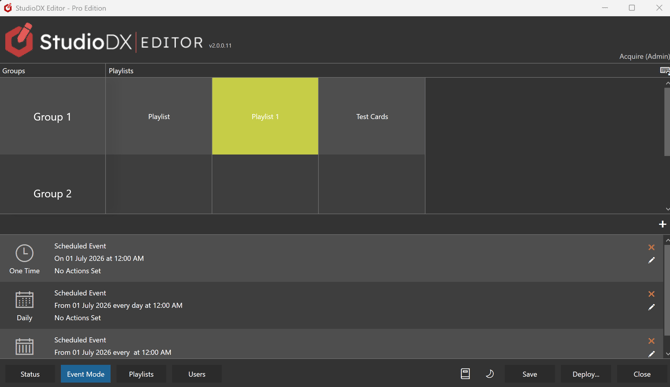
Each group of playlists is shown as one row in top part of the Event Mode screen.
The playlist currently set and playing for the group is highlighted in green.
To change a playlist instantly, simply click a different playlist to switch that group's playlist. The selected playlist will turn yellow (pending) while the current playlist remains green (active). When the playlist starts playing the pending item will turn green, and the active one will clear.
If there is an error the pending item will turn red.
In the error state the pending item will continue to be broadcast for approximately 60 seconds before reverting to the original active playlist.
If a group contains multiple players, the primary player will return the status message.
💡It is possible to select a special Test Cards playlist here. See the separate page for more information.
Scheduled Group Playlists
At he bottom of the screen is a list of scheduled events for switching playlists.
Press the ➕ button to add a new event, or an existing event's ✏️ button to edit it.
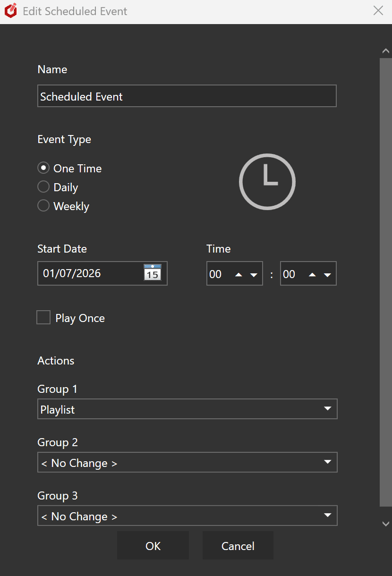
The following event dialogue will be shown.
- Name
The name of the event. This is for reference only. -
Event Type
- One time
The event is triggered once, at the set date and time. - Daily
The event is triggered every day, at the set time. - Weekly
The event is triggered on selected days, at the set time.
- One time
- Start Date
The event is only triggered from this date i.e. it will not be triggered before this date. - Play Once
All selected playlists will play once, and then revert to the previous playlist. - Time
The event will occur at this time of day. - Actions
Select the playlist you would like each group to switch to when this event occurs.