
Be aware that throughout DOOHAd, you can often filter and sort the information displayed by using the options seen here.
Some options may also be hidden from you based upon your user rights. If you do not see a function, please check your filter selection and check with your administrator if you have the required access rights before raising a support ticket.
Setting up your org
Once you have a DOOHAd account, you will need to set up your Organisations, users and clients.
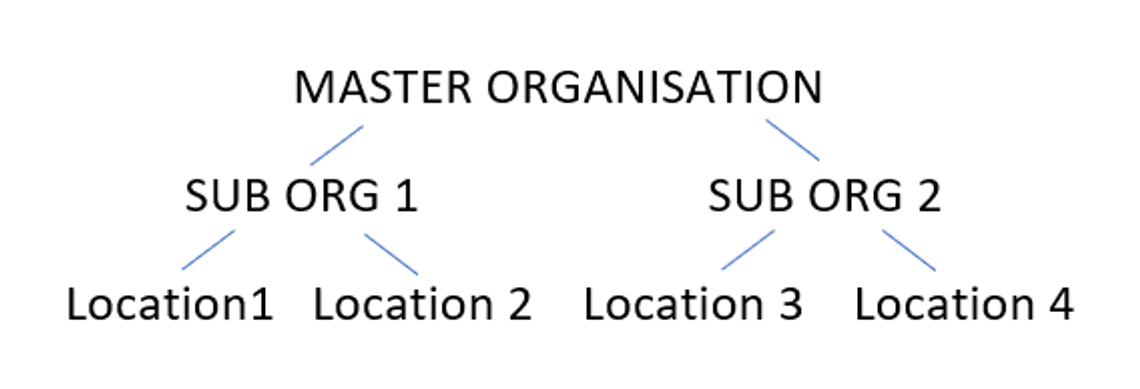
Organisations allow you to completely separate the users, campaigns, locations etc. They are not normally required for most DooH installations as often only a single organisation owns and operates the displays being used and can manage access via user accounts. However they can be useful when organisations have multiple tiers or when an organisation is supporting a number of third party organisations.
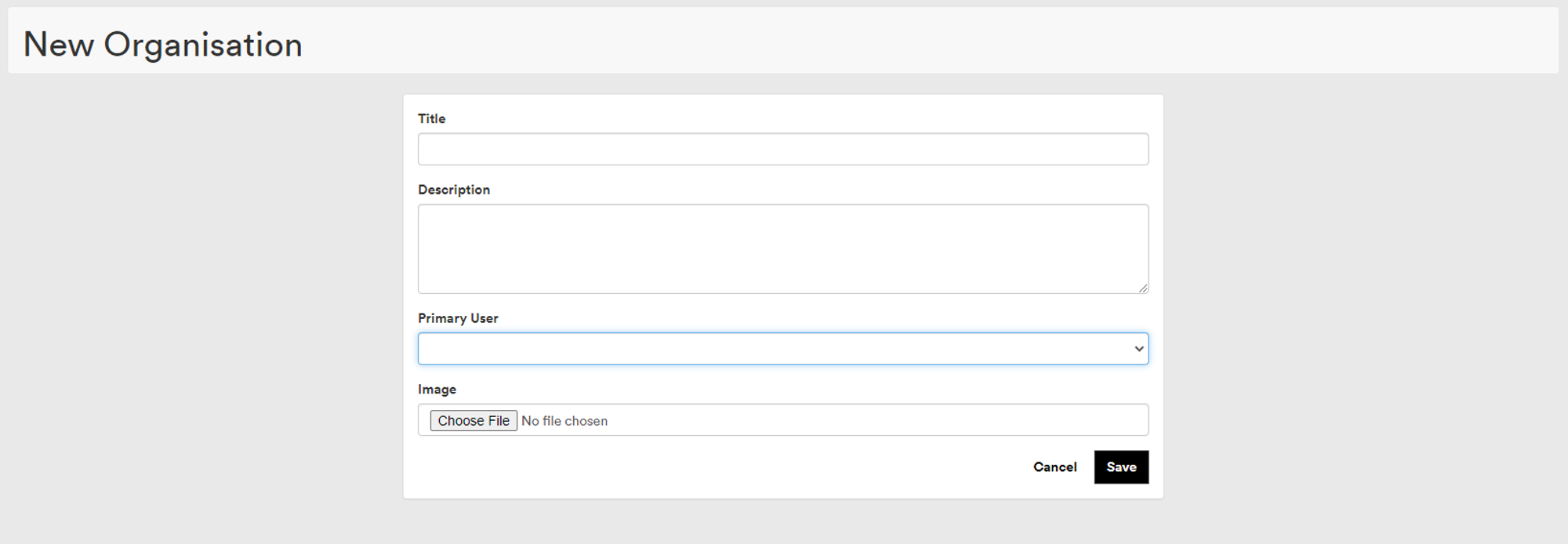
If you need to make additional organisations, choose Organisations from the Settings menu. Add a title and description (and optional image).
You need to select a Primary user - this person has direct access to the account and will receive notifications about the organisation.
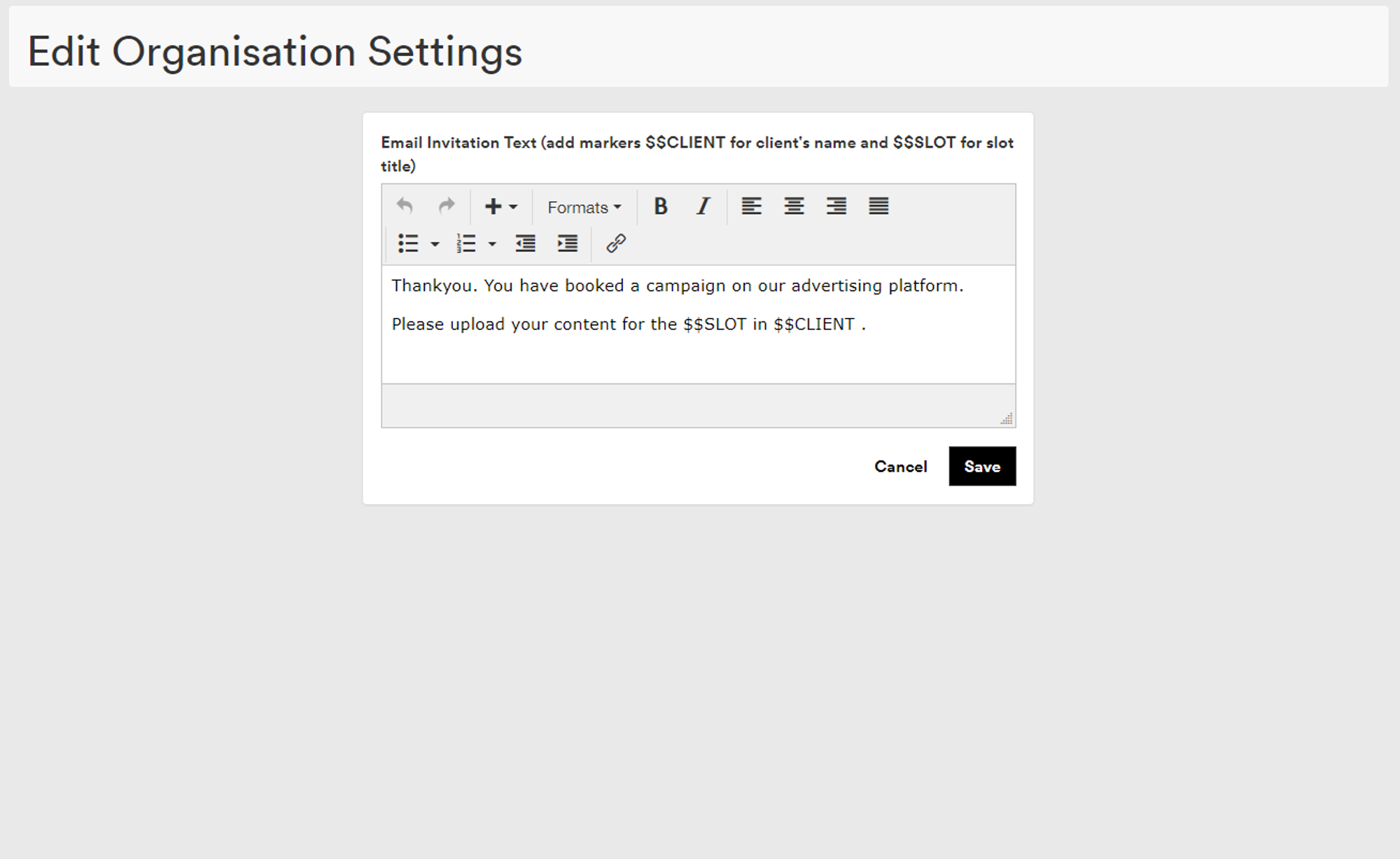
If you are expecting to use the 'Invite client' option (this allows you to set up a campaign and assign it to the players, then let clients manage the media in the slots you have defined), you may wish to provide a custom email template for the message which is sent to the client. This is done per organisation.
To amend the text, choose 'Global Settings' from the Settings menu. The email should be plain text for maximum compatibility, although you can include many HTML elements.
Within the text if you wish to include the detail of the client name and the Slot(s) they have been assigned to, these fields can be added with the $$SLOT and $$CLIENT fields.
Users
When users are added, they can be added at the 'Master Organisation' level and have visibility of the sub organisations. Or they can be added in a lower level and only see items within that level.
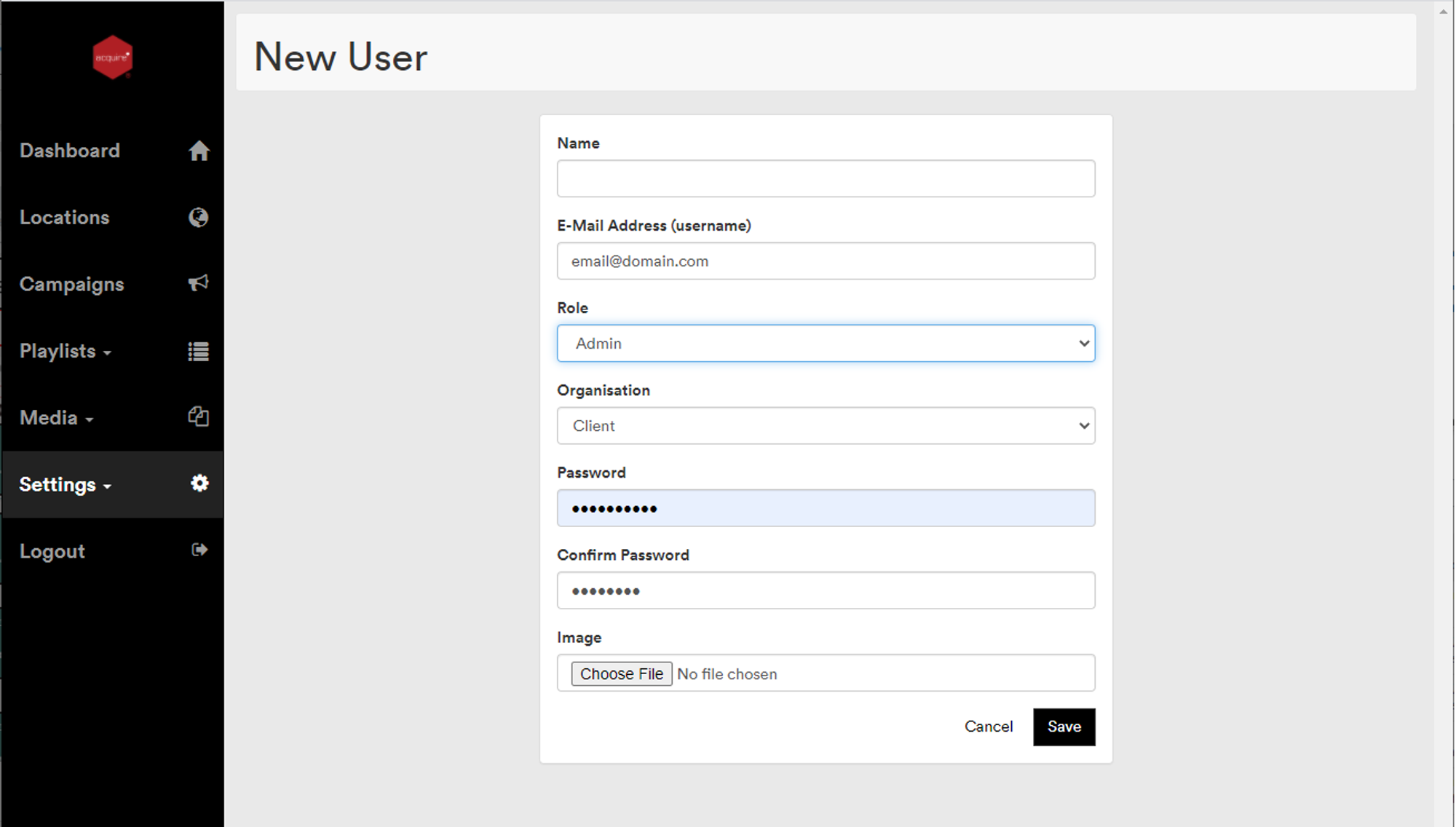
Users are people who can login to your DOOHAd account, including your own employees and third party users. Users can be one of the following user roles:
Administrator
Designed for managing users and supporting campaigns. Full access of the system (including creation of users, approval of uploaded content by 3rd party or client).
Manager
Designed for users who need to create and assign campaigns. Full access of the system (excluding settings - although they can administer clients). They can approve content by 3rd party or clients.
Client
Designed for agencies who purchase campaigns. Access only to manage slots within campaigns assigned to them (and their media).
3rd Party
Designed for users who are (like managers) able to purchase and assign campaigns, but are external to your organisation so have limited abilities. Ability to create/edit campaigns and slots within campaigns, assign campaigns to players, manage their own media. Unable to delete campaigns or view playlists. Able to view availability (numbers only, not colour status).
Note:
Client users automatically get created when a Client is added too, so they will show in the user list too. Each client is expected to only have a single user account.