---
title: Devices
description: Devices
---
[Skip to content](https://knowledge.acquiredigital.com/devices#main-content)
English
Show submenu for translations
[More support](https://knowledge.acquiredigital.com/kb-tickets/new?hsLang=en) [Support Portal](https://knowledge.acquiredigital.com/support?hsLang=en)

Open main navigation
Close main navigation
- English
Show submenu for translations
- [More support](https://knowledge.acquiredigital.com/kb-tickets/new)
- [Support Portal](https://knowledge.acquiredigital.com/support)
- Contact us
Contact us
How can we help you?
- There are no suggestions because the search field is empty.
1. [Acquire Digital Knowledgebase](https://knowledge.acquiredigital.com/?hsLang=en)
2. [Acquire Wayfinder](https://knowledge.acquiredigital.com/acquire-wayfinder?hsLang=en)
3. [Devices](https://knowledge.acquiredigital.com/acquire-wayfinder?hsLang=en#devices)
# Devices
## Before You Begin
Download the Acquire Wayfinder Installer [**here.**](https://cdn.acquiredigital.com/installers/AcquireWayfinderLaunchInstaller.exe?_gl=1*4pskpd*_gcl_au*MTI2NDM0NDgzNy4xNzcyMTExMTU1)
1. To obtain a license for Wayfinder, please contact Acquire Digital or your reseller.
2. Ensure you have details of the kiosk device's location on your currently published map.
*The installation process usually takes less than five minutes, with data downloads typically taking less than 20 minutes per kiosk. Familiarize yourself with these instructions before starting, and ensure you have enough time to complete the process and verify everything is functioning correctly once the download is complete. Once configured, the software and data will update automatically upon release, eliminating the need to revisit the unit during its installation lifecycle.*
#### **Licenses**
When commissioning a new unit, it will use one of your licenses. You cannot commission more units than you have purchased licenses for. In case of hardware failures, licenses are managed by the Acquire PLUS! network. If you need additional licenses, please contact the **[Acquire Digital Customer Service Team](mailto:sales@acquiredigital.com)** or use the **[Get in Touch Contact Form](https://acquiredigital.com/contact)**. Licenses can be decommissioned using the Wayfinder CMS to allow reuse on replacement hardware. The existing unit will continue to operate for a few days as a 'grace period' to allow for replacement. See below for instructions on how to do this.
**DO NOT** clone a machine once the application has been licensed, as the license will become invalid after the grace period.
All units must access the PLUS! network servers to validate their licenses. This typically occurs every 15 minutes as part of the 'status' handshake. The same grace period applies, allowing the unit to be out of contact for a few days before the license stops operating. Ensure ports 7200-7210 are open on any firewalls. Once reconnected, the unit will revalidate its license and resume operation automatically.
#### Commissioning a Wayfinder Kiosk
### **Prerequisites**
- Before installing the application and setting up the system, install the software. This can be done before or during the hardware installation onsite.
Ensure the following for a successful installation:
- Windows 10 is installed and configured to your requirements (e.g., security/lockdowns). Note that Wayfinder includes Watchdog software for automated lockdown options, which can be unlocked using a password.
- Acquire player is NOT installed.
- No third-party digital signage or similar software is installed.
- Network access to the CMS (internet access) and PLUS! Network. If firewalls are in use, ensure HTTP, HTTPS, and ports 7200-7210 are unrestricted and open outbound.
- Kiosk units are located on the respective property maps (ideally with correct locations and orientations, although these can be altered post-install).
- Obtain the ADMINISTRATOR password in case you need it for installing applications.
### **Before commissioning a unit, add the kiosk to the Wayfinder CMS.**
Any authorized user can add a kiosk, providing a name, description, etc., for all included kiosks. Ensure the kiosk orientation is entered correctly, based on degrees from North, to ensure the map orients correctly on the kiosk.
You can add as many **'kiosk'** locations as you wish, including virtual kiosks with QR codes for users to scan and access your web/mobile version. However, you can only install the number of kiosk applications you have purchased licenses for.
### **Replacing a Kiosk**
If replacing a kiosk with failed hardware, do not create a new kiosk. Instead, use the Wayfinder CMS to find the failed kiosk and edit it. At the bottom of the dialog, select the option to DECOMMISSION the kiosk to release the license, allowing you to choose the kiosk from the setup program.
### **Installing the Software**
Unpack and run AcquireWayfinderInstaller.exe. Accept the license agreement to proceed. This will continue with the installation of the Acquire player software and Watchdog application. You will be asked to confirm a passcode used to unlock the Watchdog application and return to the desktop, and specify locations for the applications to install.
### **Commissioning the Unit**
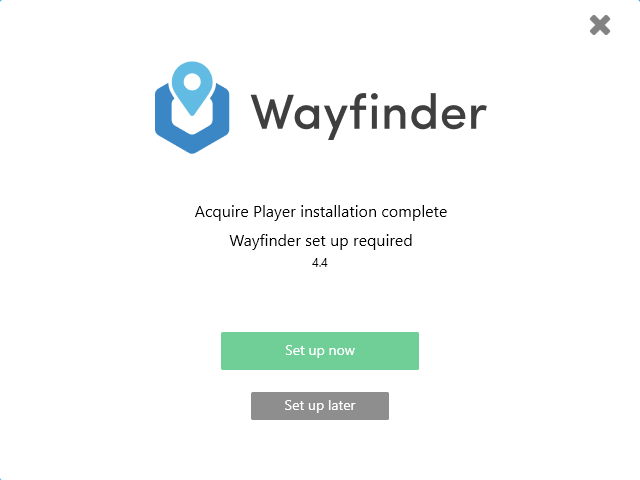
Once the programs are installed, the Wayfinder setup program will run automatically.
If you quit this process or choose Set Up Later, exit the Watchdog program using the password you chose, then run the program in the acquire install folder/WayfinderConfig/ - Wayfinderconfig.exe.
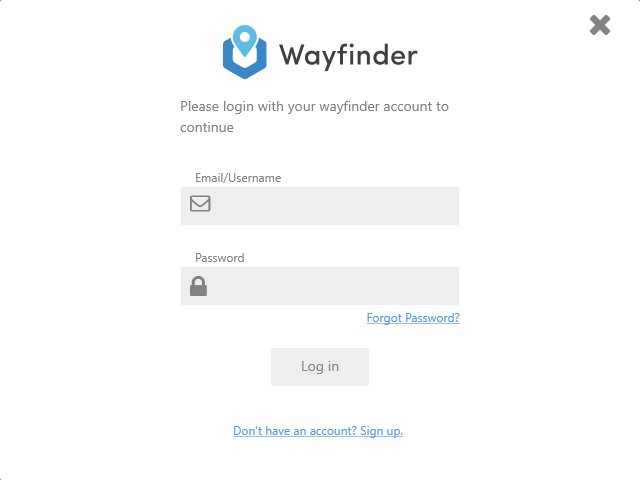
Enter the user details for the Wayfinder CMS for a user with rights to commission new units.
After logging in, you can choose the organization (any sub-organizations will be listed explicitly here), the location within that organization, and the kiosk you are commissioning.
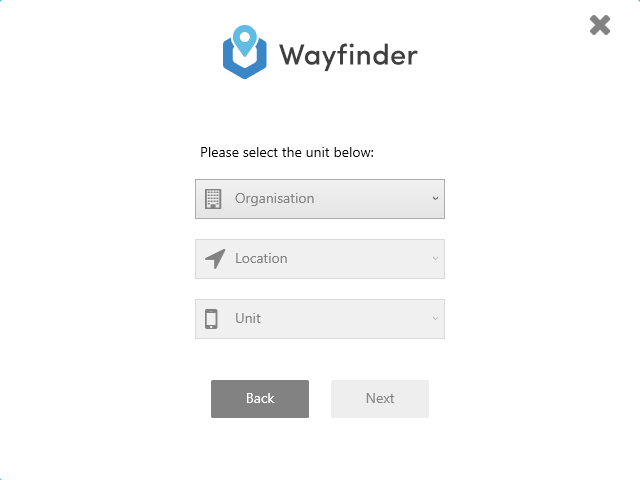
When you press **'Next'**, the software will reboot the computer once or twice, then begin downloading the project files. Depending on your internet speed, this may take up to one hour to complete (typically around 15 minutes).
You will see messages such as 'xyz file does not exist...' at the bottom of the screen. This is normal, as the software reports files required for download from the servers, followed by 'downloading xyz'.
The software will automatically restart after a few minutes once all required files are downloaded. If you restart the computer before this time, only some files may have downloaded, and the system may not start correctly. You will need to contact Acquire Support for assistance.
If the kiosk does not restart after one hour, check for any messages on the screen and report them to **[Acquire Support](https://support.acquiredigital.com/hc/en-us/requests/new)** for assistance.
Once the kiosk software has downloaded all relevant files, it will restart the application one more time, and the Acquire Wayfinder application should start up.
If the kiosk is not showing its starting location on the map, use the CMS to check the kiosk location and orientation (and adjust if necessary), then publish the map data. After a few minutes, the kiosk application will restart, and the kiosk should be correctly located on the map, allowing routing to be done.
- [Software Installers](https://knowledge.acquiredigital.com/software-installers?hsLang=en)
- [StudioDX & DX Player](https://knowledge.acquiredigital.com/studiodx-dx-player?hsLang=en#main-content)
- [Studio DX FAQ's](https://knowledge.acquiredigital.com/studiodx-dx-player?hsLang=en#studio-dx-faqs)
- [Acquire StudioDX User Documentation](https://knowledge.acquiredigital.com/studiodx-dx-player?hsLang=en#acquire-studiodx-user-documentation)
- [User Guide](https://knowledge.acquiredigital.com/studiodx-dx-player?hsLang=en#user-guide)
- [Widgets](https://knowledge.acquiredigital.com/studiodx-dx-player?hsLang=en#widgets)
- [Transitions](https://knowledge.acquiredigital.com/studiodx-dx-player?hsLang=en#transitions)
- [Warning Alerts](https://knowledge.acquiredigital.com/studiodx-dx-player?hsLang=en#warning-alerts)
- [Setup App](https://knowledge.acquiredigital.com/studiodx-dx-player?hsLang=en#setup-app)
- [Project Apps](https://knowledge.acquiredigital.com/studiodx-dx-player?hsLang=en#project-apps)
- [StudioDX Stream Deck Plugin](https://knowledge.acquiredigital.com/studiodx-dx-player?hsLang=en#studiodx-stream-deck-plugin)
- [XML Formats](https://knowledge.acquiredigital.com/studiodx-dx-player?hsLang=en#xml-formats)
- [Acquire Wayfinder](https://knowledge.acquiredigital.com/acquire-wayfinder?hsLang=en#main-content)
- [Map Editor - Atlas](https://knowledge.acquiredigital.com/acquire-wayfinder?hsLang=en#map-editor-atlas)
- [Devices](https://knowledge.acquiredigital.com/acquire-wayfinder?hsLang=en#devices)
- [CMS User Management](https://knowledge.acquiredigital.com/acquire-wayfinder?hsLang=en#cms-user-management)
- [Project Settings](https://knowledge.acquiredigital.com/acquire-wayfinder?hsLang=en#project-settings)
- [The Map Editor](https://knowledge.acquiredigital.com/acquire-wayfinder?hsLang=en#the-map-editor)
- [JS Web Map UI V2.0](https://knowledge.acquiredigital.com/acquire-wayfinder?hsLang=en#js-web-map-ui-v2-0)
- [JS Web Map API V2.0](https://knowledge.acquiredigital.com/acquire-wayfinder?hsLang=en#js-web-map-api-v2-0)
- [JS Web Directory API V1.0](https://knowledge.acquiredigital.com/acquire-wayfinder?hsLang=en#js-web-directory-api-v1-0)
- [Wayfinder Map API](https://knowledge.acquiredigital.com/acquire-wayfinder?hsLang=en#wayfinder-map-api)
- [Broadsign Integration](https://knowledge.acquiredigital.com/acquire-wayfinder?hsLang=en#broadsign-integration)
- [Adverts Plugin](https://knowledge.acquiredigital.com/acquire-wayfinder?hsLang=en#adverts-plugin)
- [Wayfinder FAQs](https://knowledge.acquiredigital.com/acquire-wayfinder?hsLang=en#wayfinder-faqs)
- [Beacon](https://knowledge.acquiredigital.com/beacon?hsLang=en#main-content)
- [Devices](https://knowledge.acquiredigital.com/beacon?hsLang=en#devices)
- [Layouts](https://knowledge.acquiredigital.com/beacon?hsLang=en#layouts)
- [Information Displays](https://knowledge.acquiredigital.com/beacon?hsLang=en#information-displays)
- [Playlists](https://knowledge.acquiredigital.com/beacon?hsLang=en#playlists)
- [Project Settings](https://knowledge.acquiredigital.com/beacon?hsLang=en#project-settings)
- [Activity Logs](https://knowledge.acquiredigital.com/beacon?hsLang=en#activity-logs)
- [Acquire DOOHAD](https://knowledge.acquiredigital.com/acquire-doohad?hsLang=en#main-content)
- [DOOHAd Standalone Installer & Advert Configuration Tool](https://knowledge.acquiredigital.com/acquire-doohad?hsLang=en#doohad-standalone-installer-advert-configuration-tool)
- [DooHad FAQs](https://knowledge.acquiredigital.com/acquire-doohad?hsLang=en#doohad-faqs)
- [Acquire Vision User Guide](https://knowledge.acquiredigital.com/acquire-vision-user-guide?hsLang=en)
- [Acquire StudioDX & Wayfinder Trial Install Guides](https://knowledge.acquiredigital.com/acquire-studiodx-wayfinder-trial-install-guides?hsLang=en#main-content)
- [Acquire Wayfinder Trial](https://knowledge.acquiredigital.com/acquire-studiodx-wayfinder-trial-install-guides?hsLang=en#acquire-wayfinder-trial)
- [Acquire StudioDX Trial Installation Guide](https://knowledge.acquiredigital.com/acquire-studiodx-wayfinder-trial-install-guides?hsLang=en#acquire-studiodx-trial-installation-guide)
- [Acquire Assist](https://knowledge.acquiredigital.com/acquire-assist?hsLang=en)
- [Acquire Premier](https://knowledge.acquiredigital.com/acquire-premier?hsLang=en#main-content)
- [Quick Start Guide.](https://knowledge.acquiredigital.com/acquire-premier?hsLang=en#quick-start-guide)
- [Acquire Editor User Guide](https://knowledge.acquiredigital.com/acquire-premier?hsLang=en#acquire-editor-user-guide)
- [Toolbox](https://knowledge.acquiredigital.com/acquire-premier?hsLang=en#toolbox)
- [The PLUS! Network](https://knowledge.acquiredigital.com/acquire-premier?hsLang=en#the-plus-network)
- [Acquire Site Manager](https://knowledge.acquiredigital.com/acquire-premier?hsLang=en#acquire-site-manager)
- [Apps & Helpers Manuals](https://knowledge.acquiredigital.com/acquire-premier?hsLang=en#apps-helpers-manuals)
- [Minute Master-Classes](https://knowledge.acquiredigital.com/acquire-premier?hsLang=en#minute-master-classes)
- [Acquire Editor FAQs](https://knowledge.acquiredigital.com/acquire-premier?hsLang=en#acquire-editor-faqs)
- [Acquire Player FAQs](https://knowledge.acquiredigital.com/acquire-player-faqs?hsLang=en)
- [Site Manager](https://knowledge.acquiredigital.com/site-manager?hsLang=en#main-content)
- [Site Manager User Guide](https://knowledge.acquiredigital.com/site-manager?hsLang=en#site-manager-user-guide)
- [Site Manager FAQs](https://knowledge.acquiredigital.com/site-manager?hsLang=en#site-manager-faqs)
- [Watchdog](https://knowledge.acquiredigital.com/watchdog?hsLang=en#main-content)
- [Watchdog User Guide](https://knowledge.acquiredigital.com/watchdog?hsLang=en#watchdog-user-guide)
- [Watchdog FAQs](https://knowledge.acquiredigital.com/watchdog?hsLang=en#watchdog-faqs)
- [FAQs](https://knowledge.acquiredigital.com/faqs?hsLang=en)
[](http://acquiredigital.com)
[mailto:email@email.com](mailto:email@email.com)
Copyright © 2026, Acquire Digital