---
title: Creating a Project
description: Creating a Project
---
[Skip to content](https://knowledge.acquiredigital.com/creating-a-project#main-content)
English
Show submenu for translations
[More support](https://knowledge.acquiredigital.com/kb-tickets/new?hsLang=en) [Support Portal](https://knowledge.acquiredigital.com/support?hsLang=en)

Open main navigation
Close main navigation
- English
Show submenu for translations
- [More support](https://knowledge.acquiredigital.com/kb-tickets/new)
- [Support Portal](https://knowledge.acquiredigital.com/support)
- Contact us
Contact us
How can we help you?
- There are no suggestions because the search field is empty.
1. [Acquire Digital Knowledgebase](https://knowledge.acquiredigital.com/?hsLang=en)
2. [Acquire Premier](https://knowledge.acquiredigital.com/acquire-premier?hsLang=en)
3. [Quick Start Guide.](https://knowledge.acquiredigital.com/acquire-premier?hsLang=en#quick-start-guide)
# Creating a Project
## Once installed, the Editor has all the tools to put your content together either interactively or to a schedule, and also to maintain your systems.
Firstly to create a new project, go to the ‘Project’ tab and select ‘Add’.
Give it a name and choose your folders (or let Acquire make a uniquely named one for you).
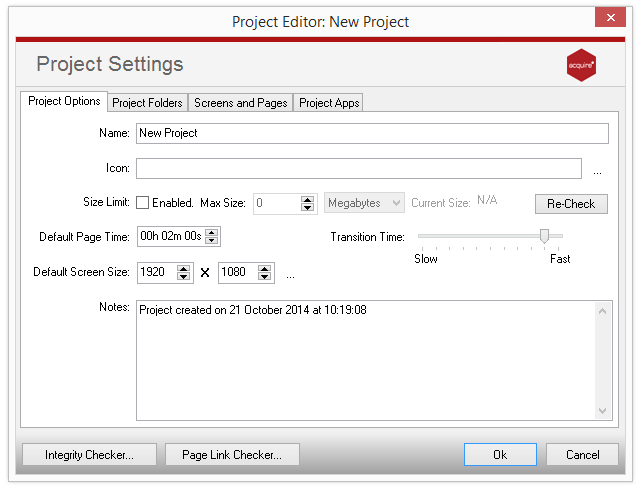
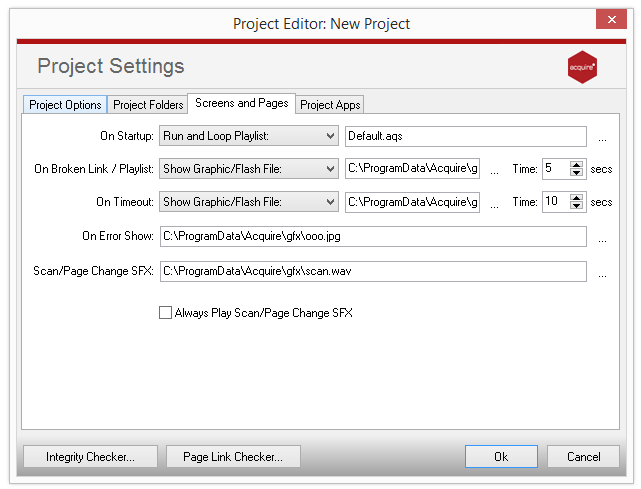
You also need to choose the settings you want to use for this Project (especially what you want Acquire to do ‘On Startup’. You may wish to return to this Project Settings screen later after you have created some pages and playlists. If you want to play just one page (maybe if you are creating a kiosk), choose it here, or choose ‘Run and loop Script’ and a script to use if you want Acquire to show a playlist of content.
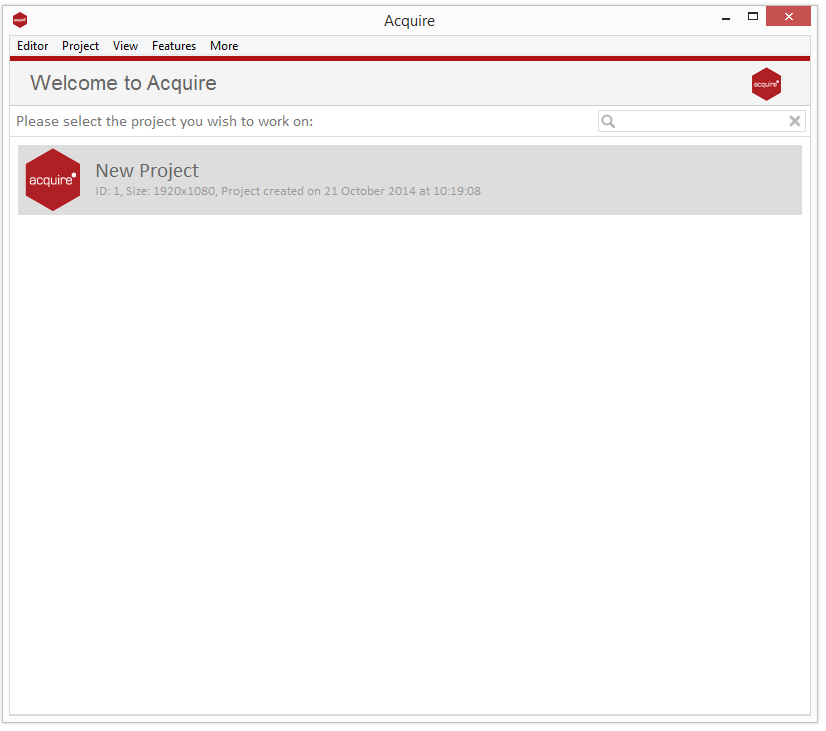
Once Done you will see the Project on the main Acquire Editor.
- [Software Installers](https://knowledge.acquiredigital.com/software-installers?hsLang=en)
- [StudioDX & DX Player](https://knowledge.acquiredigital.com/studiodx-dx-player?hsLang=en#main-content)
- [Studio DX FAQ's](https://knowledge.acquiredigital.com/studiodx-dx-player?hsLang=en#studio-dx-faqs)
- [Acquire StudioDX User Documentation](https://knowledge.acquiredigital.com/studiodx-dx-player?hsLang=en#acquire-studiodx-user-documentation)
- [User Guide](https://knowledge.acquiredigital.com/studiodx-dx-player?hsLang=en#user-guide)
- [Widgets](https://knowledge.acquiredigital.com/studiodx-dx-player?hsLang=en#widgets)
- [Transitions](https://knowledge.acquiredigital.com/studiodx-dx-player?hsLang=en#transitions)
- [Warning Alerts](https://knowledge.acquiredigital.com/studiodx-dx-player?hsLang=en#warning-alerts)
- [Setup App](https://knowledge.acquiredigital.com/studiodx-dx-player?hsLang=en#setup-app)
- [Project Apps](https://knowledge.acquiredigital.com/studiodx-dx-player?hsLang=en#project-apps)
- [StudioDX Stream Deck Plugin](https://knowledge.acquiredigital.com/studiodx-dx-player?hsLang=en#studiodx-stream-deck-plugin)
- [XML Formats](https://knowledge.acquiredigital.com/studiodx-dx-player?hsLang=en#xml-formats)
- [Acquire Wayfinder](https://knowledge.acquiredigital.com/acquire-wayfinder?hsLang=en#main-content)
- [Map Editor - Atlas](https://knowledge.acquiredigital.com/acquire-wayfinder?hsLang=en#map-editor-atlas)
- [Devices](https://knowledge.acquiredigital.com/acquire-wayfinder?hsLang=en#devices)
- [CMS User Management](https://knowledge.acquiredigital.com/acquire-wayfinder?hsLang=en#cms-user-management)
- [Project Settings](https://knowledge.acquiredigital.com/acquire-wayfinder?hsLang=en#project-settings)
- [The Map Editor](https://knowledge.acquiredigital.com/acquire-wayfinder?hsLang=en#the-map-editor)
- [JS Web Map UI V2.0](https://knowledge.acquiredigital.com/acquire-wayfinder?hsLang=en#js-web-map-ui-v2-0)
- [JS Web Map API V2.0](https://knowledge.acquiredigital.com/acquire-wayfinder?hsLang=en#js-web-map-api-v2-0)
- [JS Web Directory API V1.0](https://knowledge.acquiredigital.com/acquire-wayfinder?hsLang=en#js-web-directory-api-v1-0)
- [Wayfinder Map API](https://knowledge.acquiredigital.com/acquire-wayfinder?hsLang=en#wayfinder-map-api)
- [Broadsign Integration](https://knowledge.acquiredigital.com/acquire-wayfinder?hsLang=en#broadsign-integration)
- [Adverts Plugin](https://knowledge.acquiredigital.com/acquire-wayfinder?hsLang=en#adverts-plugin)
- [Wayfinder FAQs](https://knowledge.acquiredigital.com/acquire-wayfinder?hsLang=en#wayfinder-faqs)
- [Beacon](https://knowledge.acquiredigital.com/beacon?hsLang=en#main-content)
- [Devices](https://knowledge.acquiredigital.com/beacon?hsLang=en#devices)
- [Layouts](https://knowledge.acquiredigital.com/beacon?hsLang=en#layouts)
- [Information Displays](https://knowledge.acquiredigital.com/beacon?hsLang=en#information-displays)
- [Playlists](https://knowledge.acquiredigital.com/beacon?hsLang=en#playlists)
- [Project Settings](https://knowledge.acquiredigital.com/beacon?hsLang=en#project-settings)
- [Activity Logs](https://knowledge.acquiredigital.com/beacon?hsLang=en#activity-logs)
- [Acquire DOOHAD](https://knowledge.acquiredigital.com/acquire-doohad?hsLang=en#main-content)
- [DOOHAd Standalone Installer & Advert Configuration Tool](https://knowledge.acquiredigital.com/acquire-doohad?hsLang=en#doohad-standalone-installer-advert-configuration-tool)
- [DooHad FAQs](https://knowledge.acquiredigital.com/acquire-doohad?hsLang=en#doohad-faqs)
- [Acquire Vision User Guide](https://knowledge.acquiredigital.com/acquire-vision-user-guide?hsLang=en)
- [Acquire StudioDX & Wayfinder Trial Install Guides](https://knowledge.acquiredigital.com/acquire-studiodx-wayfinder-trial-install-guides?hsLang=en#main-content)
- [Acquire Wayfinder Trial](https://knowledge.acquiredigital.com/acquire-studiodx-wayfinder-trial-install-guides?hsLang=en#acquire-wayfinder-trial)
- [Acquire StudioDX Trial Installation Guide](https://knowledge.acquiredigital.com/acquire-studiodx-wayfinder-trial-install-guides?hsLang=en#acquire-studiodx-trial-installation-guide)
- [Acquire Assist](https://knowledge.acquiredigital.com/acquire-assist?hsLang=en)
- [Acquire Premier](https://knowledge.acquiredigital.com/acquire-premier?hsLang=en#main-content)
- [Quick Start Guide.](https://knowledge.acquiredigital.com/acquire-premier?hsLang=en#quick-start-guide)
- [Acquire Editor User Guide](https://knowledge.acquiredigital.com/acquire-premier?hsLang=en#acquire-editor-user-guide)
- [Toolbox](https://knowledge.acquiredigital.com/acquire-premier?hsLang=en#toolbox)
- [The PLUS! Network](https://knowledge.acquiredigital.com/acquire-premier?hsLang=en#the-plus-network)
- [Acquire Site Manager](https://knowledge.acquiredigital.com/acquire-premier?hsLang=en#acquire-site-manager)
- [Apps & Helpers Manuals](https://knowledge.acquiredigital.com/acquire-premier?hsLang=en#apps-helpers-manuals)
- [Minute Master-Classes](https://knowledge.acquiredigital.com/acquire-premier?hsLang=en#minute-master-classes)
- [Acquire Editor FAQs](https://knowledge.acquiredigital.com/acquire-premier?hsLang=en#acquire-editor-faqs)
- [Acquire Player FAQs](https://knowledge.acquiredigital.com/acquire-player-faqs?hsLang=en)
- [Site Manager](https://knowledge.acquiredigital.com/site-manager?hsLang=en#main-content)
- [Site Manager User Guide](https://knowledge.acquiredigital.com/site-manager?hsLang=en#site-manager-user-guide)
- [Site Manager FAQs](https://knowledge.acquiredigital.com/site-manager?hsLang=en#site-manager-faqs)
- [Watchdog](https://knowledge.acquiredigital.com/watchdog?hsLang=en#main-content)
- [Watchdog User Guide](https://knowledge.acquiredigital.com/watchdog?hsLang=en#watchdog-user-guide)
- [Watchdog FAQs](https://knowledge.acquiredigital.com/watchdog?hsLang=en#watchdog-faqs)
- [FAQs](https://knowledge.acquiredigital.com/faqs?hsLang=en)
[](http://acquiredigital.com)
[mailto:email@email.com](mailto:email@email.com)
Copyright © 2026, Acquire Digital