To assign a destination to a 3D space simply click on the space to highlight it. The right-hand sidebar
You must first create your global destinations or brands before assigning them to the map. You can assign a brand to multiple 3D spaces and give them unique descriptions and opening hours from here.
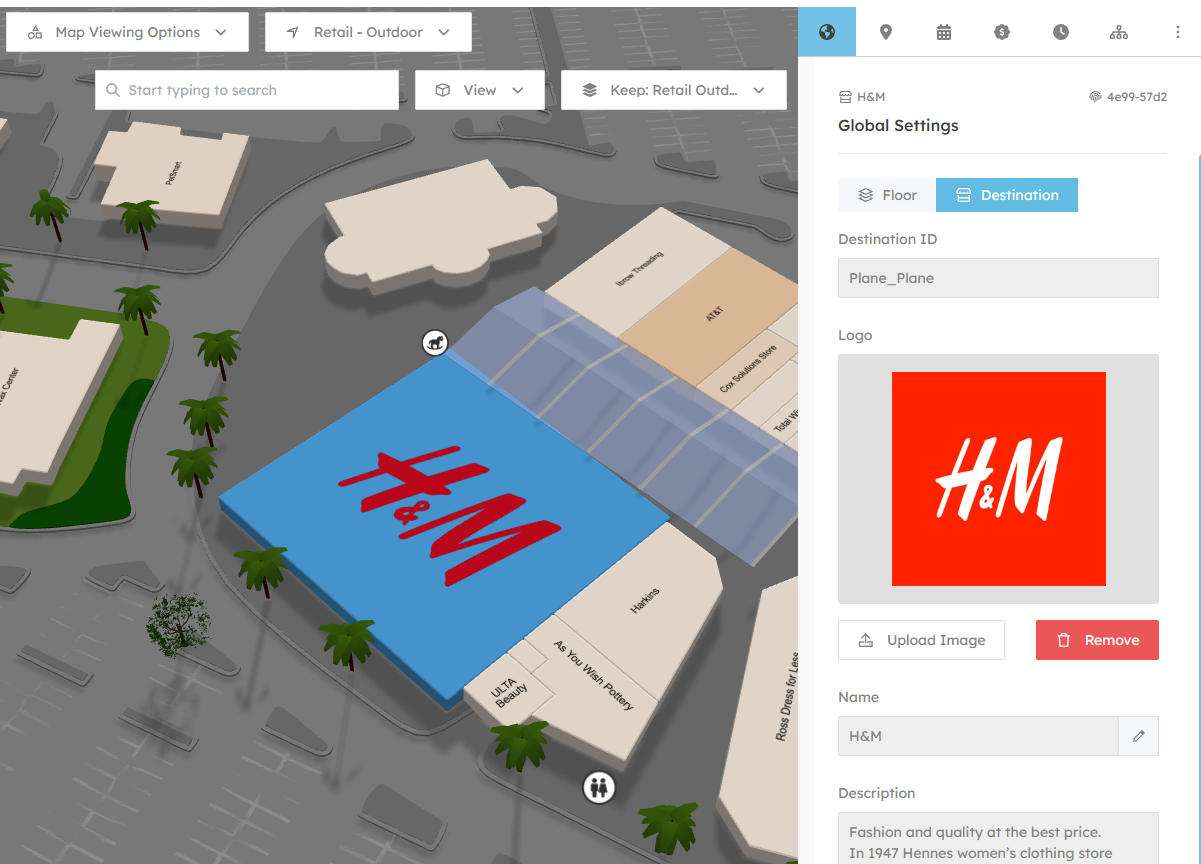
Global Settings
Start typing your destination and then select it from the list. The data will then be automatically populated.
Destination vs. Floor
A destination is a routable space that should show the user information and walking directions when touched. A Floor indicates that clicking this space should change the floor or building.
Local Settings
Here you can configure the information specific to this location only.
Location Image
This is a custom image to show alongside the logo. Great for marketing images, or a photo of the location.
Flagship
A flagship location shows the logo instead of the label, and appears more promenantly on the map.
Local Name override
Use this to change the name of the location instance.
Local Description
Give a more specific description of the location. For example if this location offers special services or isn't accessible friendly.
Location Description
This is the description of where the location is, for example: "Next to Starbucks, opposite the fountain"
Review
Show a star rating for this location.
Note: Tatvam integrations will override this setting.
Badges
Add badges that will show prominently beside destinations. e.g. Minority Owned, Accessible, Seasonal
Address
The street address of the location. This is shown to users.
Parking
Information on where best to park when visiting this location.
Custom Fields
Add custom fields to display additional information on screens. Perfect for QR code URLs or any extra details you want to show visitors.
Custom Colours
Set overrides to the label and destination colours in the map.
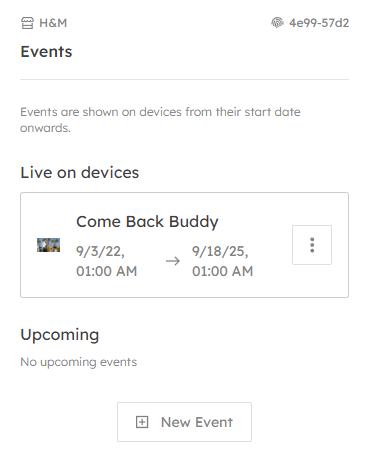
Offers & Events
These tabs allow you to assign offers, or create new ones. Please check here for detailed info on creating offers and events. Offers & Events Page
Offers and events ONLY show when assigned to destinations.
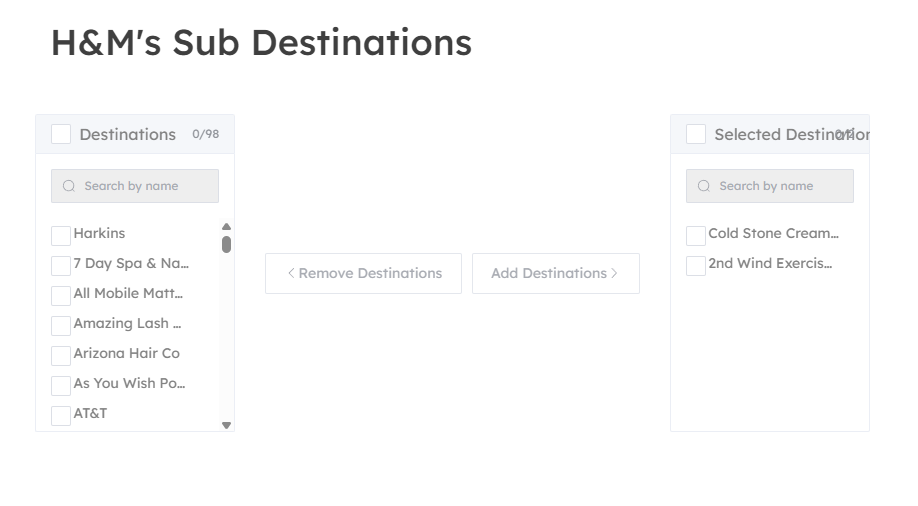
Sub Destinations
Sub destinations are destinations that sit inside an existing space. For example a coffee shop inside a department store.