
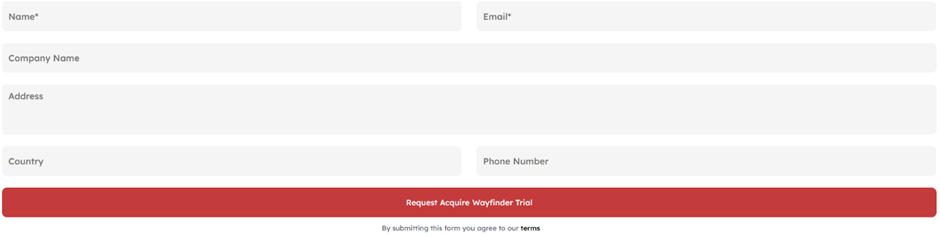
Getting started is easy. Simply fill out the form at the link below to request your trial version of Acquire Wayfinder Trial.
Step 1
Once you've completed the form, you’ll receive an email containing everything you need to begin your trial, including download links and licensing information.
Step 2: Download & Install the Wayfinder
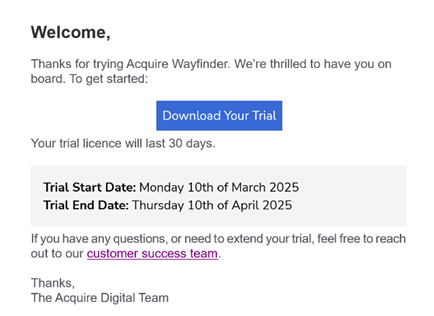
Download Your Trial – Click the link in your email to access the download page.
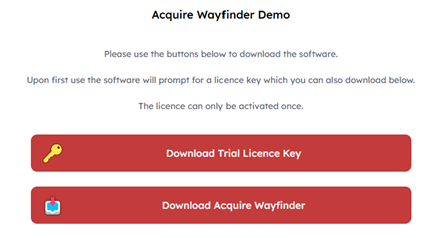
Get Your Wayfinder License – Select 'Download Trial License Key' to download your unique license file.
- Example filename: wayfinder_licence1234
Download the Software – Select 'Download Acquire Wayfinder' to download the software package.
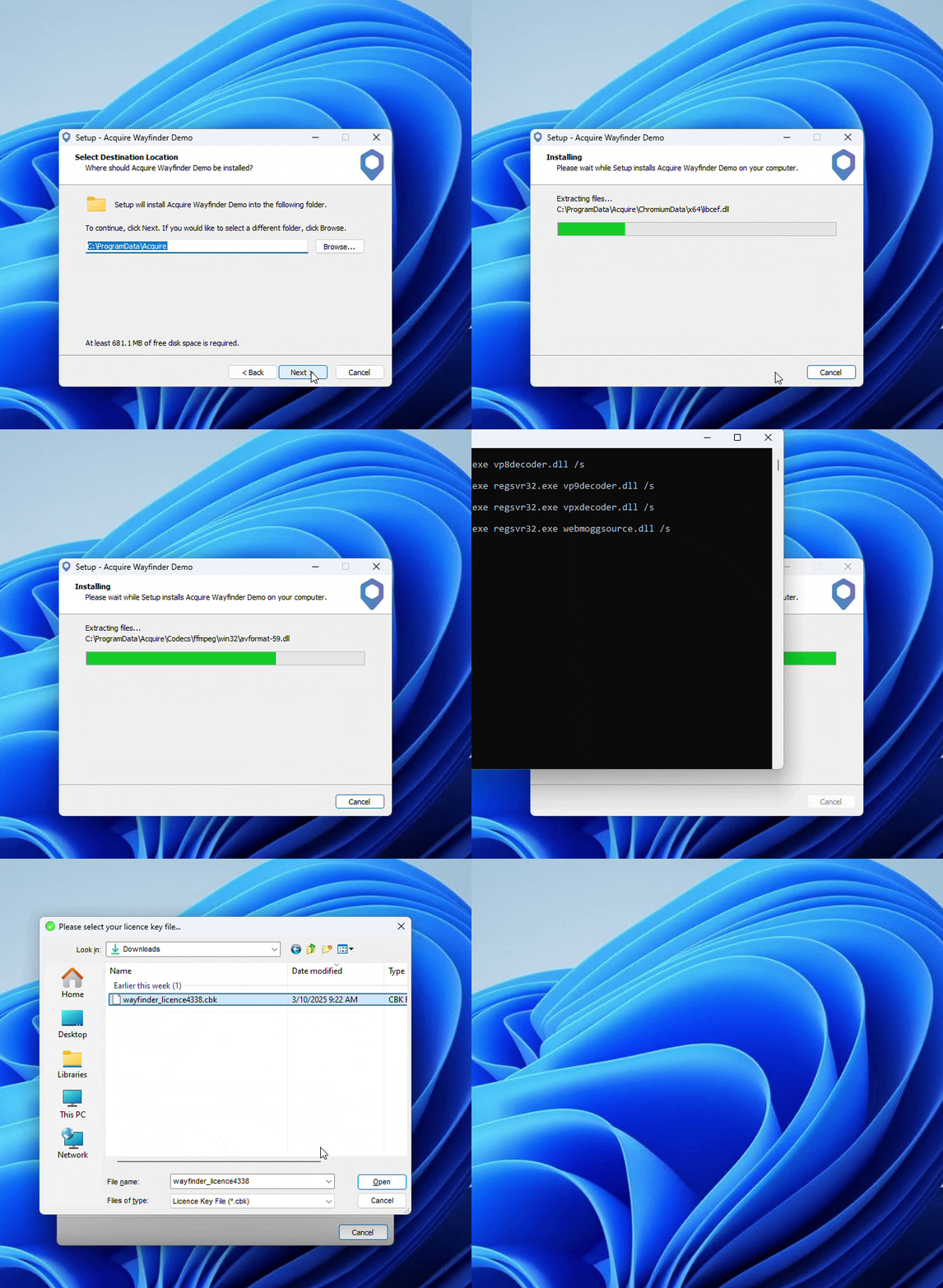
Install the Software – Run the Acquire Wayfinder Installer on your dedicated PC or laptop, accept the license agreement, and follow the on-screen wizard. By accepting the license agreement.
See example video:
Step 3: Activate Your License
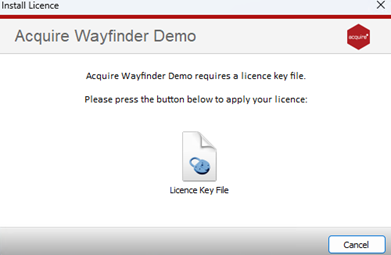
Once installation is complete, click 'License Key File' to open the activation window.
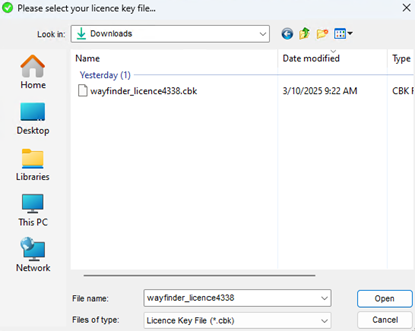
Navigate to where you downloaded your license file and select 'Open'
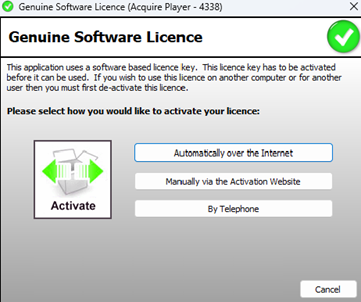
Choose from three activation methods:
- Recommended: Automatically over the Internet – The fastest and easiest way to activate.
Once activated, a confirmation message will appear: “Your software has now been activated.”
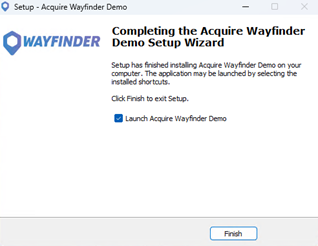
Click 'Finish' to complete the setup. Launch Acquire Wayfinder Demo is selected as default.
The App can be found in Start – All App’s – Acquire Wayfinder Demo.

When the application opens you will need to select the Demo you want and download first. Each project needs to be updated within the software.
There are 4 projects to choose from.
- Demo – Campus
- Demo – Retail
- Demo – Healthcare
- Demo - Transport
Select the Project you want from the dropdown menu and click Download.
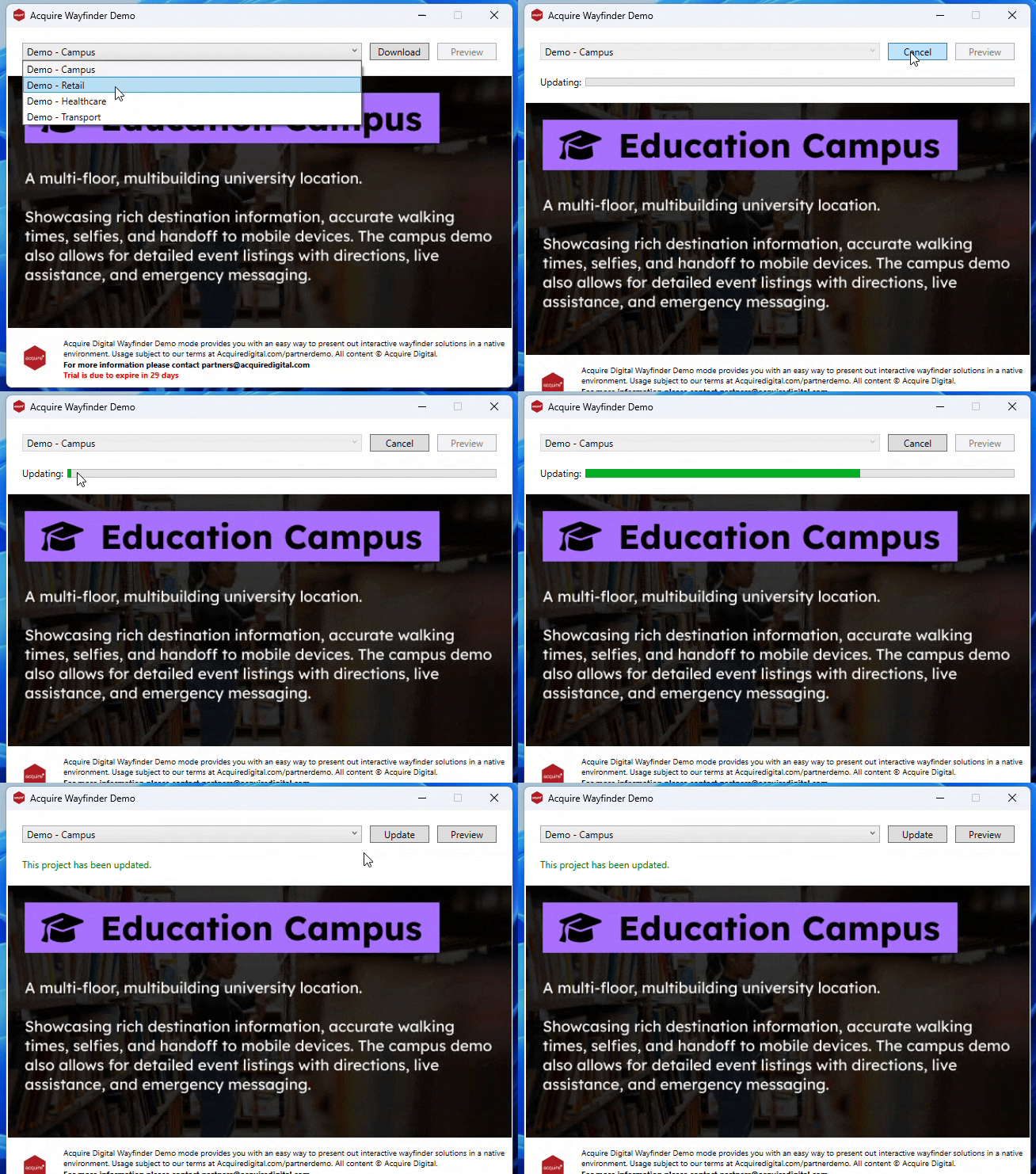
Once the download has completed the Preview button has now become active.
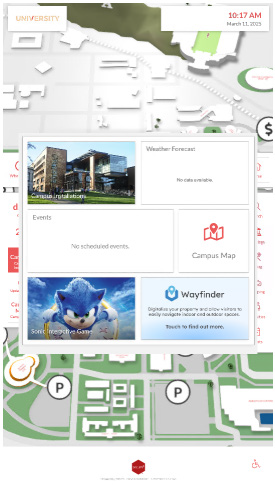
By selecting Preview, the wayfinder project will now start up.
You will now see the home screen and by Selecting the Campus Map you will be able to now interact with the map.
Note:
To break out of the demo:
double-tap bottom left, top left, bottom right, top right of the screen.