Resolution:
When you create your project, you need to tell Acquire the default things to do for the project. If you have not chosen something to do on start-up, or what you have chosen (media, page or script) does not exist, Acquire will attempt to show an Out of Order event. If this is not possible it will display a red screen instead.
When using the PLUS! Network to deploy your content, each player can have a different script or page to play, which is defined in the Scheduler. If you leave the schedule empty for a player, it will use the default settings
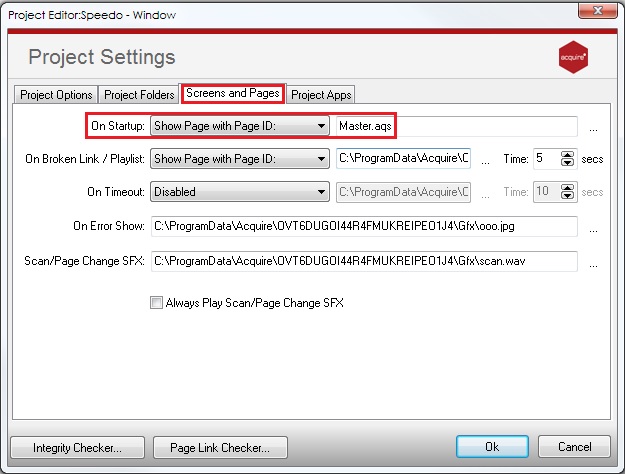
To resolve this problem, all you need to do is ensure you select a page to play on start-up.
To do this:
1. On the Main Menu, click on your chosen project.
2. Click Project and select Project Settings;
3. Click the Screens and Pages tab;
4. Choose your preference for the On Start-up to show either show a graphic, Flash content or a single page or a script;
5. Click ... button and choose the media, page or script you wish to use and click OK.