
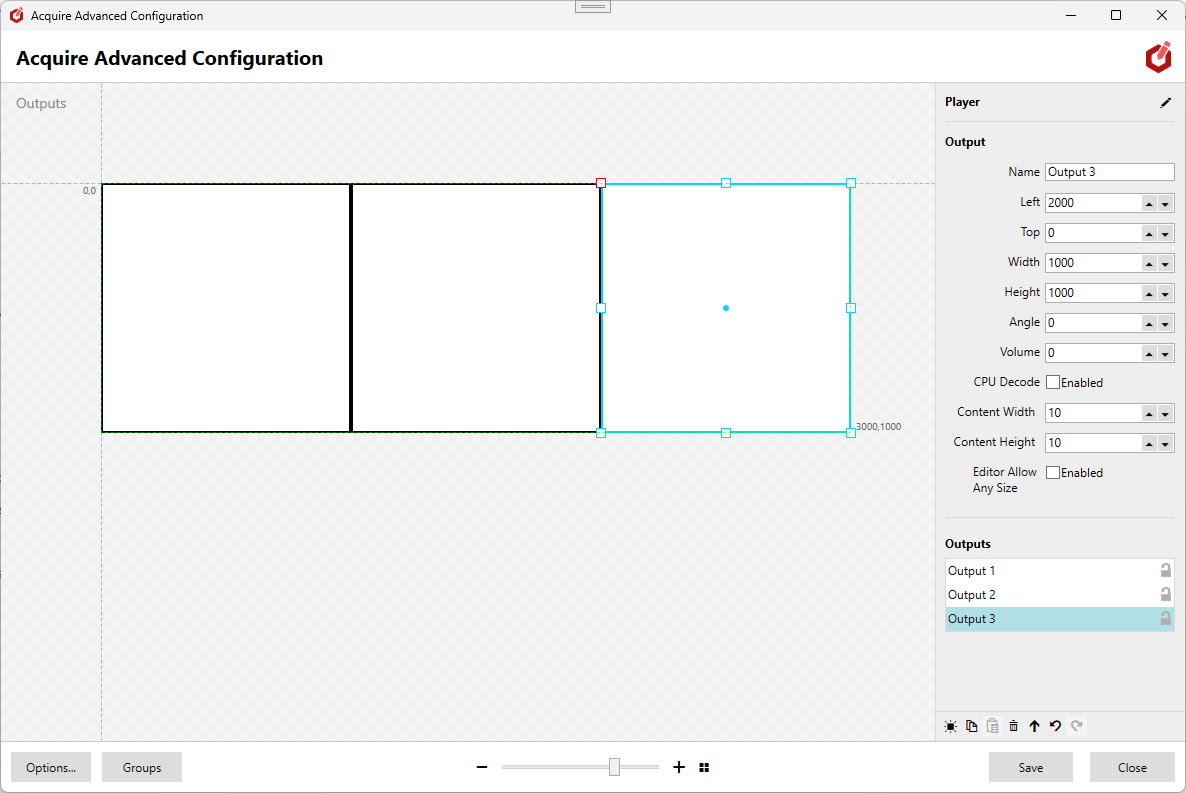
- Add outputs to your player by pressing the "Add" Tool Button, or right-clicking on the work canvas and selecting from the context menu.
- Outputs can be moved, sized and rotated in the work canvas.
-
Set further options in the settings panel:
- Name
- Position, size and angle.
- Volume of media played in this output.
- Player to use CPU decode for this output.
- Size of content for this output, and if the Editor will restrict media to the that size or allow any size.
- Once defined, the outputs will be shown in the Editor on the playlist ready to drop content into.
- If these outputs align to your monitors as they are, then no further action is required.
But, if a more complex layout it required, enable you can "Mappings" in the player settings.
Mappings are described in Mappings
Tip - To avoid accidental changes, you can lock outputs in the outputs list.
Tip - To help with alignment, hold down the control key while moving outputs to snap them together when they are close. This only works with non-rotated outputs.