---
title: Media Scroller
description: Media Scroller
---
[Skip to content](https://knowledge.acquiredigital.com/media-scroller#main-content)
English
Show submenu for translations
[More support](https://knowledge.acquiredigital.com/kb-tickets/new?hsLang=en) [Support Portal](https://knowledge.acquiredigital.com/support?hsLang=en)

Open main navigation
Close main navigation
- English
Show submenu for translations
- [More support](https://knowledge.acquiredigital.com/kb-tickets/new)
- [Support Portal](https://knowledge.acquiredigital.com/support)
- Contact us
Contact us
How can we help you?
- There are no suggestions because the search field is empty.
1. [Acquire Digital Knowledgebase](https://knowledge.acquiredigital.com/?hsLang=en)
2. [StudioDX & DX Player](https://knowledge.acquiredigital.com/studiodx-dx-player?hsLang=en)
3. [Widgets](https://knowledge.acquiredigital.com/studiodx-dx-player?hsLang=en#widgets)
# Media Scroller
## This widget allows you to create a 'scroller' of (e.g. 16:9) media on your output, which can just be one, a few, or lots of pieces of media. It allows you to divide the output up and show multiple items in a row, or to animate them
There are choices to allow the content to remain in place, animate across (up/down/left/right) and also to scroll through content that may start off-screen how they move (starting off-screen and being shown during the time of the widget being shown). It can also be used (with gap values set to 0 and scrolling off) to show different pieces of media in the output so you can show a different piece of content per area of the display face.
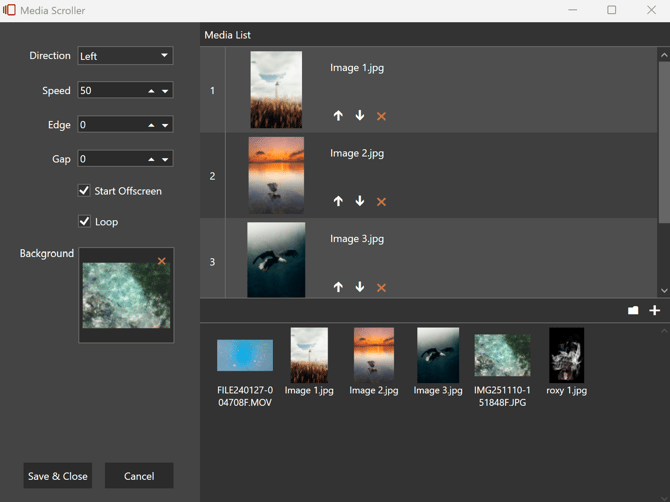
The left hand panel contains settings that apply to the whole scroller:
- **Background Media**
You can choose a piece of media to show behind all of the media you will be displaying. This can be left blank (and will show black) which is preferable if the media in your list will be filling the display output. **Note** that the media selected here will be stretched to fit the display output, so should match the resolution to prevent distortion. Videos will loop until the widget completes (either from the playlist line time expiring or from all media being shown as per the options below).
- **Direction**
Which direction to scroll in: Up, Down, Left or Right
- **Speed**
How fast to scroll on a a scale of 0 (static) to 100 (fastest)
- **Edge**
A space (pixels) at the edge of the scroller.
If scrolling left/right, the top and bottom will use this value.
If scrolling up/down, the left and right will use this value.
- **Gap**
A space between the scrolled media.
If **Visible Items** is greater than 0, this setting will be ignored.
- **Start Offscreen**
If checked, scrolling starts offscreen, otherwise it start onscreen.
- **Loop**
If checked, items going off one side appear on the opposite side like a carousel.
- The right hand panel contains a list of **Media List** to scroll (at the top) and a **Project Media Selector** (at the bottom). Use the **Project Media Selector** to manage the media in your project. Then drag the required media into the **Media List**.
Each piece of media in the **Media List** has the following options:
- **Loop**
If checked videos loop, otherwise they stop on the last frame.
- **Move Up / Down**
Move the media up or down a line in the **Media List**.
**TIP** - You can also drag the number column to move the media in the list.
- **Delete**
Remove the media from the **Media List**.
**⚠️IMPORTANT!** Each media item is treated as a unique element rather than a copy of an item already onscreen. This allows the content to play uniquely BUT does also mean the resources of the player device may get used more. If you have a canvas of a certain size, you should always plan to keep the media you use in this widget to the same resolution you are expecting to display it in to reduce any overhead created by e.g. playing a 4K video in a window of only 100 pixels.
- [Software Installers](https://knowledge.acquiredigital.com/software-installers?hsLang=en)
- [StudioDX & DX Player](https://knowledge.acquiredigital.com/studiodx-dx-player?hsLang=en#main-content)
- [Studio DX FAQ's](https://knowledge.acquiredigital.com/studiodx-dx-player?hsLang=en#studio-dx-faqs)
- [Acquire StudioDX User Documentation](https://knowledge.acquiredigital.com/studiodx-dx-player?hsLang=en#acquire-studiodx-user-documentation)
- [User Guide](https://knowledge.acquiredigital.com/studiodx-dx-player?hsLang=en#user-guide)
- [Widgets](https://knowledge.acquiredigital.com/studiodx-dx-player?hsLang=en#widgets)
- [Transitions](https://knowledge.acquiredigital.com/studiodx-dx-player?hsLang=en#transitions)
- [Warning Alerts](https://knowledge.acquiredigital.com/studiodx-dx-player?hsLang=en#warning-alerts)
- [Setup App](https://knowledge.acquiredigital.com/studiodx-dx-player?hsLang=en#setup-app)
- [Project Apps](https://knowledge.acquiredigital.com/studiodx-dx-player?hsLang=en#project-apps)
- [StudioDX Stream Deck Plugin](https://knowledge.acquiredigital.com/studiodx-dx-player?hsLang=en#studiodx-stream-deck-plugin)
- [XML Formats](https://knowledge.acquiredigital.com/studiodx-dx-player?hsLang=en#xml-formats)
- [Acquire Wayfinder](https://knowledge.acquiredigital.com/acquire-wayfinder?hsLang=en#main-content)
- [Map Editor - Atlas](https://knowledge.acquiredigital.com/acquire-wayfinder?hsLang=en#map-editor-atlas)
- [Devices](https://knowledge.acquiredigital.com/acquire-wayfinder?hsLang=en#devices)
- [CMS User Management](https://knowledge.acquiredigital.com/acquire-wayfinder?hsLang=en#cms-user-management)
- [Project Settings](https://knowledge.acquiredigital.com/acquire-wayfinder?hsLang=en#project-settings)
- [The Map Editor](https://knowledge.acquiredigital.com/acquire-wayfinder?hsLang=en#the-map-editor)
- [JS Web Map UI V2.0](https://knowledge.acquiredigital.com/acquire-wayfinder?hsLang=en#js-web-map-ui-v2-0)
- [JS Web Map API V2.0](https://knowledge.acquiredigital.com/acquire-wayfinder?hsLang=en#js-web-map-api-v2-0)
- [JS Web Directory API V1.0](https://knowledge.acquiredigital.com/acquire-wayfinder?hsLang=en#js-web-directory-api-v1-0)
- [Wayfinder Map API](https://knowledge.acquiredigital.com/acquire-wayfinder?hsLang=en#wayfinder-map-api)
- [Broadsign Integration](https://knowledge.acquiredigital.com/acquire-wayfinder?hsLang=en#broadsign-integration)
- [Adverts Plugin](https://knowledge.acquiredigital.com/acquire-wayfinder?hsLang=en#adverts-plugin)
- [Wayfinder FAQs](https://knowledge.acquiredigital.com/acquire-wayfinder?hsLang=en#wayfinder-faqs)
- [Beacon](https://knowledge.acquiredigital.com/beacon?hsLang=en#main-content)
- [Devices](https://knowledge.acquiredigital.com/beacon?hsLang=en#devices)
- [Layouts](https://knowledge.acquiredigital.com/beacon?hsLang=en#layouts)
- [Information Displays](https://knowledge.acquiredigital.com/beacon?hsLang=en#information-displays)
- [Playlists](https://knowledge.acquiredigital.com/beacon?hsLang=en#playlists)
- [Project Settings](https://knowledge.acquiredigital.com/beacon?hsLang=en#project-settings)
- [Activity Logs](https://knowledge.acquiredigital.com/beacon?hsLang=en#activity-logs)
- [Acquire DOOHAD](https://knowledge.acquiredigital.com/acquire-doohad?hsLang=en#main-content)
- [DOOHAd Standalone Installer & Advert Configuration Tool](https://knowledge.acquiredigital.com/acquire-doohad?hsLang=en#doohad-standalone-installer-advert-configuration-tool)
- [DooHad FAQs](https://knowledge.acquiredigital.com/acquire-doohad?hsLang=en#doohad-faqs)
- [Acquire Vision User Guide](https://knowledge.acquiredigital.com/acquire-vision-user-guide?hsLang=en)
- [Acquire StudioDX & Wayfinder Trial Install Guides](https://knowledge.acquiredigital.com/acquire-studiodx-wayfinder-trial-install-guides?hsLang=en#main-content)
- [Acquire Wayfinder Trial](https://knowledge.acquiredigital.com/acquire-studiodx-wayfinder-trial-install-guides?hsLang=en#acquire-wayfinder-trial)
- [Acquire StudioDX Trial Installation Guide](https://knowledge.acquiredigital.com/acquire-studiodx-wayfinder-trial-install-guides?hsLang=en#acquire-studiodx-trial-installation-guide)
- [Acquire Assist](https://knowledge.acquiredigital.com/acquire-assist?hsLang=en)
- [Acquire Premier](https://knowledge.acquiredigital.com/acquire-premier?hsLang=en#main-content)
- [Quick Start Guide.](https://knowledge.acquiredigital.com/acquire-premier?hsLang=en#quick-start-guide)
- [Acquire Editor User Guide](https://knowledge.acquiredigital.com/acquire-premier?hsLang=en#acquire-editor-user-guide)
- [Toolbox](https://knowledge.acquiredigital.com/acquire-premier?hsLang=en#toolbox)
- [The PLUS! Network](https://knowledge.acquiredigital.com/acquire-premier?hsLang=en#the-plus-network)
- [Acquire Site Manager](https://knowledge.acquiredigital.com/acquire-premier?hsLang=en#acquire-site-manager)
- [Apps & Helpers Manuals](https://knowledge.acquiredigital.com/acquire-premier?hsLang=en#apps-helpers-manuals)
- [Minute Master-Classes](https://knowledge.acquiredigital.com/acquire-premier?hsLang=en#minute-master-classes)
- [Acquire Editor FAQs](https://knowledge.acquiredigital.com/acquire-premier?hsLang=en#acquire-editor-faqs)
- [Acquire Player FAQs](https://knowledge.acquiredigital.com/acquire-player-faqs?hsLang=en)
- [Site Manager](https://knowledge.acquiredigital.com/site-manager?hsLang=en#main-content)
- [Site Manager User Guide](https://knowledge.acquiredigital.com/site-manager?hsLang=en#site-manager-user-guide)
- [Site Manager FAQs](https://knowledge.acquiredigital.com/site-manager?hsLang=en#site-manager-faqs)
- [Watchdog](https://knowledge.acquiredigital.com/watchdog?hsLang=en#main-content)
- [Watchdog User Guide](https://knowledge.acquiredigital.com/watchdog?hsLang=en#watchdog-user-guide)
- [Watchdog FAQs](https://knowledge.acquiredigital.com/watchdog?hsLang=en#watchdog-faqs)
- [FAQs](https://knowledge.acquiredigital.com/faqs?hsLang=en)
[](http://acquiredigital.com)
[mailto:email@email.com](mailto:email@email.com)
Copyright © 2026, Acquire Digital