---
title: Information Tabs
description: Information Tabs
---
[Skip to content](https://knowledge.acquiredigital.com/information-tabs#main-content)
English
Show submenu for translations
[More support](https://knowledge.acquiredigital.com/kb-tickets/new?hsLang=en) [Support Portal](https://knowledge.acquiredigital.com/support?hsLang=en)

Open main navigation
Close main navigation
- English
Show submenu for translations
- [More support](https://knowledge.acquiredigital.com/kb-tickets/new)
- [Support Portal](https://knowledge.acquiredigital.com/support)
- Contact us
Contact us
How can we help you?
- There are no suggestions because the search field is empty.
1. [Acquire Digital Knowledgebase](https://knowledge.acquiredigital.com/?hsLang=en)
2. [Watchdog](https://knowledge.acquiredigital.com/watchdog?hsLang=en)
3. [Watchdog User Guide](https://knowledge.acquiredigital.com/watchdog?hsLang=en#watchdog-user-guide)
# Information Tabs
## Learn what all the Tabs within watchdog are for.
#### **System Status**
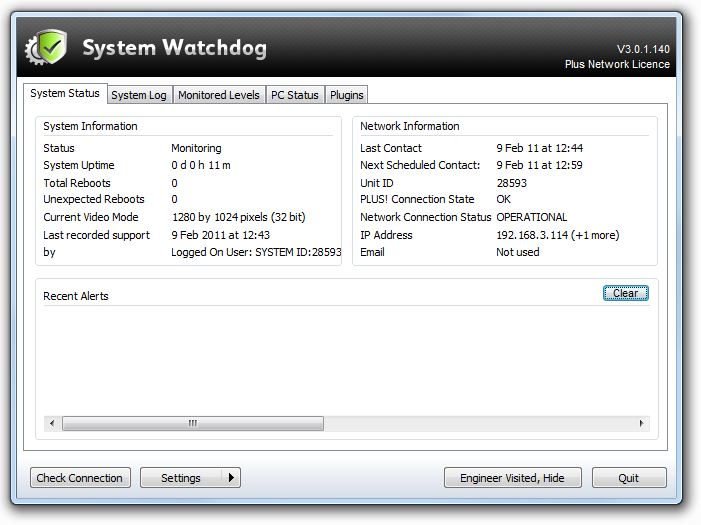
This tab shows you the current System and Network information. Recent Alerts lists important events that have been triggered.
**See also** - Triggers and Appendix 1 – About Alerts.
#### **System Log**
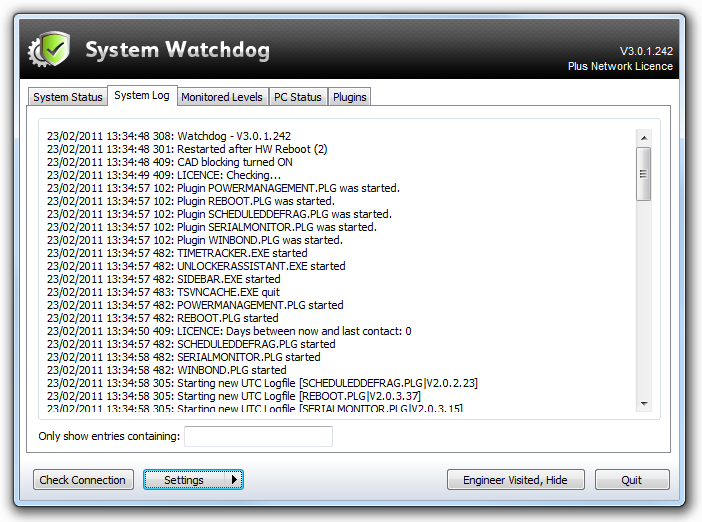
This tab shows you the entries in the current System Watchdog log file. Each entry has the date/time of the logged event and a message code & description.
- Press View Important Codes to see a list of codes that are reported to the Plus! Network. These can be changed in Site Manager.
- Press Send Logs to upload outstanding logs to the Plus! Network.
- Type text into the box to filter the entries shown. Only entries that contain this text will be shown e.g. you could enter “licence” to see only entries pertaining to licensing, a specific code or even a time such as “13:”.
All items are shown when this box is empty.
#### **Monitored Levels**
**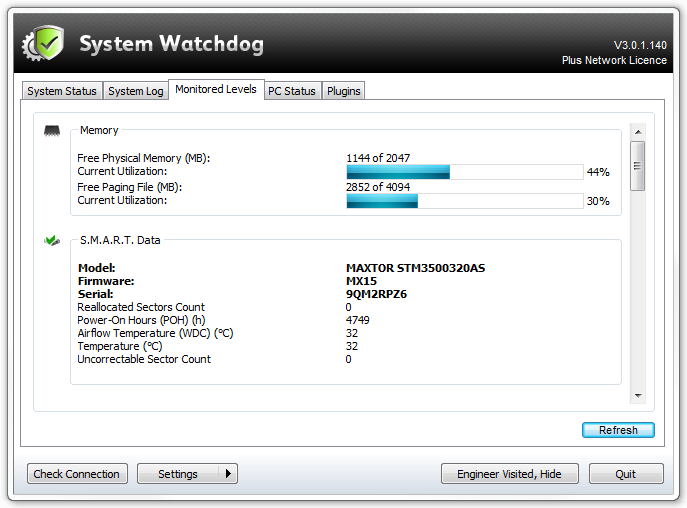**
This tab shows basic current memory/connection information plus S.M.A.R.T. Data, Hard drive and Printer information if they are set to be monitored in Triggers.
Press the **Refresh** button to keep the information up to date.
#### **PC Status**
**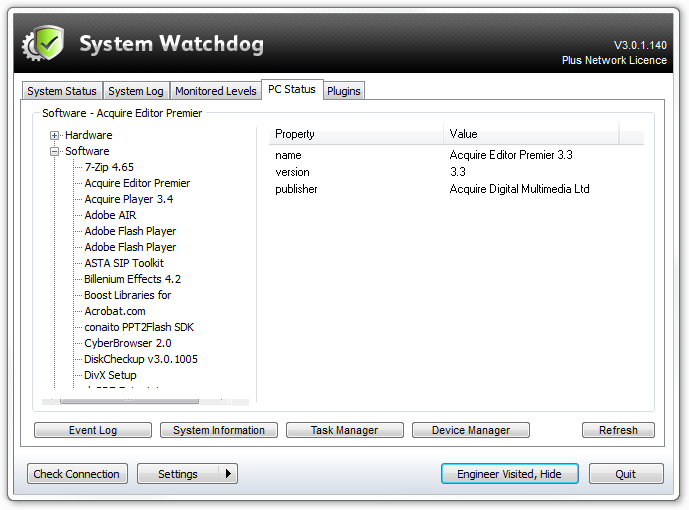**
Select items in the left hand menu to show information about specific hardware, software and services currently installed on the PC.
Use the respective buttons to open the standard Windows interface **“System Information”**, *“Task Manager”* and **“Device Manager”**.
Press **“Refresh”** to get the latest information.
The **“Event Log”** button allows you to view the Windows Event Logs.
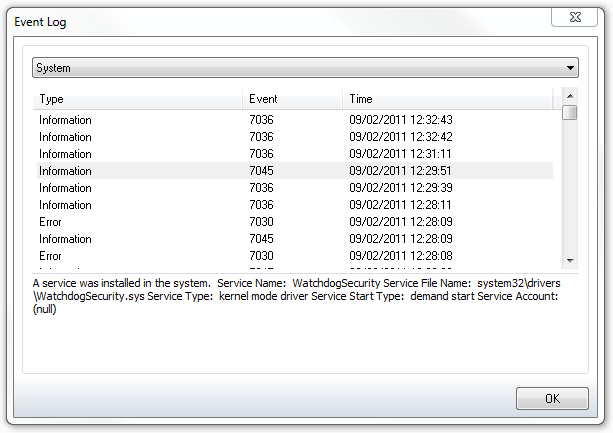
Select the type of event log from the drop-down list and highlight the list item to see its description in the area below.
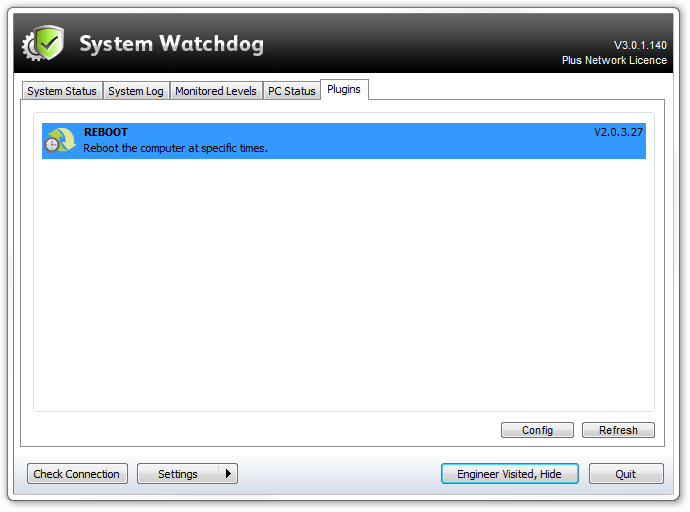
The tab shows a list of the plugins that are installed. Double-click an item or select it and press the **“Config”** button to open that plugin’s configuration settings. Press the **“Refresh”** button to update the list.
- [Software Installers](https://knowledge.acquiredigital.com/software-installers?hsLang=en)
- [StudioDX & DX Player](https://knowledge.acquiredigital.com/studiodx-dx-player?hsLang=en#main-content)
- [Studio DX FAQ's](https://knowledge.acquiredigital.com/studiodx-dx-player?hsLang=en#studio-dx-faqs)
- [Acquire StudioDX User Documentation](https://knowledge.acquiredigital.com/studiodx-dx-player?hsLang=en#acquire-studiodx-user-documentation)
- [User Guide](https://knowledge.acquiredigital.com/studiodx-dx-player?hsLang=en#user-guide)
- [Widgets](https://knowledge.acquiredigital.com/studiodx-dx-player?hsLang=en#widgets)
- [Transitions](https://knowledge.acquiredigital.com/studiodx-dx-player?hsLang=en#transitions)
- [Warning Alerts](https://knowledge.acquiredigital.com/studiodx-dx-player?hsLang=en#warning-alerts)
- [Setup App](https://knowledge.acquiredigital.com/studiodx-dx-player?hsLang=en#setup-app)
- [Project Apps](https://knowledge.acquiredigital.com/studiodx-dx-player?hsLang=en#project-apps)
- [StudioDX Stream Deck Plugin](https://knowledge.acquiredigital.com/studiodx-dx-player?hsLang=en#studiodx-stream-deck-plugin)
- [XML Formats](https://knowledge.acquiredigital.com/studiodx-dx-player?hsLang=en#xml-formats)
- [Acquire Wayfinder](https://knowledge.acquiredigital.com/acquire-wayfinder?hsLang=en#main-content)
- [Map Editor - Atlas](https://knowledge.acquiredigital.com/acquire-wayfinder?hsLang=en#map-editor-atlas)
- [Devices](https://knowledge.acquiredigital.com/acquire-wayfinder?hsLang=en#devices)
- [CMS User Management](https://knowledge.acquiredigital.com/acquire-wayfinder?hsLang=en#cms-user-management)
- [Project Settings](https://knowledge.acquiredigital.com/acquire-wayfinder?hsLang=en#project-settings)
- [The Map Editor](https://knowledge.acquiredigital.com/acquire-wayfinder?hsLang=en#the-map-editor)
- [JS Web Map UI V2.0](https://knowledge.acquiredigital.com/acquire-wayfinder?hsLang=en#js-web-map-ui-v2-0)
- [JS Web Map API V2.0](https://knowledge.acquiredigital.com/acquire-wayfinder?hsLang=en#js-web-map-api-v2-0)
- [JS Web Directory API V1.0](https://knowledge.acquiredigital.com/acquire-wayfinder?hsLang=en#js-web-directory-api-v1-0)
- [Wayfinder Map API](https://knowledge.acquiredigital.com/acquire-wayfinder?hsLang=en#wayfinder-map-api)
- [Broadsign Integration](https://knowledge.acquiredigital.com/acquire-wayfinder?hsLang=en#broadsign-integration)
- [Adverts Plugin](https://knowledge.acquiredigital.com/acquire-wayfinder?hsLang=en#adverts-plugin)
- [Wayfinder FAQs](https://knowledge.acquiredigital.com/acquire-wayfinder?hsLang=en#wayfinder-faqs)
- [Beacon](https://knowledge.acquiredigital.com/beacon?hsLang=en#main-content)
- [Devices](https://knowledge.acquiredigital.com/beacon?hsLang=en#devices)
- [Layouts](https://knowledge.acquiredigital.com/beacon?hsLang=en#layouts)
- [Information Displays](https://knowledge.acquiredigital.com/beacon?hsLang=en#information-displays)
- [Playlists](https://knowledge.acquiredigital.com/beacon?hsLang=en#playlists)
- [Project Settings](https://knowledge.acquiredigital.com/beacon?hsLang=en#project-settings)
- [Activity Logs](https://knowledge.acquiredigital.com/beacon?hsLang=en#activity-logs)
- [Acquire DOOHAD](https://knowledge.acquiredigital.com/acquire-doohad?hsLang=en#main-content)
- [DOOHAd Standalone Installer & Advert Configuration Tool](https://knowledge.acquiredigital.com/acquire-doohad?hsLang=en#doohad-standalone-installer-advert-configuration-tool)
- [DooHad FAQs](https://knowledge.acquiredigital.com/acquire-doohad?hsLang=en#doohad-faqs)
- [Acquire Vision User Guide](https://knowledge.acquiredigital.com/acquire-vision-user-guide?hsLang=en)
- [Acquire StudioDX & Wayfinder Trial Install Guides](https://knowledge.acquiredigital.com/acquire-studiodx-wayfinder-trial-install-guides?hsLang=en#main-content)
- [Acquire Wayfinder Trial](https://knowledge.acquiredigital.com/acquire-studiodx-wayfinder-trial-install-guides?hsLang=en#acquire-wayfinder-trial)
- [Acquire StudioDX Trial Installation Guide](https://knowledge.acquiredigital.com/acquire-studiodx-wayfinder-trial-install-guides?hsLang=en#acquire-studiodx-trial-installation-guide)
- [Acquire Assist](https://knowledge.acquiredigital.com/acquire-assist?hsLang=en)
- [Acquire Premier](https://knowledge.acquiredigital.com/acquire-premier?hsLang=en#main-content)
- [Quick Start Guide.](https://knowledge.acquiredigital.com/acquire-premier?hsLang=en#quick-start-guide)
- [Acquire Editor User Guide](https://knowledge.acquiredigital.com/acquire-premier?hsLang=en#acquire-editor-user-guide)
- [Toolbox](https://knowledge.acquiredigital.com/acquire-premier?hsLang=en#toolbox)
- [The PLUS! Network](https://knowledge.acquiredigital.com/acquire-premier?hsLang=en#the-plus-network)
- [Acquire Site Manager](https://knowledge.acquiredigital.com/acquire-premier?hsLang=en#acquire-site-manager)
- [Apps & Helpers Manuals](https://knowledge.acquiredigital.com/acquire-premier?hsLang=en#apps-helpers-manuals)
- [Minute Master-Classes](https://knowledge.acquiredigital.com/acquire-premier?hsLang=en#minute-master-classes)
- [Acquire Editor FAQs](https://knowledge.acquiredigital.com/acquire-premier?hsLang=en#acquire-editor-faqs)
- [Acquire Player FAQs](https://knowledge.acquiredigital.com/acquire-player-faqs?hsLang=en)
- [Site Manager](https://knowledge.acquiredigital.com/site-manager?hsLang=en#main-content)
- [Site Manager User Guide](https://knowledge.acquiredigital.com/site-manager?hsLang=en#site-manager-user-guide)
- [Site Manager FAQs](https://knowledge.acquiredigital.com/site-manager?hsLang=en#site-manager-faqs)
- [Watchdog](https://knowledge.acquiredigital.com/watchdog?hsLang=en#main-content)
- [Watchdog User Guide](https://knowledge.acquiredigital.com/watchdog?hsLang=en#watchdog-user-guide)
- [Watchdog FAQs](https://knowledge.acquiredigital.com/watchdog?hsLang=en#watchdog-faqs)
- [FAQs](https://knowledge.acquiredigital.com/faqs?hsLang=en)
[](http://acquiredigital.com)
[mailto:email@email.com](mailto:email@email.com)
Copyright © 2026, Acquire Digital