---
title: Creating a Slot & Adding Media
description: Creating a Slot & Adding Media
---
[Skip to content](https://knowledge.acquiredigital.com/creating-a-slot-adding-media#main-content)
English
Show submenu for translations
[More support](https://knowledge.acquiredigital.com/kb-tickets/new?hsLang=en) [Support Portal](https://knowledge.acquiredigital.com/support?hsLang=en)

Open main navigation
Close main navigation
- English
Show submenu for translations
- [More support](https://knowledge.acquiredigital.com/kb-tickets/new)
- [Support Portal](https://knowledge.acquiredigital.com/support)
- Contact us
Contact us
How can we help you?
- There are no suggestions because the search field is empty.
1. [Acquire Digital Knowledgebase](https://knowledge.acquiredigital.com/?hsLang=en)
2. [Acquire DOOHAD](https://knowledge.acquiredigital.com/acquire-doohad?hsLang=en)
# Creating a Slot & Adding Media
## Once a Campaign is created, you then need to create a slot where you can upload the media you wish to show.
To create a slot within your Campaign. Click **Overview** in the Campaign
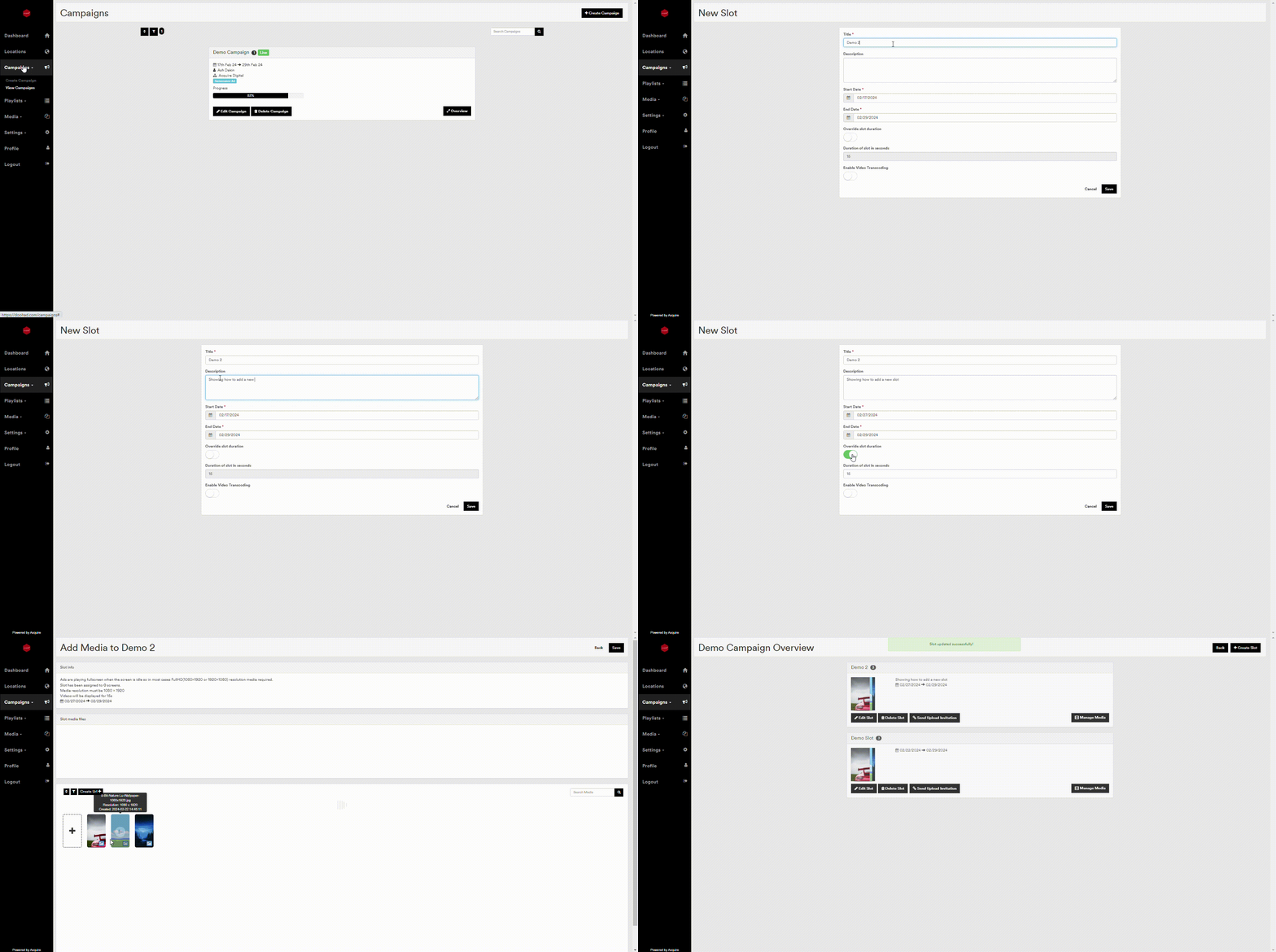
1. Click in the top right corner, click **+ Create Slot**
2. Enter a **Title** for the slot
3. Enter a **Description**
4. **Number of Slots** should be set to 1 (this is default)
5. Choose your **start** and **end** date of the Campaign
6. Override slot duration
7. Enable Video Transcoding
Then, press **Save**.
#### **Adding media to slot**
Once a slot has been created, then you will be able to upload your media files to the slot/s.
Next, drag the uploaded file/s onto the Slot media files section
*You can add as many files to the slot as required.*
*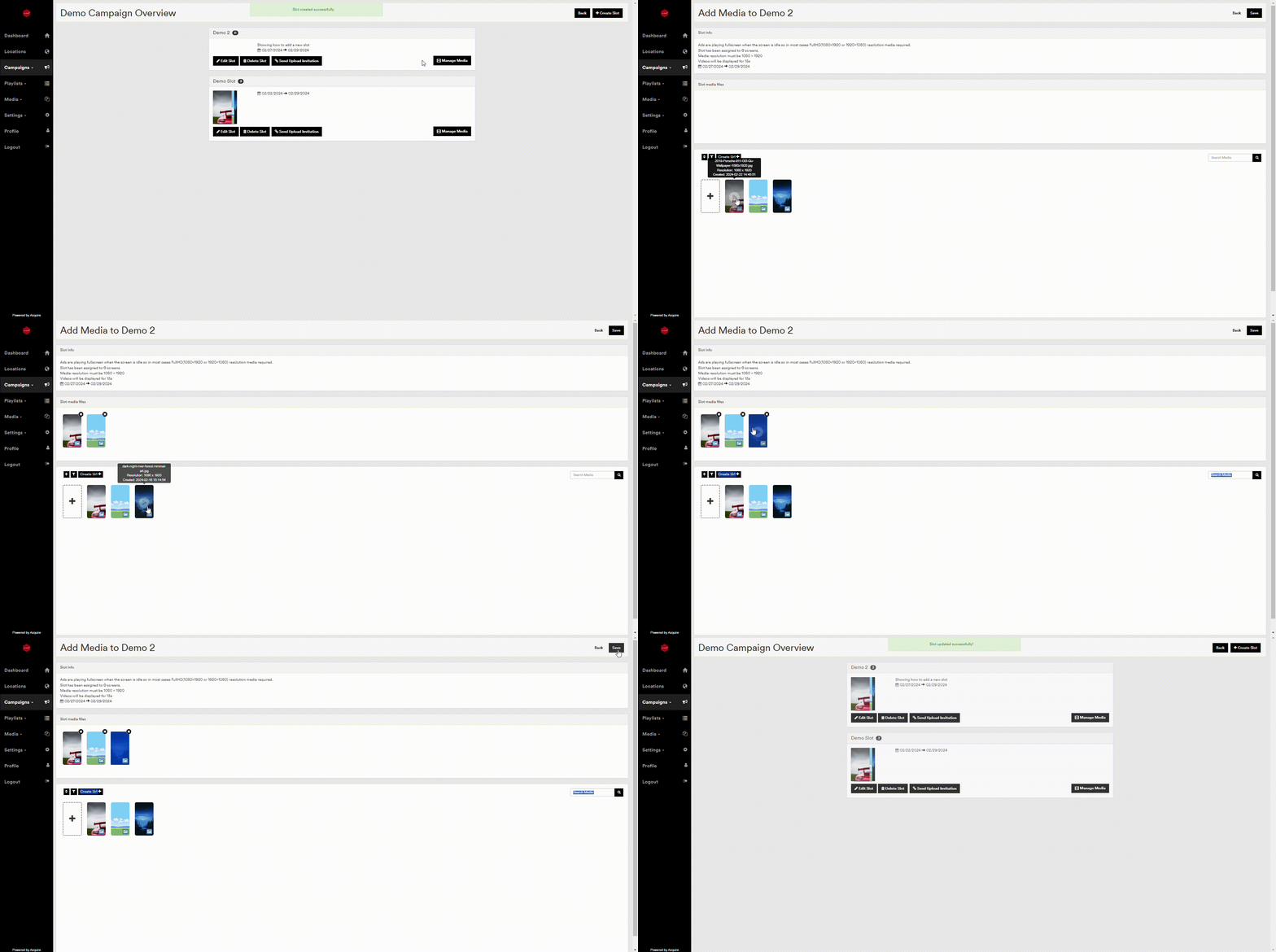*
*Then, click **Save**.*
It is at this stage you may choose to complete the process of uploading the media to the slots if you have the media, or you can choose to assign the campaign to the appropriate players and invite the client the campaign is assigned to to then manage the media themselves. If you wish to assign the content to the players, visit the next part on the previous document.
From here, you can upload new media to DOOHAd for your campaign, or use existing media.
#### **Upload new media**
click the **+** or **drag** your media file to the upload area. The file will be selected and you need to then press the upload icon (the one on the lower left of your new file) to upload it to the servers. Once uploaded, DOOHAd will check the integrity of the file and if it is a video, it will transcode it. Transcoding will take a few seconds to a few minutes before you can use the file (although you can leave this screen at this point and return back once complete).
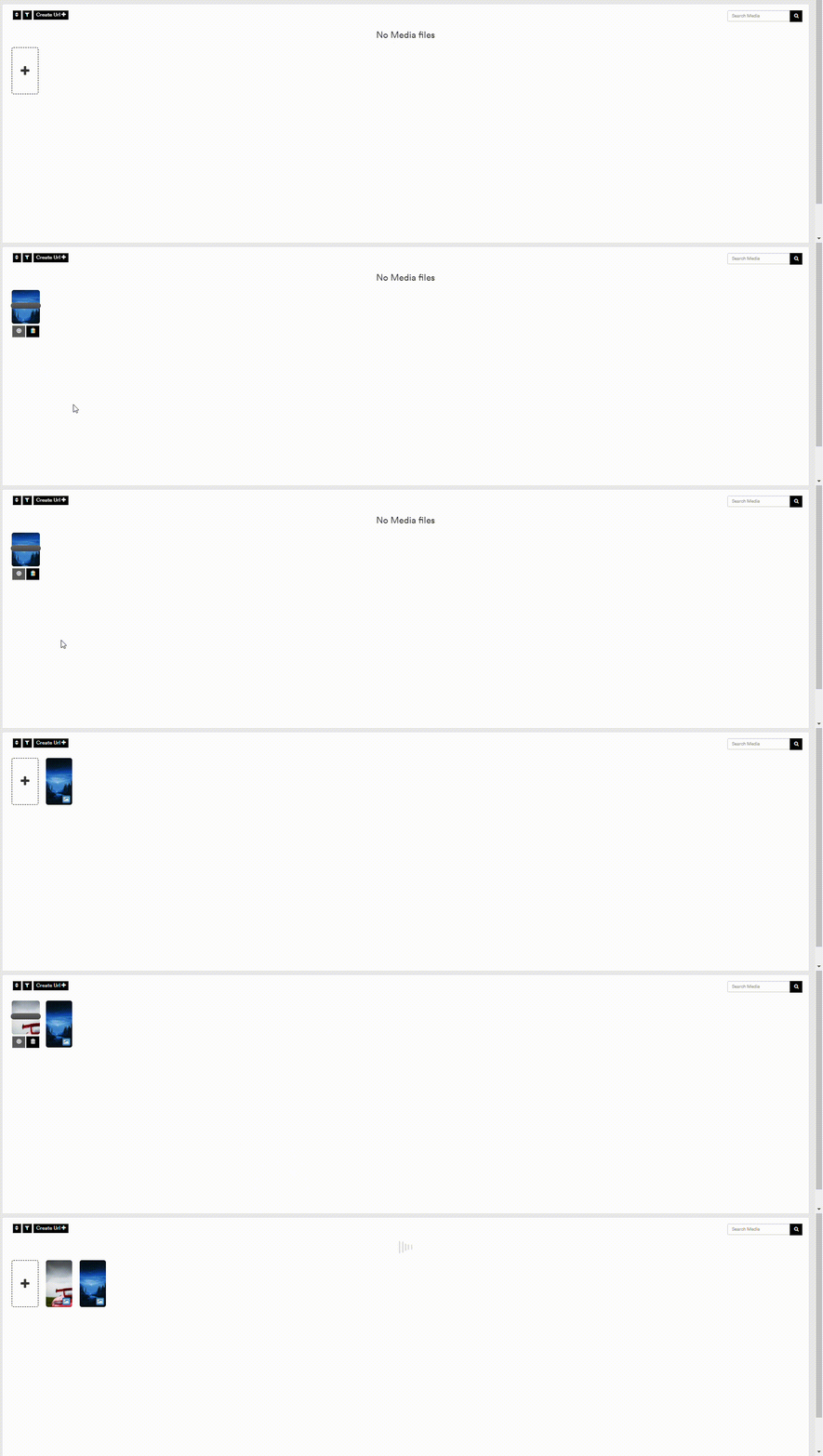
Once the media is available for use, you can preview it by clicking the thumbnail.
DOOHAd does not worry about most file types, as graphics (JPEG, PNG) are supported (note they must be RGB for most players, not for print use), and videos (AVI, MOV, MP4, h.264) are supported and transcoded if necessary upon upload. You should check that the player supports any native filetypes uploaded.
#### **Supported file types**
To add media, click on the **+** sign and select a file, or drag-and drop the file you want to upload onto it. Currently DOOHAd supports the following file formats:
- **Graphics:** PNG (24bit), JPEG - all using RGB colour space (typically 'for print' graphics use YMCK for printing purposes and these will have distorted colours.
- **Video:** MP4, h.264, MOV - note that 'for screen' type of videos should be used, which are typically compressed rather than 'high bitrate' versions.
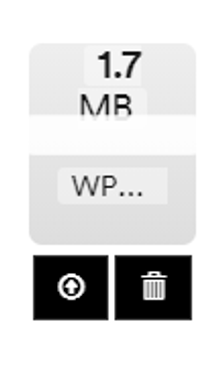
Once you have selected the file you wish to upload, you will see thumbnail of the media and two icons - the one to the right (trashcan) cancels the upload, the one to the left (arrow) uploads the file to your media collection. Click the left icon and you will see the upload progress on the bar.
During upload, **you must** stay on this screen.
Once your media is uploaded, you will see it in your media collection. If it is a video, you will see a spinning wheel signifying that the media is being transcoded for use. Depending upon the size and length of the file, this usually takes a few minutes - you can browse away from this page or upload more media as this process occurs.
#### **File Dimensions**
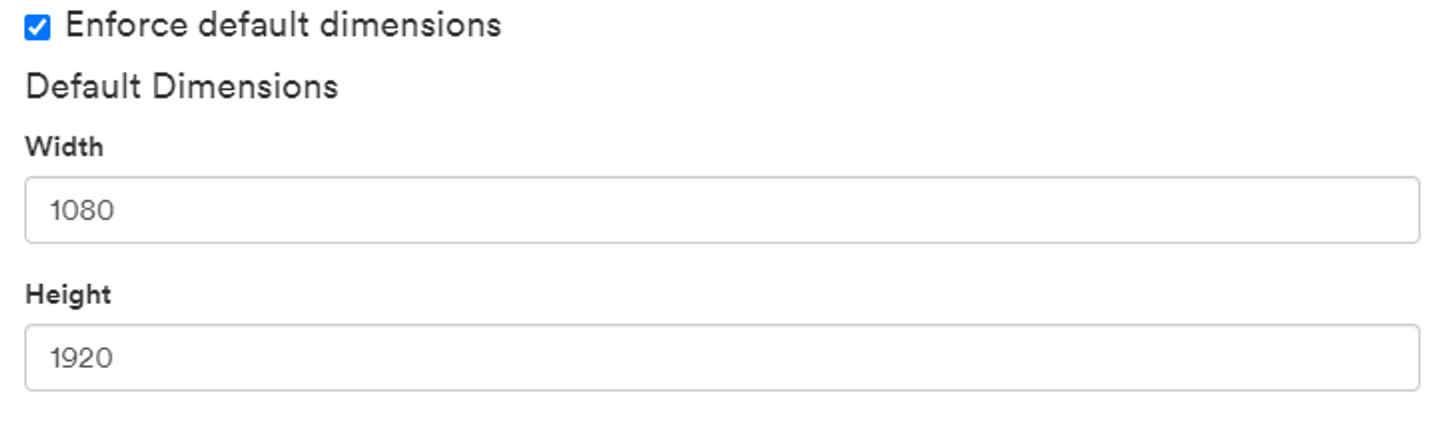
Normally, files must be the fixed size as defined in your campaign type settings (often 1080 width x 1920 height). If you untick the 'Enforce default dimensions' in the campaign type settings, this will allow you to drag onto the slot media of any size and shape. This is often not ideal, as the output will be fixed and any content that does not match the dimension may get stretched or otherwise distorted, or even fail to upload at all in some cases - although in cases where there are multiple playout resolutions (e.g. 4K and HD), or the supplier of content provides lower resolution content in the same aspect it can be beneficial to allow the player to rescale it.
- [Software Installers](https://knowledge.acquiredigital.com/software-installers?hsLang=en)
- [StudioDX & DX Player](https://knowledge.acquiredigital.com/studiodx-dx-player?hsLang=en#main-content)
- [Studio DX FAQ's](https://knowledge.acquiredigital.com/studiodx-dx-player?hsLang=en#studio-dx-faqs)
- [Acquire StudioDX User Documentation](https://knowledge.acquiredigital.com/studiodx-dx-player?hsLang=en#acquire-studiodx-user-documentation)
- [User Guide](https://knowledge.acquiredigital.com/studiodx-dx-player?hsLang=en#user-guide)
- [Widgets](https://knowledge.acquiredigital.com/studiodx-dx-player?hsLang=en#widgets)
- [Transitions](https://knowledge.acquiredigital.com/studiodx-dx-player?hsLang=en#transitions)
- [Warning Alerts](https://knowledge.acquiredigital.com/studiodx-dx-player?hsLang=en#warning-alerts)
- [Setup App](https://knowledge.acquiredigital.com/studiodx-dx-player?hsLang=en#setup-app)
- [Project Apps](https://knowledge.acquiredigital.com/studiodx-dx-player?hsLang=en#project-apps)
- [StudioDX Stream Deck Plugin](https://knowledge.acquiredigital.com/studiodx-dx-player?hsLang=en#studiodx-stream-deck-plugin)
- [XML Formats](https://knowledge.acquiredigital.com/studiodx-dx-player?hsLang=en#xml-formats)
- [Acquire Wayfinder](https://knowledge.acquiredigital.com/acquire-wayfinder?hsLang=en#main-content)
- [Map Editor - Atlas](https://knowledge.acquiredigital.com/acquire-wayfinder?hsLang=en#map-editor-atlas)
- [Devices](https://knowledge.acquiredigital.com/acquire-wayfinder?hsLang=en#devices)
- [CMS User Management](https://knowledge.acquiredigital.com/acquire-wayfinder?hsLang=en#cms-user-management)
- [Project Settings](https://knowledge.acquiredigital.com/acquire-wayfinder?hsLang=en#project-settings)
- [The Map Editor](https://knowledge.acquiredigital.com/acquire-wayfinder?hsLang=en#the-map-editor)
- [JS Web Map UI V2.0](https://knowledge.acquiredigital.com/acquire-wayfinder?hsLang=en#js-web-map-ui-v2-0)
- [JS Web Map API V2.0](https://knowledge.acquiredigital.com/acquire-wayfinder?hsLang=en#js-web-map-api-v2-0)
- [JS Web Directory API V1.0](https://knowledge.acquiredigital.com/acquire-wayfinder?hsLang=en#js-web-directory-api-v1-0)
- [Wayfinder Map API](https://knowledge.acquiredigital.com/acquire-wayfinder?hsLang=en#wayfinder-map-api)
- [Broadsign Integration](https://knowledge.acquiredigital.com/acquire-wayfinder?hsLang=en#broadsign-integration)
- [Adverts Plugin](https://knowledge.acquiredigital.com/acquire-wayfinder?hsLang=en#adverts-plugin)
- [Wayfinder FAQs](https://knowledge.acquiredigital.com/acquire-wayfinder?hsLang=en#wayfinder-faqs)
- [Beacon](https://knowledge.acquiredigital.com/beacon?hsLang=en#main-content)
- [Devices](https://knowledge.acquiredigital.com/beacon?hsLang=en#devices)
- [Layouts](https://knowledge.acquiredigital.com/beacon?hsLang=en#layouts)
- [Information Displays](https://knowledge.acquiredigital.com/beacon?hsLang=en#information-displays)
- [Playlists](https://knowledge.acquiredigital.com/beacon?hsLang=en#playlists)
- [Project Settings](https://knowledge.acquiredigital.com/beacon?hsLang=en#project-settings)
- [Activity Logs](https://knowledge.acquiredigital.com/beacon?hsLang=en#activity-logs)
- [Acquire DOOHAD](https://knowledge.acquiredigital.com/acquire-doohad?hsLang=en#main-content)
- [DOOHAd Standalone Installer & Advert Configuration Tool](https://knowledge.acquiredigital.com/acquire-doohad?hsLang=en#doohad-standalone-installer-advert-configuration-tool)
- [DooHad FAQs](https://knowledge.acquiredigital.com/acquire-doohad?hsLang=en#doohad-faqs)
- [Acquire Vision User Guide](https://knowledge.acquiredigital.com/acquire-vision-user-guide?hsLang=en)
- [Acquire StudioDX & Wayfinder Trial Install Guides](https://knowledge.acquiredigital.com/acquire-studiodx-wayfinder-trial-install-guides?hsLang=en#main-content)
- [Acquire Wayfinder Trial](https://knowledge.acquiredigital.com/acquire-studiodx-wayfinder-trial-install-guides?hsLang=en#acquire-wayfinder-trial)
- [Acquire StudioDX Trial Installation Guide](https://knowledge.acquiredigital.com/acquire-studiodx-wayfinder-trial-install-guides?hsLang=en#acquire-studiodx-trial-installation-guide)
- [Acquire Assist](https://knowledge.acquiredigital.com/acquire-assist?hsLang=en)
- [Acquire Premier](https://knowledge.acquiredigital.com/acquire-premier?hsLang=en#main-content)
- [Quick Start Guide.](https://knowledge.acquiredigital.com/acquire-premier?hsLang=en#quick-start-guide)
- [Acquire Editor User Guide](https://knowledge.acquiredigital.com/acquire-premier?hsLang=en#acquire-editor-user-guide)
- [Toolbox](https://knowledge.acquiredigital.com/acquire-premier?hsLang=en#toolbox)
- [The PLUS! Network](https://knowledge.acquiredigital.com/acquire-premier?hsLang=en#the-plus-network)
- [Acquire Site Manager](https://knowledge.acquiredigital.com/acquire-premier?hsLang=en#acquire-site-manager)
- [Apps & Helpers Manuals](https://knowledge.acquiredigital.com/acquire-premier?hsLang=en#apps-helpers-manuals)
- [Minute Master-Classes](https://knowledge.acquiredigital.com/acquire-premier?hsLang=en#minute-master-classes)
- [Acquire Editor FAQs](https://knowledge.acquiredigital.com/acquire-premier?hsLang=en#acquire-editor-faqs)
- [Acquire Player FAQs](https://knowledge.acquiredigital.com/acquire-player-faqs?hsLang=en)
- [Site Manager](https://knowledge.acquiredigital.com/site-manager?hsLang=en#main-content)
- [Site Manager User Guide](https://knowledge.acquiredigital.com/site-manager?hsLang=en#site-manager-user-guide)
- [Site Manager FAQs](https://knowledge.acquiredigital.com/site-manager?hsLang=en#site-manager-faqs)
- [Watchdog](https://knowledge.acquiredigital.com/watchdog?hsLang=en#main-content)
- [Watchdog User Guide](https://knowledge.acquiredigital.com/watchdog?hsLang=en#watchdog-user-guide)
- [Watchdog FAQs](https://knowledge.acquiredigital.com/watchdog?hsLang=en#watchdog-faqs)
- [FAQs](https://knowledge.acquiredigital.com/faqs?hsLang=en)
[](http://acquiredigital.com)
[mailto:email@email.com](mailto:email@email.com)
Copyright © 2026, Acquire Digital