---
title: Campaign Types
description: Campaign Types
---
[Skip to content](https://knowledge.acquiredigital.com/campaign-types#main-content)
English
Show submenu for translations
[More support](https://knowledge.acquiredigital.com/kb-tickets/new?hsLang=en) [Support Portal](https://knowledge.acquiredigital.com/support?hsLang=en)

Open main navigation
Close main navigation
- English
Show submenu for translations
- [More support](https://knowledge.acquiredigital.com/kb-tickets/new)
- [Support Portal](https://knowledge.acquiredigital.com/support)
- Contact us
Contact us
How can we help you?
- There are no suggestions because the search field is empty.
1. [Acquire Digital Knowledgebase](https://knowledge.acquiredigital.com/?hsLang=en)
2. [Acquire DOOHAD](https://knowledge.acquiredigital.com/acquire-doohad?hsLang=en)
# Campaign Types
## Before you begin to create campaigns, you need to define what types of campaigns you wish to create.
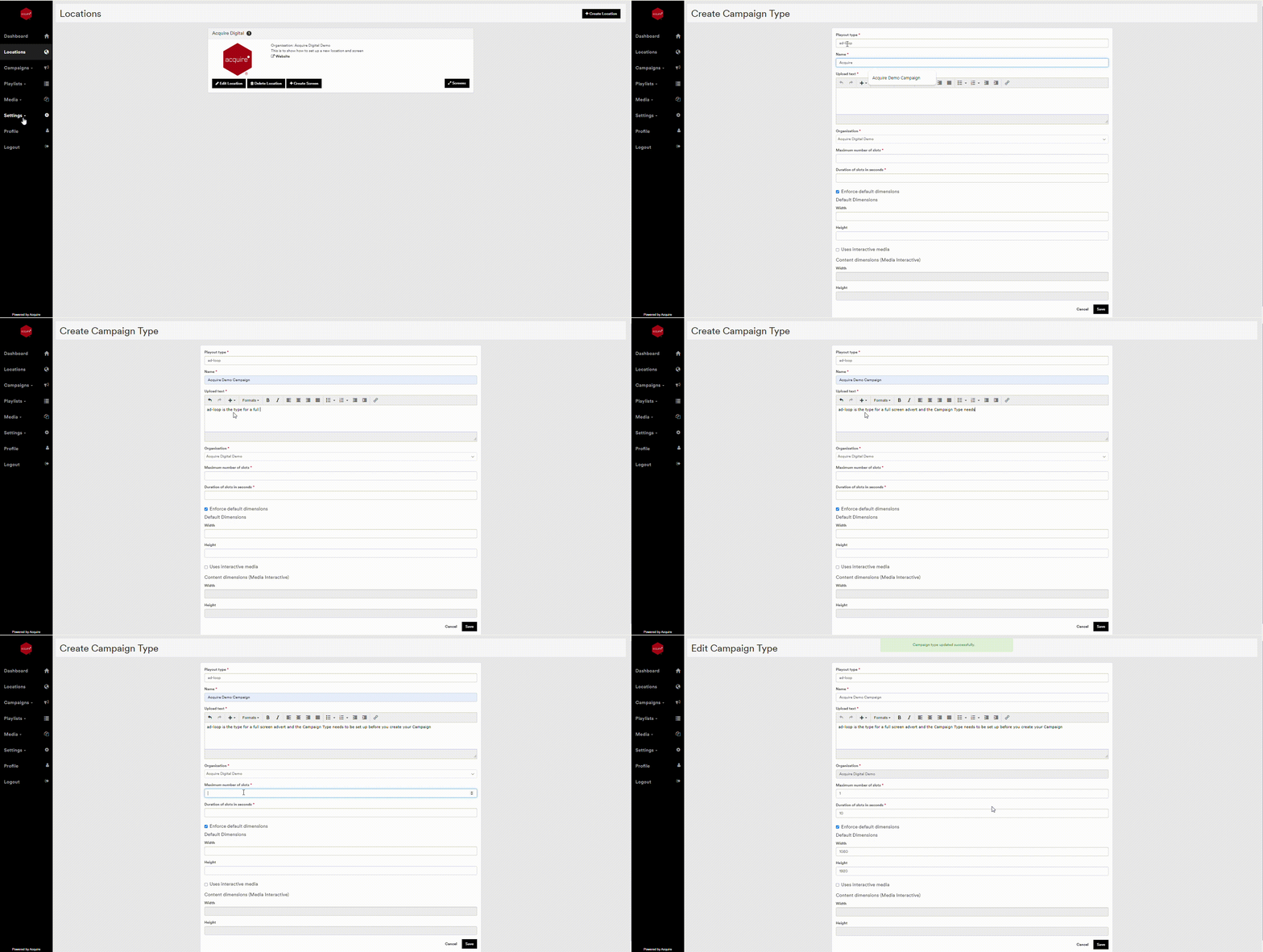
Choose 'Campaign Types' from the settings menu and add any types of campaign you wish to create.
Campaign Type Title should be provided to you by the player provider. This is the name of the feed, so that the player can determine what feed to show where. For example, you may have a digital directory with a full screen advertisement whilst the unit is not in use, an ad-banner at the top of the screen when someone is interacting, and a small floating advert among the buttons they press.
#### **Acquire Player Types**
Default entries to use for Acquire solutions are **(note the use of lower case):**
#### **Screensaver Ad**
- **ad-loop**
this is the full screen advertising loop shown on full ad-panels and when interactives are not in use (screen saver mode).
#### **Banner Ad**
- **banner-ad**
this is used for a banner advertisement across the top of the interactive screens when in use.
#### Screensaver Ad Landscape
- ad-loop
#### **Time Based Schedule**
Using an Acquire player allows for time of day/day of week scheduling to be available too. If you wish to do this, add a Colon (:) after the text in the campaign type, and then after the : tag, you can add the rules as below:
Everything after the tag is split into sections that determine what days and what times on those days the content is active.
- ach section must have at least one day\_identifier.
- Each section must have at least one time\_identifier or time\_range.
- Each time\_identifier and time\_range in a section apply to all of the days in that section.
- Each section is separated by a full stop (.)
- Each item within a section is separated by a comma (,)
- Nothing is case sensitive.
- By default, content without anything listed after the tag name or invalid data after the tag will be played all day every day.
| **day\_identifier** - Monday - Tuesday - Wednesday - Thursday - Friday - Saturday - Sunday - Weekday (Same as setting Monday through Friday) - Weekend (Same as setting Saturday and Sunday) - Allweek (Same as setting all days of the week) | **time\_identifier** These are fixed Time Ranges. - Morning (Same as setting 06:00-12:00) - Afternoon (Same as setting 12:00-18:00) - Evening (Same as setting 18:00-00:00) - Night (Same as setting 00:00-06:00) - Allday (Same as setting 00:00-24:00) |
| --- | --- |
| - **time\_range** A time range is always in the format HH:MM-HH:MM - It must be exactly 11 characters long - It must have a colon between hour and minutes. - It must have a hyphen between periods. | |
#### **Examples**
- `ad-loop:Monday,12:00-15:00`
``{ This plays on mondays only, from 12pm to 3pm }
- `ad-loop:Weekday,Morning,Afternoon.Weekend,Allday`
``{ This plays from 06:00 to 18:00 on weekdays and all-day on weekends. }
#### **Other fields**
**Campaign Type Display title**
provide a name to be shown on-screen when the choice of campaign types is being made. This is user-facing
**Campaign Type upload text**
All users will be shown this text when uploading or assigning content to the campaigns. If you are inviting clients to upload their own media for campaigns, the text will be useful to inform the client of the requirement of the campaign's media, how it will be used, etc.
**Number of Slots**
All booked campaigns can be split into separate elements called 'Slots'. These allow a single campaign to contain multiple media items, which can be shown sequentially, or at different dates throughout the campaign run time. This can be useful if clients want to stagger a campaign's creative for a 'reveal'. Here you can choose if there is only a single slot, or multiple slots available to allow this to happen.
**Duration of slots**
As described previously, for a controlled playlist where a loop is a pre-determined length before repeating, this will require all media to be of a fixed length - typically 10, 15 or 30 seconds. Here you can choose this specific length for the campaign. This is used for both video and graphics. If you choose not to fix the length, you can set the value to zero (0) and the system will ignore the length of slots, but note graphics will essentially not play, so you will need to override the slot length. We recommend to fix the length here and override the slot length on those occasional campaigns that require it and you agree, to prevent users from accidentally uploading long pieces of creative and allow graphics to be pre-set lengths.
**Default Dimensions**
To prevent creative being uploaded to a campaign and being distorted in it's playout, the resolution of the output window should be defined here. Any creative that is added to a campaign which does not meet this resolution will automatically be rejected by the system as it will be distorted upon playout (there is an opportunity to override this). Typically, most advertising is output at HD resolutions (1080x1920px or 1920x1080px) for LCD panels (even if they are 4K), and LED screens will have a specific resolution to their use based upon their size, pixel pitch and shape (although to reduce the need to re-purpose content, often one of the HD resolutions is often used and re-sized on the player).
**Interactive Media**
If the player application enables the use of interactivity (typically allowing an advert to be touched), you can enable it here and also choose the default dimensions for the resulting creative.
- [Software Installers](https://knowledge.acquiredigital.com/software-installers?hsLang=en)
- [StudioDX & DX Player](https://knowledge.acquiredigital.com/studiodx-dx-player?hsLang=en#main-content)
- [Studio DX FAQ's](https://knowledge.acquiredigital.com/studiodx-dx-player?hsLang=en#studio-dx-faqs)
- [Acquire StudioDX User Documentation](https://knowledge.acquiredigital.com/studiodx-dx-player?hsLang=en#acquire-studiodx-user-documentation)
- [User Guide](https://knowledge.acquiredigital.com/studiodx-dx-player?hsLang=en#user-guide)
- [Widgets](https://knowledge.acquiredigital.com/studiodx-dx-player?hsLang=en#widgets)
- [Transitions](https://knowledge.acquiredigital.com/studiodx-dx-player?hsLang=en#transitions)
- [Warning Alerts](https://knowledge.acquiredigital.com/studiodx-dx-player?hsLang=en#warning-alerts)
- [Setup App](https://knowledge.acquiredigital.com/studiodx-dx-player?hsLang=en#setup-app)
- [Project Apps](https://knowledge.acquiredigital.com/studiodx-dx-player?hsLang=en#project-apps)
- [StudioDX Stream Deck Plugin](https://knowledge.acquiredigital.com/studiodx-dx-player?hsLang=en#studiodx-stream-deck-plugin)
- [XML Formats](https://knowledge.acquiredigital.com/studiodx-dx-player?hsLang=en#xml-formats)
- [Acquire Wayfinder](https://knowledge.acquiredigital.com/acquire-wayfinder?hsLang=en#main-content)
- [Map Editor - Atlas](https://knowledge.acquiredigital.com/acquire-wayfinder?hsLang=en#map-editor-atlas)
- [Devices](https://knowledge.acquiredigital.com/acquire-wayfinder?hsLang=en#devices)
- [CMS User Management](https://knowledge.acquiredigital.com/acquire-wayfinder?hsLang=en#cms-user-management)
- [Project Settings](https://knowledge.acquiredigital.com/acquire-wayfinder?hsLang=en#project-settings)
- [The Map Editor](https://knowledge.acquiredigital.com/acquire-wayfinder?hsLang=en#the-map-editor)
- [JS Web Map UI V2.0](https://knowledge.acquiredigital.com/acquire-wayfinder?hsLang=en#js-web-map-ui-v2-0)
- [JS Web Map API V2.0](https://knowledge.acquiredigital.com/acquire-wayfinder?hsLang=en#js-web-map-api-v2-0)
- [JS Web Directory API V1.0](https://knowledge.acquiredigital.com/acquire-wayfinder?hsLang=en#js-web-directory-api-v1-0)
- [Wayfinder Map API](https://knowledge.acquiredigital.com/acquire-wayfinder?hsLang=en#wayfinder-map-api)
- [Broadsign Integration](https://knowledge.acquiredigital.com/acquire-wayfinder?hsLang=en#broadsign-integration)
- [Adverts Plugin](https://knowledge.acquiredigital.com/acquire-wayfinder?hsLang=en#adverts-plugin)
- [Wayfinder FAQs](https://knowledge.acquiredigital.com/acquire-wayfinder?hsLang=en#wayfinder-faqs)
- [Beacon](https://knowledge.acquiredigital.com/beacon?hsLang=en#main-content)
- [Devices](https://knowledge.acquiredigital.com/beacon?hsLang=en#devices)
- [Layouts](https://knowledge.acquiredigital.com/beacon?hsLang=en#layouts)
- [Information Displays](https://knowledge.acquiredigital.com/beacon?hsLang=en#information-displays)
- [Playlists](https://knowledge.acquiredigital.com/beacon?hsLang=en#playlists)
- [Project Settings](https://knowledge.acquiredigital.com/beacon?hsLang=en#project-settings)
- [Activity Logs](https://knowledge.acquiredigital.com/beacon?hsLang=en#activity-logs)
- [Acquire DOOHAD](https://knowledge.acquiredigital.com/acquire-doohad?hsLang=en#main-content)
- [DOOHAd Standalone Installer & Advert Configuration Tool](https://knowledge.acquiredigital.com/acquire-doohad?hsLang=en#doohad-standalone-installer-advert-configuration-tool)
- [DooHad FAQs](https://knowledge.acquiredigital.com/acquire-doohad?hsLang=en#doohad-faqs)
- [Acquire Vision User Guide](https://knowledge.acquiredigital.com/acquire-vision-user-guide?hsLang=en)
- [Acquire StudioDX & Wayfinder Trial Install Guides](https://knowledge.acquiredigital.com/acquire-studiodx-wayfinder-trial-install-guides?hsLang=en#main-content)
- [Acquire Wayfinder Trial](https://knowledge.acquiredigital.com/acquire-studiodx-wayfinder-trial-install-guides?hsLang=en#acquire-wayfinder-trial)
- [Acquire StudioDX Trial Installation Guide](https://knowledge.acquiredigital.com/acquire-studiodx-wayfinder-trial-install-guides?hsLang=en#acquire-studiodx-trial-installation-guide)
- [Acquire Assist](https://knowledge.acquiredigital.com/acquire-assist?hsLang=en)
- [Acquire Premier](https://knowledge.acquiredigital.com/acquire-premier?hsLang=en#main-content)
- [Quick Start Guide.](https://knowledge.acquiredigital.com/acquire-premier?hsLang=en#quick-start-guide)
- [Acquire Editor User Guide](https://knowledge.acquiredigital.com/acquire-premier?hsLang=en#acquire-editor-user-guide)
- [Toolbox](https://knowledge.acquiredigital.com/acquire-premier?hsLang=en#toolbox)
- [The PLUS! Network](https://knowledge.acquiredigital.com/acquire-premier?hsLang=en#the-plus-network)
- [Acquire Site Manager](https://knowledge.acquiredigital.com/acquire-premier?hsLang=en#acquire-site-manager)
- [Apps & Helpers Manuals](https://knowledge.acquiredigital.com/acquire-premier?hsLang=en#apps-helpers-manuals)
- [Minute Master-Classes](https://knowledge.acquiredigital.com/acquire-premier?hsLang=en#minute-master-classes)
- [Acquire Editor FAQs](https://knowledge.acquiredigital.com/acquire-premier?hsLang=en#acquire-editor-faqs)
- [Acquire Player FAQs](https://knowledge.acquiredigital.com/acquire-player-faqs?hsLang=en)
- [Site Manager](https://knowledge.acquiredigital.com/site-manager?hsLang=en#main-content)
- [Site Manager User Guide](https://knowledge.acquiredigital.com/site-manager?hsLang=en#site-manager-user-guide)
- [Site Manager FAQs](https://knowledge.acquiredigital.com/site-manager?hsLang=en#site-manager-faqs)
- [Watchdog](https://knowledge.acquiredigital.com/watchdog?hsLang=en#main-content)
- [Watchdog User Guide](https://knowledge.acquiredigital.com/watchdog?hsLang=en#watchdog-user-guide)
- [Watchdog FAQs](https://knowledge.acquiredigital.com/watchdog?hsLang=en#watchdog-faqs)
- [FAQs](https://knowledge.acquiredigital.com/faqs?hsLang=en)
[](http://acquiredigital.com)
[mailto:email@email.com](mailto:email@email.com)
Copyright © 2026, Acquire Digital